This tutorial walks through installing the latest Matomo 5.12.0 version on Debian 13, bypassing the outdated repository release to access features like AI chatbot detection, Dark Mode, and improved segment management. The setup process covers installing Apache or Nginx, configuring MariaDB, downloading the upstream build, setting file permissions, and applying secure virtual host configurations for either web server. Users complete the installation via a web wizard, set up automated archiving through cron jobs to keep reports current, and secure the instance using Let's Encrypt SSL certificates. The guide also addresses common issues such as permission errors, PHP memory limits, and database connection failures while emphasizing full data ownership and GDPR compliance without third-party telemetry.
Complete Matomo Analytics Installation Guide for Debian 13
Matomo provides full data ownership and built-in GDPR compliance, eliminating the risks of third-party telemetry and data sampling inherent in cloud analytics platforms. Installing Matomo directly on Debian 13 ensures you run the latest features, including AI bot detection and other modern features, bypassing the outdated version shipped in the distribution repositories.
This guide applies to Debian GNU/Linux 13 (Trixie). Debian 13 includes an older Matomo release in their repositories; this tutorial installs the current upstream version from builds.matomo.org.
The new Matomo release include Dark Mode, AI chatbot reports, and a segment management overhaul. The AI Assistants channel type landed in 5.5.0, followed by AIAgents in 5.6.0 to separate ChatGPT crawls from humans. Now in 5.12.0, you've got "Content Requests" reports showing which pages your chatbots read, plus a "Discrepancy Score" to compare AI vs. human-favored content. The HTTP Tracking API also supports Cloudflare, CloudFront, and WordPress telemetry now.
5.10.0 finally brought Dark Mode and a Vue-based UI redesign. The segment selector and dashboard management got fixes in 5.9.0 and 5.11.0. If you've been waiting for a usable workflow, this cycle delivers. Archiving got cleaner too, with broken archive cleanup added in 5.4.0.

| Component | Debian 13 Default | Recommended |
|---|---|---|
| PHP | 8.4.24-1 | 8.x (latest) |
| MariaDB | 11.8.6-0 | 10.6+ |
| Apache | 2.4.68-1 | 2.4+ |
| Nginx | 1.26.3-3 | 1.x+ |
| Matomo | 5.3.1 (repo) | 5.12.0 (upstream) |
| Web Root | /var/www/html | /var/www/html/matomo |
Install
Step 1: System Update and Dependencies
Update the package index and upgrade existing packages to ensure a clean baseline.
sudo apt update && sudo apt upgrade -y
Install the web server, PHP runtime, database server, and required PHP extensions. Choose either Apache or Nginx based on your deployment preference.
For Apache:
sudo apt install apache2 php libapache2-mod-php \
  php-curl php-gd php-cli php-mysql php-xml \
  php-mbstring php-zip php-intl php-opcache \
  mariadb-server wget unzip -y
For Nginx:
sudo apt install nginx php-fpm php-curl php-gd php-cli php-mysql php-xml \
  php-mbstring php-zip php-intl php-opcache \
  mariadb-server wget unzip -y
Verify the installed PHP version. Matomo requires PHP 7.2.5+; Debian 13 ships PHP 8.4.24-1.
php --version
PHP 8.4.24 (cli) (built: Jul 31 2026 05:11:11) (NTS)
Copyright (c) The PHP Group
Built by Debian
Zend Engine v4.4.24, Copyright (c) Zend Technologies
    with Zend OPcache v8.4.24, Copyright (c), by Zend Technologies
Step 2: Configure MariaDB
Start and enable the database service.
sudo systemctl enable --now mariadb
Run the security script to remove anonymous users, disable remote root login, and remove the test database.
sudo mariadb-secure-installation
Create a dedicated database and user for Matomo. Replace StrongPassword with a unique, strong password.
sudo mysql -u root <<'EOF'
CREATE DATABASE IF NOT EXISTS matomo CHARACTER SET utf8mb4 COLLATE utf8mb4_unicode_ci;
CREATE USER 'matomo'@'localhost' IDENTIFIED BY 'StrongPassword';
GRANT SELECT, INSERT, UPDATE, DELETE, CREATE, INDEX, DROP, ALTER, CREATE TEMPORARY TABLES, LOCK TABLES, EXECUTE ON matomo.* TO 'matomo'@'localhost';
FLUSH PRIVILEGES;
EOF
Step 3: Download and Extract Matomo
Download the latest Matomo release to a temporary directory.
cd /tmp
wget https://builds.matomo.org/matomo.zip
unzip matomo.zip
Move Matomo to the web root.
sudo mkdir /var/www/html/matomo
sudo mv matomo/* /var/www/html/matomo/
sudo rmdir matomo
Step 4: Set File Permissions
Matomo requires write access only to specific directories. Restricting permissions minimizes the attack surface.
MATOMO_DIR="/var/www/html/matomo"
sudo chown -R www-data:www-data "$MATOMO_DIR"
find "$MATOMO_DIR/tmp" -type d -exec chmod 755 {} \;
find "$MATOMO_DIR/config" -type d -exec chmod 755 {} \;
find "$MATOMO_DIR/misc/user" -type d -exec chmod 755 {} \;

find "$MATOMO_DIR/tmp" -type f -exec chmod 644 {} \;
find "$MATOMO_DIR/config" -type f -exec chmod 644 {} \;
Baseline Configuration
Apache Virtual Host
Create a dedicated virtual host configuration file. The 99- prefix ensures this file loads after shipped defaults and is not overwritten by package updates.
sudo nano /etc/apache2/sites-available/99-matomo.confand add the following
<VirtualHost *:80>
    ServerName analytics.example.com
    DocumentRoot /var/www/html/matomo

    <Directory /var/www/html/matomo>
        Options -Indexes +FollowSymLinks
        AllowOverride All
        Require all granted

        # Deny access to sensitive files
        <Files "*.ini.php">
            Require all denied
        </Files>
    </Directory>

    ErrorLog ${APACHE_LOG_DIR}/matomo_error.log
    CustomLog ${APACHE_LOG_DIR}/matomo_access.log combined
</VirtualHost>
Enable the site and required modules.
sudo a2ensite 99-matomo.conf
sudo a2dissite 000-default.conf
sudo a2enmod rewrite headers
Nginx Virtual Host
Create a dedicated server block configuration. The 99- prefix ensures this file loads after shipped defaults.
sudo nano /etc/nginx/sites-available/99-matomo.confand add the following. Replace analytics.example.com with your domain.
server {
    listen 80;
    listen [::]:80;
    server_name analytics.example.com;

    root /var/www/html/matomo;
    index index.php;

    access_log /var/log/nginx/matomo.access.log;
    error_log /var/log/nginx/matomo.error.log;

    # Allow access to the tracker and main entry points
    location ~ ^/(index|matomo|piwik|js/index|plugins/HeatmapSessionRecording/configs)\.php$ {
        include snippets/fastcgi-php.conf;
        fastcgi_param HTTP_PROXY "";
        fastcgi_pass unix:/run/php/php8.4-fpm.sock;
    }

    # Deny direct access to all other PHP files
    location ~ \.php$ {
        deny all;
        return 403;
    }

    # Deny access to sensitive directories
    location ~ ^/(config|tmp|core|lang) {
        deny all;
        return 403;
    }

    # Deny access to hidden files
    location ~ /\.ht {
        deny all;
        return 403;
    }

    # Allow access to static assets with caching
    location ~ \.(gif|ico|jpg|png|svg|js|css|htm|html|mp3|mp4|wav|ogg|avi|ttf|eot|woff|woff2|json)$ {
        allow all;
        expires 1h;
        add_header Pragma public;
        add_header Cache-Control "public";
    }

    # Deny access to libraries and vendor directories
    location ~ ^/(libs|vendor|plugins|misc|node_modules) {
        deny all;
        return 403;
    }

    # Serve license and legal files as plain text
    location ~ /(.*\.md|LEGALNOTICE|LICENSE) {
        default_type text/plain;
    }

    location / {
        try_files $uri $uri/ =404;
    }
}
Enable the site and disable the default
sudo ln -s /etc/nginx/sites-available/99-matomo.conf /etc/nginx/sites-enabled/99-matomo.conf
sudo rm /etc/nginx/sites-enabled/default
PHP Configuration
Edit the PHP configuration for your chosen SAPI. Debian 13 uses PHP 8.4.
For Apache:
sudo nano /etc/php/8.4/apache2/php.ini
For Nginx:
sudo nano /etc/php/8.4/fpm/php.ini
Set or verify these values:
memory_limit = 512M
max_execution_time = 360
max_input_time = 360
post_max_size = 100M
upload_max_filesize = 100M
expose_php = Off
display_errors = Off
log_errors = On
Validation
Verify the installation before proceeding to production hardening.
Test Web Server Configuration
Validate the configuration syntax before restarting.
For Apache:
sudo apache2ctl configtest
AH00558: apache2: Could not reliably determine the server's fully qualified domain name, using 127.0.1.1. Set the 'ServerName' directive globally to suppress this message.
Syntax OK
For Nginx:
sudo nginx -t
nginx: the configuration file /etc/nginx/nginx.conf syntax is ok
nginx: configuration file /etc/nginx/nginx.conf test is successful
Restart and Check Status
For Apache:
sudo systemctl restart apache2
sudo systemctl status apache2
● apache2.service - The Apache HTTP Server
     Loaded: loaded (/lib/systemd/system/apache2.service; enabled; preset: enabled)
     Active: active (running) since Thu 2026-08-13 12:03:55 EDT; 23s ago
   Main PID: 12345 (apache2)
      Tasks: 7 (limit: 4915)
     Memory: 45.2M
        CPU: 1.234s
     CGroup: /system.slice/apache2.service
             ├─12345 /usr/sbin/apache2 -k start
             └─12346 /usr/sbin/apache2 -k start
For Nginx:
sudo systemctl restart nginx php8.4-fpm
sudo systemctl status nginx
● nginx.service - A high performance web server and a reverse proxy server
     Loaded: loaded (/usr/lib/systemd/system/nginx.service; enabled; preset: enabled)
     Active: active (running) since Thu 2026-08-13 12:18:55 EDT; 9s ago
 Invocation: ff6ae1e020244bfebdb90dbf476b0832
       Docs: man:nginx(8)
    Process: 20499 ExecStartPre=/usr/sbin/nginx -t -q -g daemon on; master_process on; (code=exited, status=0/SUCCESS)
    Process: 20500 ExecStart=/usr/sbin/nginx -g daemon on; master_process on; (code=exited, status=0/SUCCESS)
   Main PID: 20502 (nginx)
      Tasks: 5 (limit: 19148)
     Memory: 4.5M (peak: 4.7M)
        CPU: 16ms
     CGroup: /system.slice/nginx.service
             ├─20502 "nginx: master process /usr/sbin/nginx -g daemon on; master_process on;"
             ├─20503 "nginx: worker process"
             ├─20504 "nginx: worker process"
             ├─20505 "nginx: worker process"
             └─20507 "nginx: worker process"
Verify Web Access
curl -s http://localhost/ | head -n 20
<!DOCTYPE html>
<html id="ng-app">
<head>
<meta charset="utf-8">
<meta name="robots" content="noindex,nofollow">
<meta name="google" content="notranslate">
<title>Matomo 5.12.0 › Installation</title> ...
Complete Web Installation
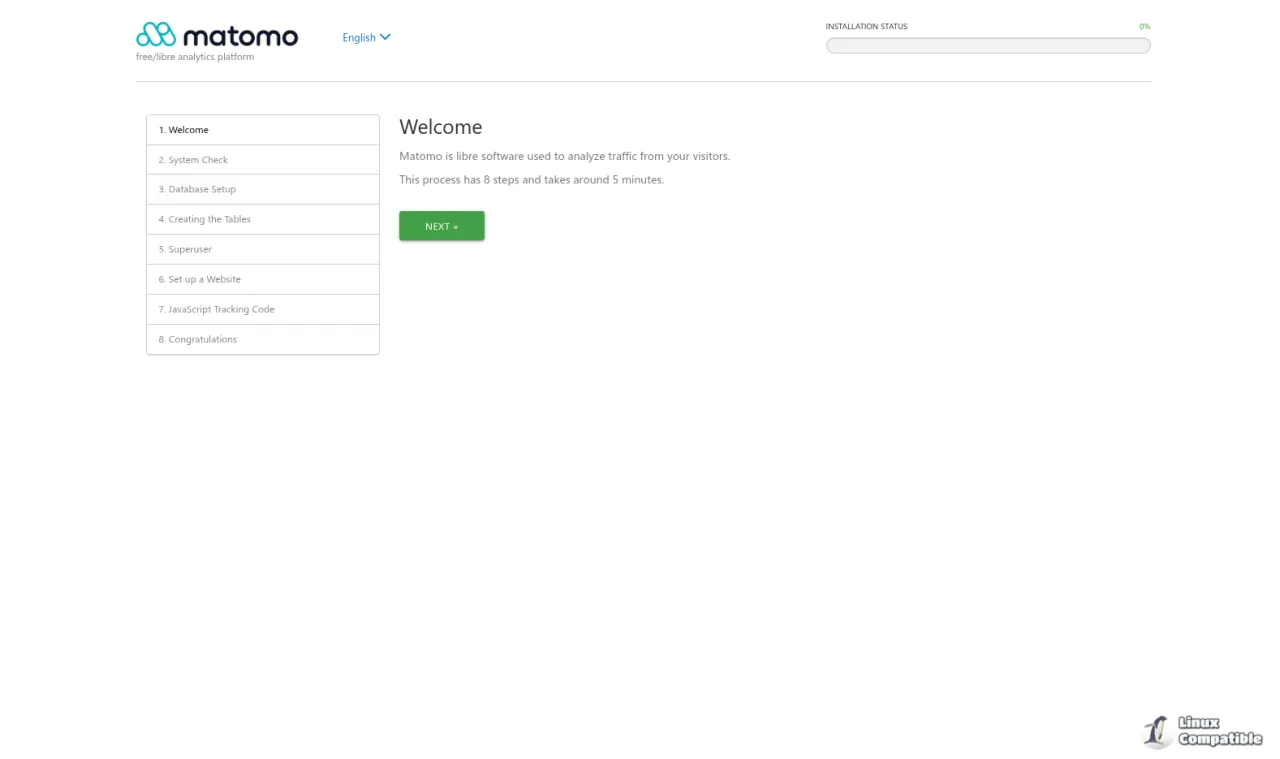
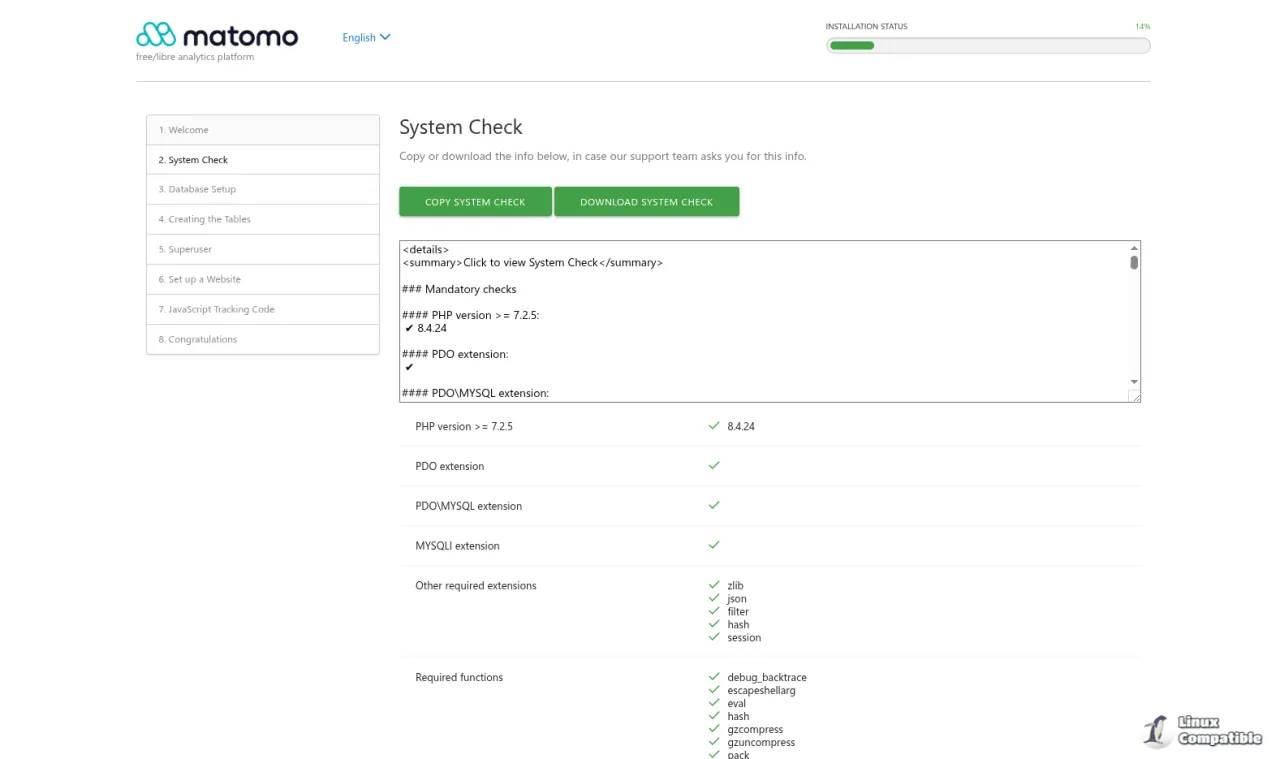
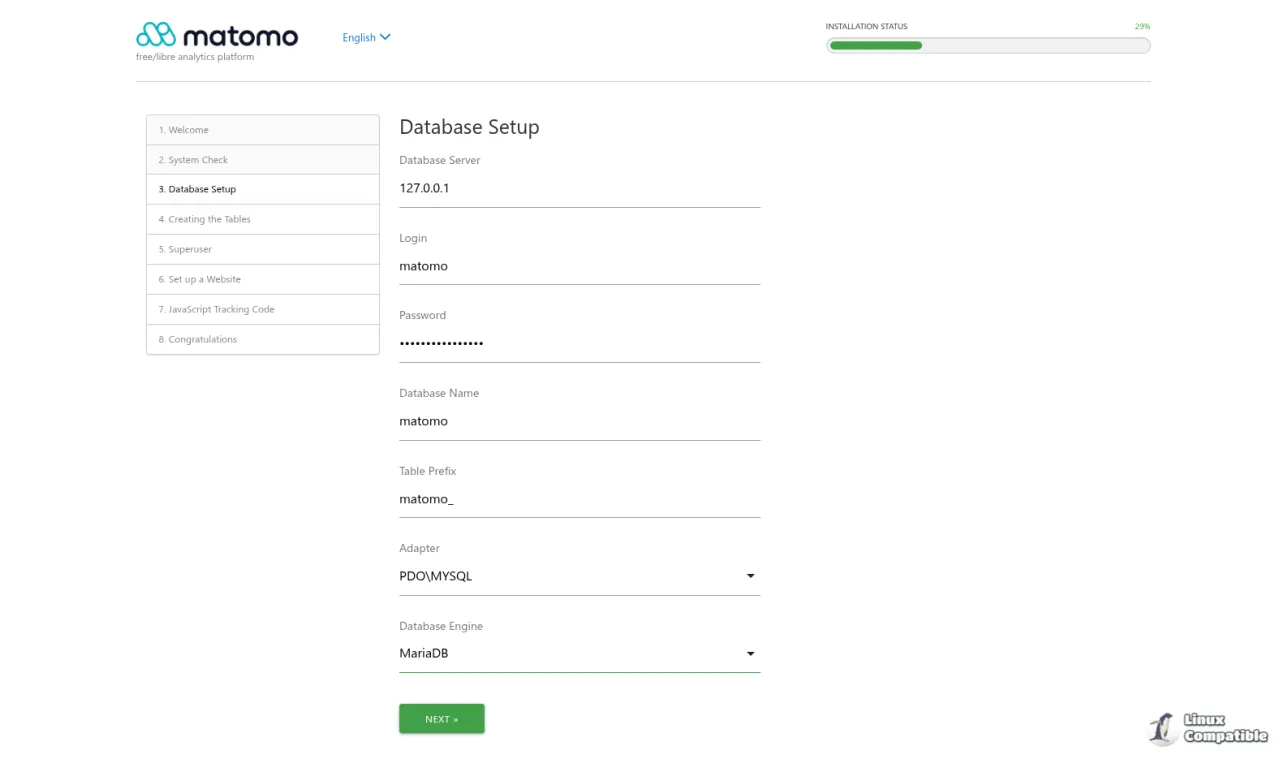
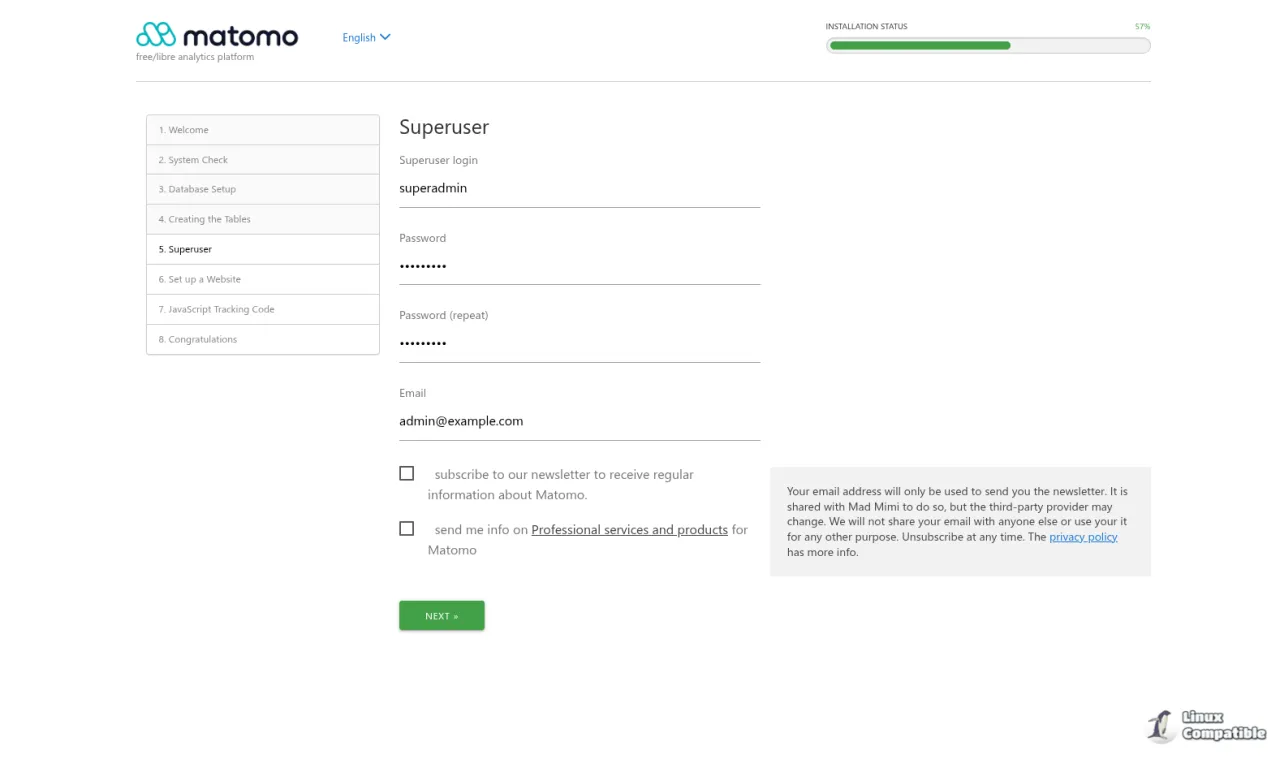
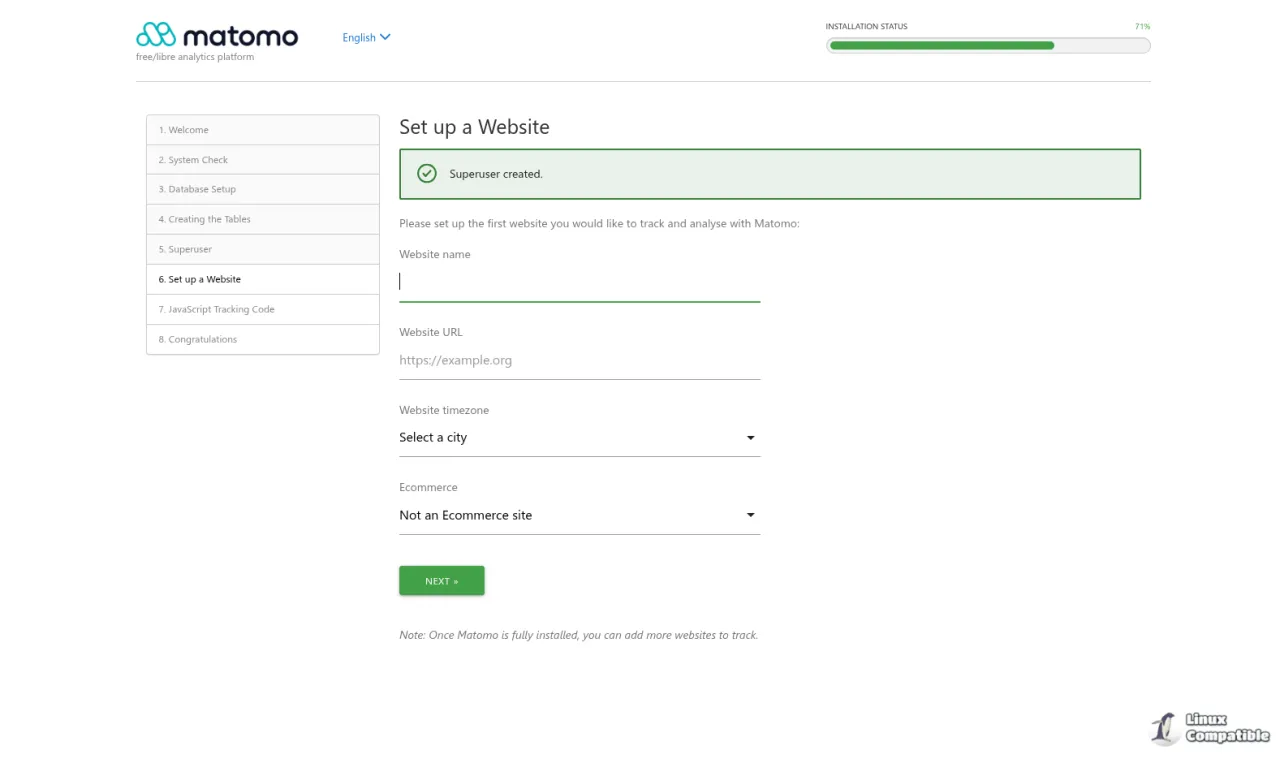
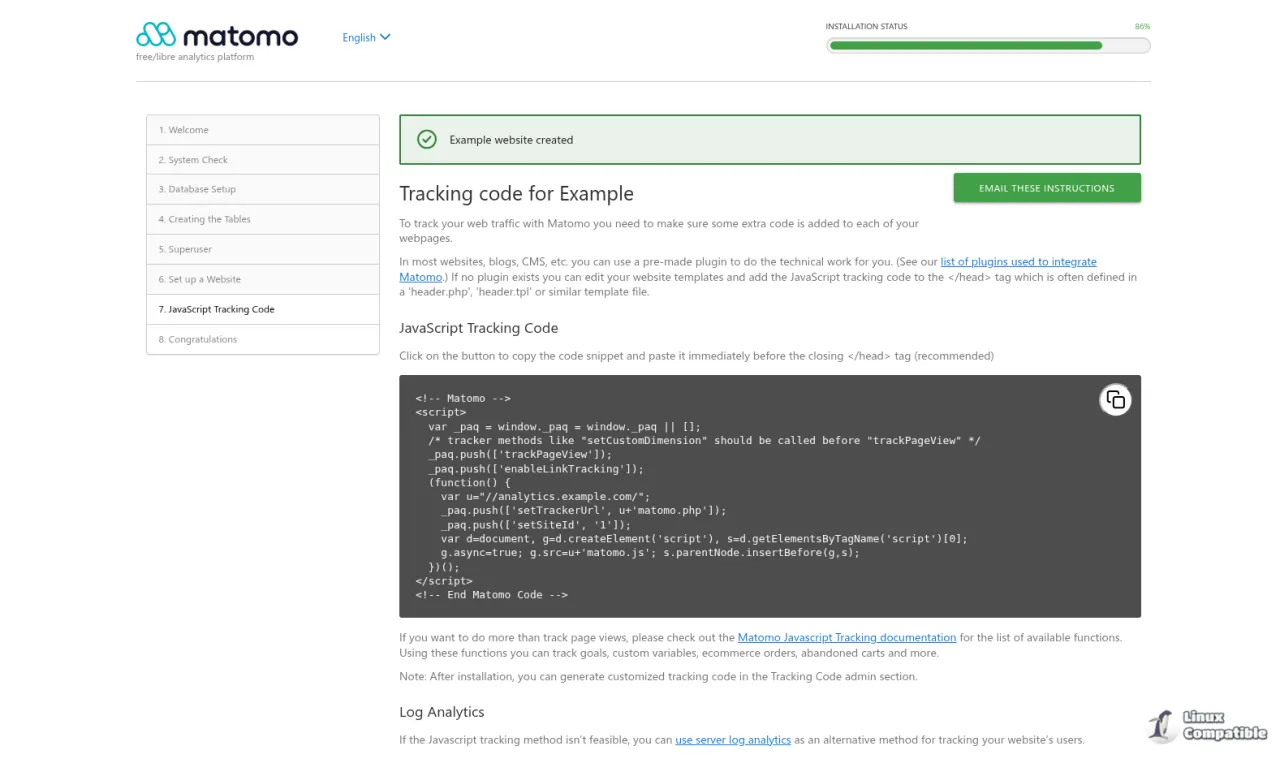
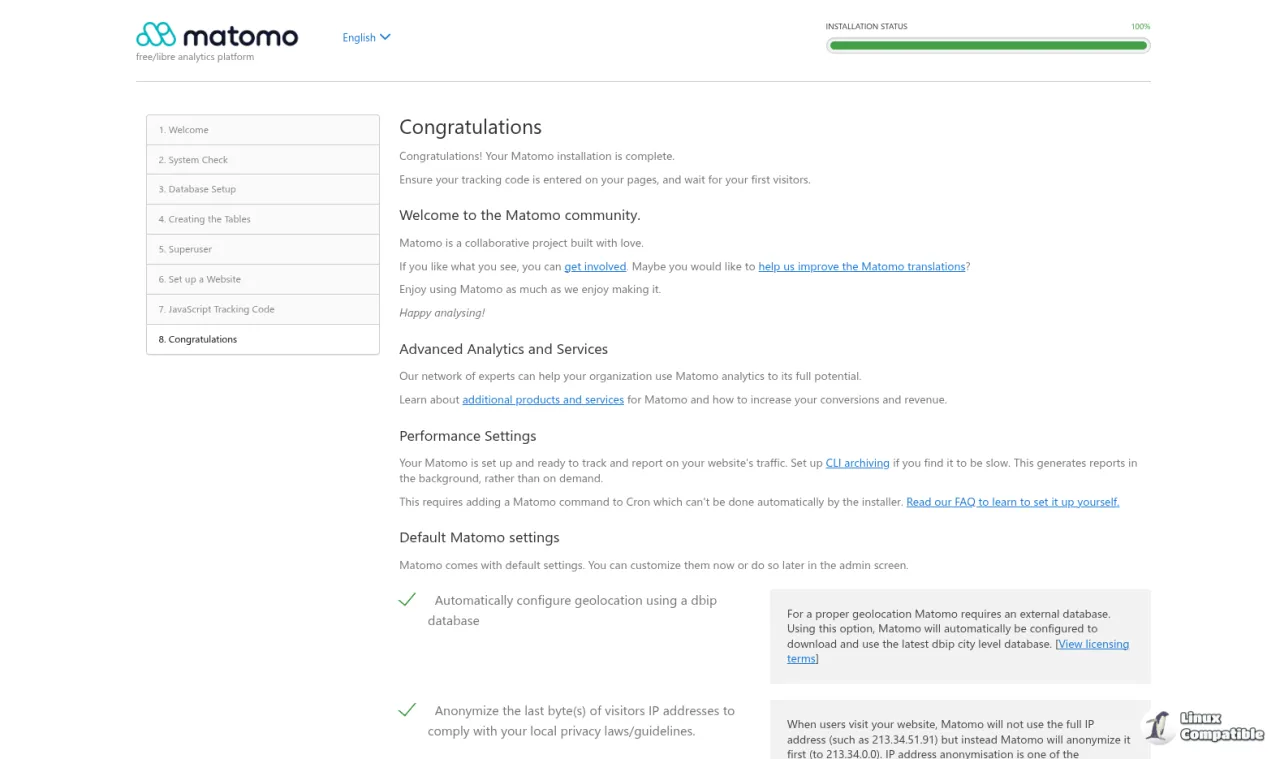
Open your browser and navigate to your domain. Follow the wizard:
- System Check: Confirm all requirements pass.
- Database: Enter localhost, user matomo, password set in Step 2, database matomo.
- Superuser: Create admin credentials.
- First Website: Enter your site URL and name.
- Tracking Code: Copy the JavaScript snippet for embedding.
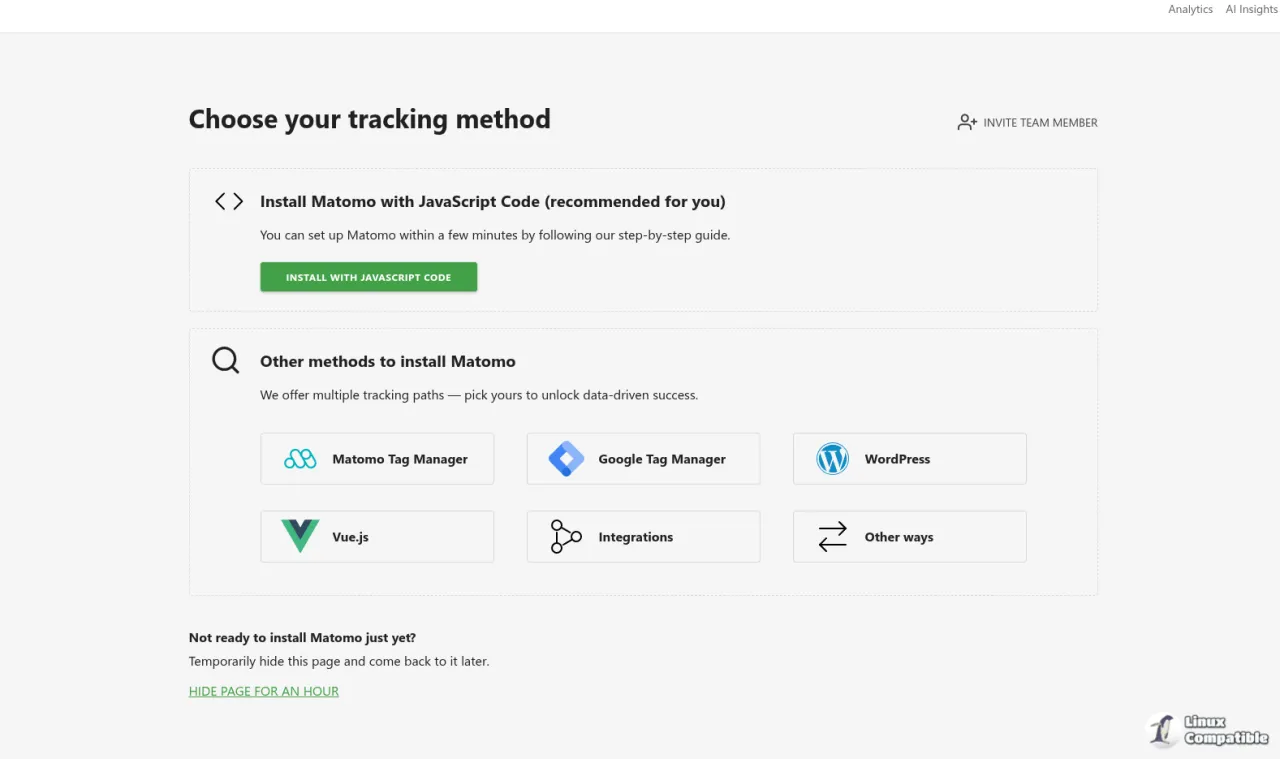
Concepts
| Term | Meaning | Example |
|---|---|---|
| Archiving | Background processing of raw tracking data into reports | console core:archive |
| Tracking ID | Unique identifier for a website in Matomo | UA-12345-1 equivalent: 1a2b3c4d |
| Superuser | Administrative account with full system access | Created during installation |
| Plugin | Extensible module for additional functionality | CustomDimensions, OptimizeDB |
| Drop-in Config | Configuration file in sites-available/ that overrides defaults | 99-matomo.conf |
Decision
| Method | Use It When | Notes |
|---|---|---|
| Apache | Shared hosting, .htaccess flexibility, simpler PHP integration | Slightly higher resource usage; .htaccess overrides possible |
| Nginx | High traffic, reverse proxy setups, faster static asset delivery | Requires explicit config; no .htaccess support |
| Docker Compose | Isolated environments, quick deployment, development | Volume management required; network overhead |
Recommendation: Use Nginx for production environments requiring high performance and reverse proxy integration. Use Apache for simpler deployments or when .htaccess overrides are needed. Use Docker for isolated testing or development environments.
Operational Management
Auto-Archiving with Cron
Matomo requires periodic archiving to process tracking data. Without it, reports load slowly.
Create a cron job for the www-data user.
sudo nano /etc/cron.d/matomo-archiveand add. Replace admin@example.com with your email address and analytics.example.com with your domain.
MAILTO="admin@example.com"
5 * * * * www-data /usr/bin/php /var/www/html/matomo/console core:archive --url=https://analytics.example.com/ > /var/log/matomo-archive.log 2>&1
Test the command manually.
sudo -u www-data /usr/bin/php /var/www/html/matomo/console core:archive --url=https://analytics.example.com/
Archiving for site ID 1
Processed website: 1
Done!
Log Inspection
Monitor archiving logs for errors.
tail -f /var/log/matomo-archive.log
Check for permission issues in web server logs.
For Apache:
sudo tail -n 50 /var/log/apache2/matomo_error.log
For Nginx:
sudo tail -n 50 /var/log/nginx/matomo_error.log
Extension
Enable SSL with Let's Encrypt
Secure your Matomo instance with HTTPS. Replace analytics.example.com with your domain.
For Apache:
sudo apt install certbot python3-certbot-apache -y
sudo certbot --apache -d analytics.example.com
For Nginx:
sudo apt install certbot python3-certbot-nginx -y
sudo certbot --nginx -d analytics.example.com
Follow the prompts. Certbot will configure HTTPS and redirect HTTP to HTTPS.
Plugin Installation
Install a plugin via the command line.
sudo -u www-data /usr/bin/php /var/www/html/matomo/console plugin:install PluginName --force
Safe-Testing
Before applying firewall rules or finalizing configuration, test from a second machine or disposable client. Never use your primary admin session for firewall changes.
- From a second machine, access http://your-server-ip
- Verify the dashboard loads and tracking works.
- For manual ban tests, use RFC 5737 documentation IPs (e.g., 192.0.2.1). Never use real IPs.
- Unban test IPs before closing the recovery session.
Removal
Step 1: Stop Services
sudo systemctl stop apache2 nginx php8.4-fpm
Step 2: Purge Packages
sudo apt purge apache2 nginx php php-fpm php-curl php-gd php-cli php-mysql php-xml php-mbstring php-zip php-intl php-opcache php-common mariadb-server -y
Step 3: Remove Configuration and Data
Preview files before removal.
ls -la /var/www/html/matomo
Remove Matomo files.
sudo rm -rf /var/www/html/matomo
sudo rm -rf /etc/matomo
Remove database.
sudo mysql -u root -e "DROP DATABASE matomo; DROP USER 'matomo'@'localhost';"
Step 4: Verify Removal
Check for empty directories.
ls /var/www/html/matomo
Remove if empty.
sudo rmdir /var/www/html/matomo
Troubleshooting
Permission Errors
Symptom: "Unable to write" messages in the dashboard.
Diagnostic:
ls -la /var/www/html/matomo/tmp
Fix:
sudo chown -R www-data:www-data /var/www/html/matomo/tmp
find /var/www/html/matomo/tmp -type d -exec chmod 755 {} \;
find /var/www/html/matomo/tmp -type f -exec chmod 644 {} \;
PHP Memory Exhausted
Symptom: Archiving fails with "Allowed memory size exhausted".
Fix: Increase memory_limit in /etc/php/8.4/apache2/php.ini or /etc/php/8.4/fpm/php.ini depending on your SAPI.
memory_limit = 1G
Restart the web server and PHP-FPM.
sudo systemctl restart apache2 nginx php8.4-fpm
Database Connection Issues
Diagnostic:
sudo -u www-data /usr/bin/php -r 'new PDO("mysql:host=localhost;dbname=matomo", "matomo", "StrongPassword");'
echo $?
Output 0 indicates success. Check bind-address in /etc/mysql/mariadb.conf.d/50-server.cnf.
Nginx: 404 Not Found on PHP Files
Symptom: Accessing PHP files returns 404 or 403.
Diagnostic:
sudo ls -la /run/php/php8.4-fpm.sock
sudo nginx -t
Fix: Ensure fastcgi_pass in your Nginx config points to the correct socket. Restart Nginx and PHP-FPM.
sudo systemctl restart nginx php8.4-fpm
SSL Mixed Content
Symptom: Dashboard loads over HTTPS but assets load over HTTP.
Fix: Update URLs in the database.
UPDATE matomo_site SET urls = REPLACE(urls, 'http://', 'https://');
Clear browser cache and reload Matomo.
Conclusion
You have installed Matomo 5.12.0 on Debian 13 with either Apache or Nginx, MariaDB, and PHP, configured auto-archiving via cron, and applied security hardening. For further optimization, explore Matomo plugins for enhanced reporting and data retention policies. Refer to the Matomo Documentation for advanced configuration options.


