Wine Staging 11.5 Release Adds Storage File Support and Vkd3d Updates for Linux Users
The Wine Staging 11.5 update arrives with specific improvements that might help run more Windows apps on Linux systems. This release introduces patches for storage files and JSON arrays while updating the Vulkan Direct3D backend for better graphics handling. Power users looking to test experimental code should know what changed before they upgrade their build environment.
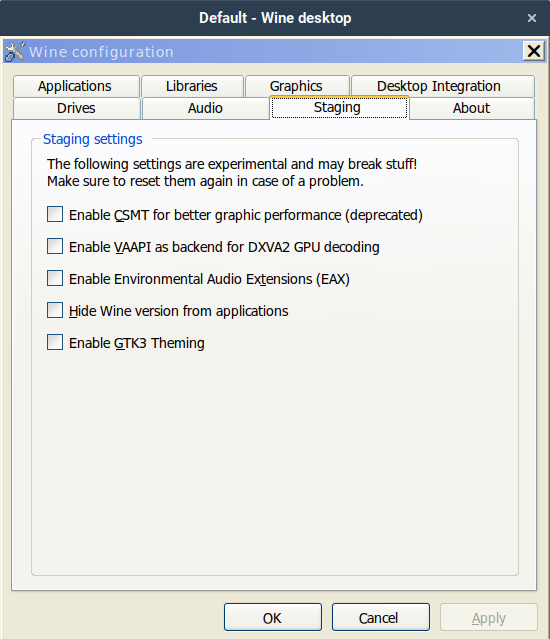
What actually changes in this Wine Staging 11.5 update
The core value of this release lies in the new patch sets that target specific compatibility gaps rather than broad stability fixes. The windows_storagefile patchset likely addresses how applications handle file operations, which is a common pain point for users running productivity tools or games that rely on strict Windows API behaviors. Another notable addition is the windows_web_json_array patchset, suggesting improvements in how web-based components within Wine interact with modern JSON structures. The updated vkd3d-latest patchset brings support for newer Direct3D features through Vulkan drivers, which is critical for gamers who need better graphics performance on Linux hardware.
Staging builds are inherently riskier than the main development branch because they contain unreviewed patches intended for discussion before integration. Users should expect that while some applications might run better with these changes, others could encounter regressions due to experimental code paths. It is best to treat this version as a testing ground rather than a daily driver unless you are comfortable troubleshooting potential breakages in the compatibility layer itself.
How to install the wine-staging package on your system
Most Linux distributions and Mac OS X systems provide ready-to-use packages that simplify the installation process significantly compared to building from source. Users should verify if their package manager installs the binaries to /opt/wine-staging before attempting to launch applications, as this path requires specific commands to execute correctly. Instead of typing just wine, users might need to enter /opt/wine-staging/bin/wine or use similar full paths for configuration tools like winecfg depending on their distribution setup.
Following the official installation instructions for your specific operating system ensures that all necessary dependencies are resolved without manual intervention. It is worth noting that multiple Wine versions can be installed in parallel, so users must keep track of which binary corresponds to which version to avoid accidental usage of the wrong compatibility layer. This distinction becomes important when managing projects that require different stability levels or feature sets for testing purposes.
Ubuntu / Debian
Add the official WineHQ repository:
sudo dpkg --add-architecture i386
sudo mkdir -pm755 /etc/apt/keyrings
wget -O /etc/apt/keyrings/winehq-archive.key https://dl.winehq.org/wine-builds/winehq.key
echo "deb [signed-by=/etc/apt/keyrings/winehq-archive.key] https://dl.winehq.org/wine-builds/ubuntu/ $(lsb_release -cs) main" | \
    sudo tee /etc/apt/sources.list.d/winehq.list > /dev/null
Adding the repository matters because the default Ubuntu repos only contain the stable wine package; without this step you’ll never see wine-staging in the cache.
Update APT and install:
sudo apt update
sudo apt install --install-recommends winehq-staging
Run it with the full path: /opt/wine-staging/bin/wine. Using the explicit binary avoids accidental fall‑backs to the stable version that lives in $PATH.
Fedora
sudo dnf install wine-staging
The Fedora package also lands under /opt/wine-staging, so invoke it with /opt/wine-staging/bin/wine or create a shortcut alias.
Arch Linux (AUR)
yay -S wine-staging-bin
The AUR tarball extracts straight to /opt/wine-staging. Again, call the binary from that directory.
Building from source requires careful patch management
For those who prefer compiling their own environment, Wine Staging is maintained as a set of patches applied on top of the development branch source tree. The recommended method involves using the patchinstall.py utility to ensure all patches are applied in the correct order without manual errors causing build failures. Users must specify the destination directory for the wine source tree and can use flags like --all to select every available patchset during the installation process.
Before starting the compilation, it is essential to install all additional build dependencies required for the specific Wine Staging features you intend to enable. Checking the output of ./configure will reveal any missing libraries or tools needed to support the new functionality in this release. Relying on the wiki for hints regarding packagers and optional build dependencies saves time when resolving complex configuration issues during the setup phase.
Grab the development tree
git clone https://github.com/winehq/wine.git && cd wine
Pulling the latest dev branch ensures all staging patches apply cleanly.
Apply Staging patches
– ./staging/patchinstall.py DESTDIR="$(pwd)" --all
The script orders the patches correctly; skipping it means you’ll spend hours fighting “already applied” errors.
Install build dependencies – on Ubuntu, for example:
sudo apt-get install build-essential gcc-multilib libx11-dev \
    libfreetype6-dev libglib2.0-dev libgstreamer1.0-dev \
    libvulkan-dev mesa-common-dev
Missing a single library often shows up as “configure: error: missing X” later, so double‑check the output of ./configure.
Configure and compile –
./configure --enable-win64 && make -j$(nproc)
sudo make install
The --enable-win64 flag builds both 32‑bit and 64‑bit wine prefixes, which is handy for older Windows games that still run in 32 bits.
Run your first app – /usr/local/bin/winecfg to generate a prefix, then launch anything with /usr/local/bin/wine program.exe.
For those ready to test the latest experimental features, Wine Staging 11.5 offers a chance to see how these patches hold up under real-world usage before they hit the main branch. Just remember that with new code comes new potential for bugs, so keeping backups of your working configurations is always wise practice. Happy testing and good luck with those Windows apps on Linux.


