Tails 7.5 Released: Fresh Tor Browser, Thunderbird Upgrade, and More
Tails 7.5 arrives with a cleaner Tor Browser home page, an updated Tor client, and a big leap in email security thanks to the newest Thunderbird version. It also drops a Mexican Spanish language pack into the mix so bilingual users can keep their privacy intact without switching keyboards.
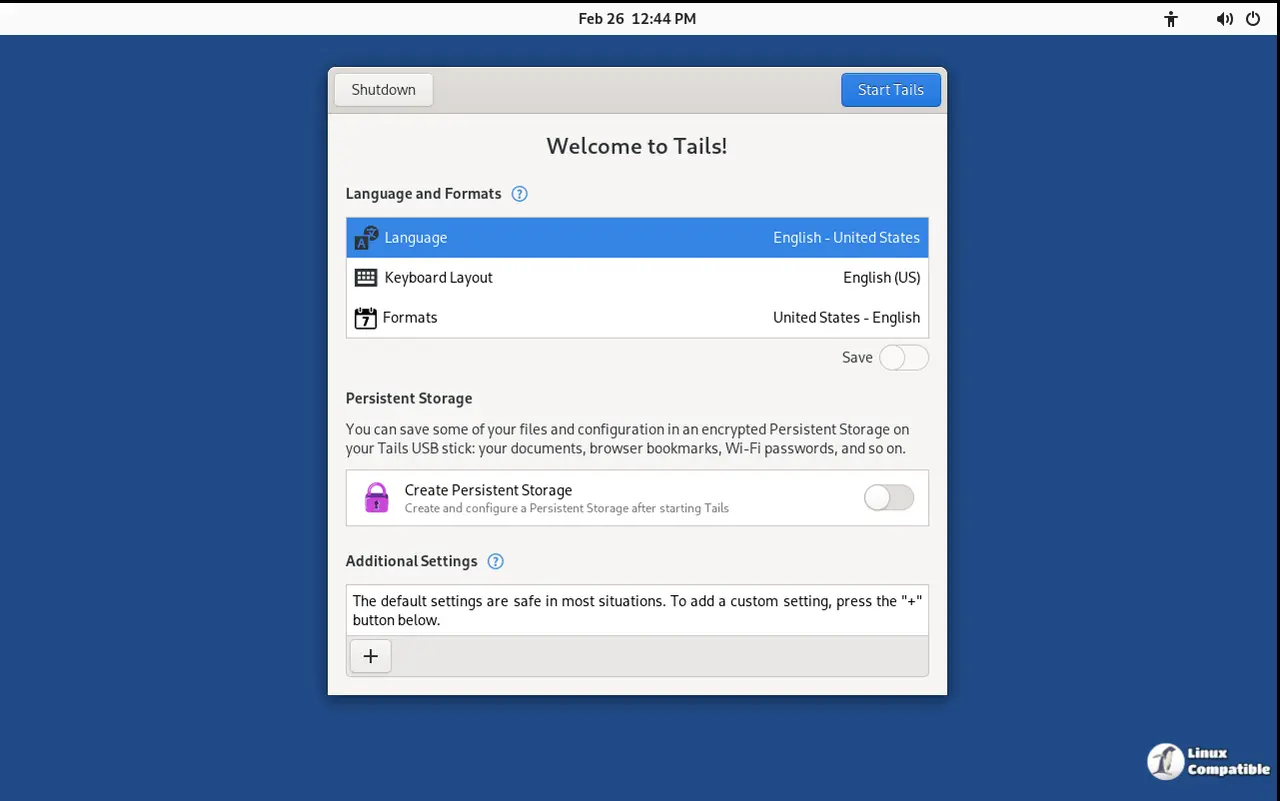
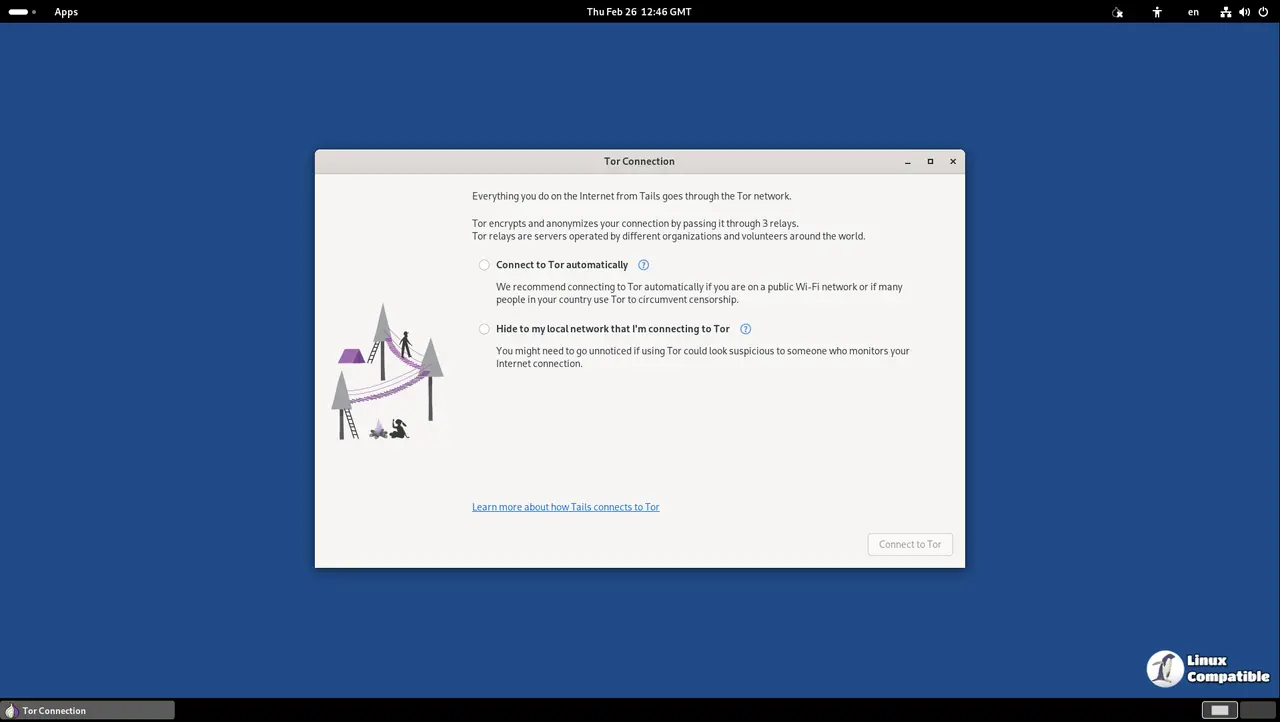
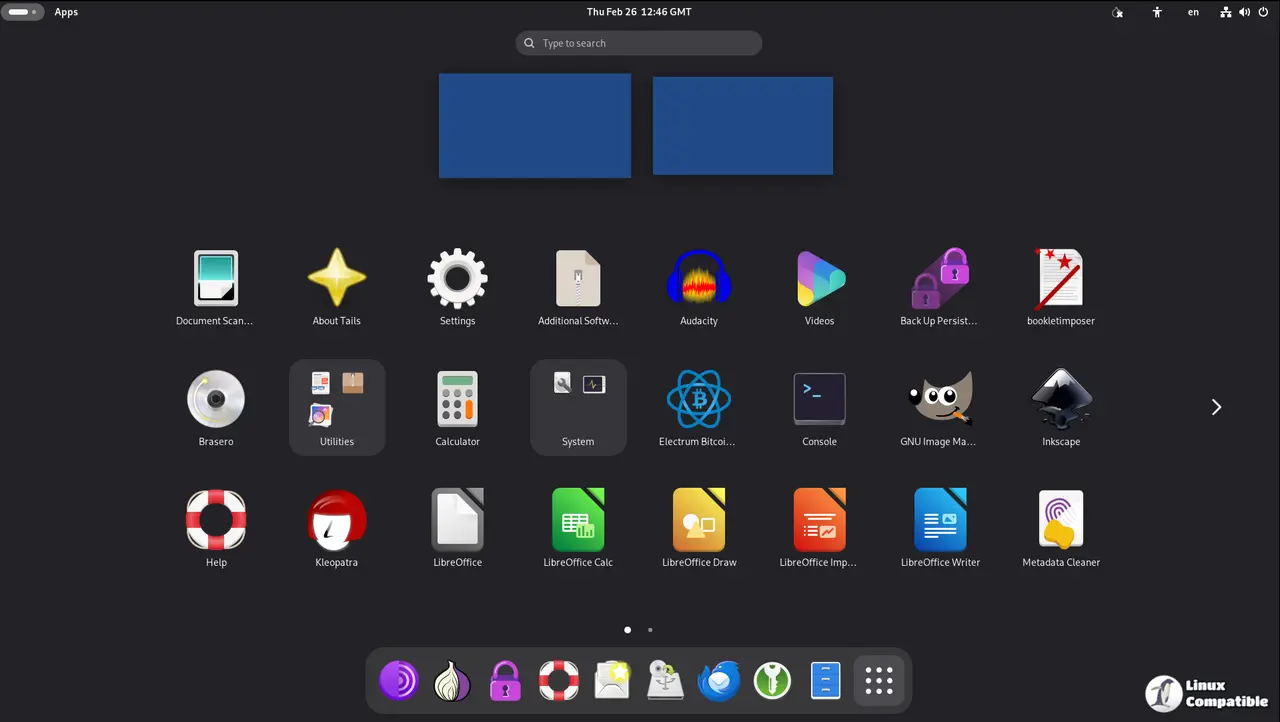
Tails 7.5 Overview
The new release fixes several long‑standing quirks. For instance, before 7.5 Thunderbird was stuck on an older build that had a known vulnerability allowing malicious sites to trick users into installing malware. Now the fresh build is pulled straight from Mozilla’s repository every time Tails boots with Persistent Storage enabled.
Tor Browser Gets a Facelift
The Tor Browser update bumps it to 15.0.7, and the home page has been stripped of clutter so that privacy‑first features are front and center. Users who have spent hours hunting for the “New Identity” button will appreciate the quicker navigation.
Thunderbird’s Security Revamp
Installing Thunderbird as additional software means the latest version is automatically staged in Persistent Storage. When a user opens Thunderbird, a migration dialog appears confirming the upgrade—this is a clear sign that the new build is active. The updated client eliminates several zero‑day exploits that older releases were vulnerable to.
A real‑world example: a privacy advocate who upgraded from 7.4 found that her previous Thunderbird version had an unpatched flaw allowing phishing sites to masquerade as legitimate mailers. Switching to 140.7.1 immediately closed that window.
Mexican Spanish Language Pack
Beyond the standard Spanish (Spain) pack, Tails now ships with Mexican Spanish. This addition is handy for users who rely on local dialects or want spell‑check that matches regional usage—especially useful when reading legal documents or news in Spanish.
Upgrading Your USB Stick
Automatic upgrades are available from 7.0 onward to 7.5. The process simply requires the user to select “Upgrade” during boot and Tails pulls the new ISO over the old one, preserving all persistent data. If an automatic upgrade fails or Tails refuses to start afterward, a manual reinstall is the fallback: download the fresh ISO from the official site, write it to a USB stick with Rufus (Windows) or dd (Linux), then restore Persistent Storage from backup.
Manual Upgrade Tips
When performing a manual install, remember that the Persistent Storage image must be mounted after boot. If the user sees an error about incompatible storage, delete the old persistent file and start fresh—Tails will recreate it with the updated configuration.


