The article outlines the key under‑the‑hood changes introduced in Budgie 10.10.1 and provides practical fixes for common post‑upgrade problems such as non‑functional brightness keys (solved by deleting an outdated rc.xml file so the new budgie‑brightness‑helper is used), new focus‑behaviour options including a “Sloppy” mode, and unreliable panel hiding that can be corrected by toggling with Super or disabling intelligent hiding. It also notes that graphical tools launched via pkexec now correctly inherit Wayland environment variables, requiring an updated libgnome‑volume‑control if issues persist. A concise checklist at the end summarizes these steps to ensure a smooth transition to the new release.
Budgie 10.10.1 – What actually changed and how to make it work for you
If you’ve just upgraded to Budgie 10.10.1 you’ll notice a handful of under‑the‑hood tweaks that can bite the unwary. This guide walks through the most common gotchas—brightness keys, sloppy focus, panel hiding—and shows you the exact commands to get everything behaving like it should.
Brightness keys stopped working? Here’s why and how to fix it
After the update the old GNOME Settings Daemon is gone, so the XF86MonBrightness* shortcuts now call a tiny helper called budgie‑brightness‑helper. I ran into this on my Dell XPS when the keys suddenly did nothing after the upgrade; the screen stayed dim no matter how many times I hit Fn+F6.
Open a terminal and test the helper directly:
budgie-brightness-helper --up
budgie-brightness-helper --downIf you see the backlight change, the problem is just the keybinding.
Check whether your personal rc.xml still contains the old bindings. It lives in ~/.config/budgie-desktop/labwc.
The easiest fix is to delete that file; Budgie will recreate a fresh one on next login with the correct commands.
rm ~/.config/budgie-desktop/labwc/rc.xml
Log out and back in, then hit your brightness keys again. They should now adjust the display without any extra fiddling.
Why delete the file instead of editing it? The regenerated version is guaranteed to match the helper’s current location, so you avoid a mismatch that can happen after future updates.
Sloppy focus – finally an option that isn’t just “click‑to‑focus”
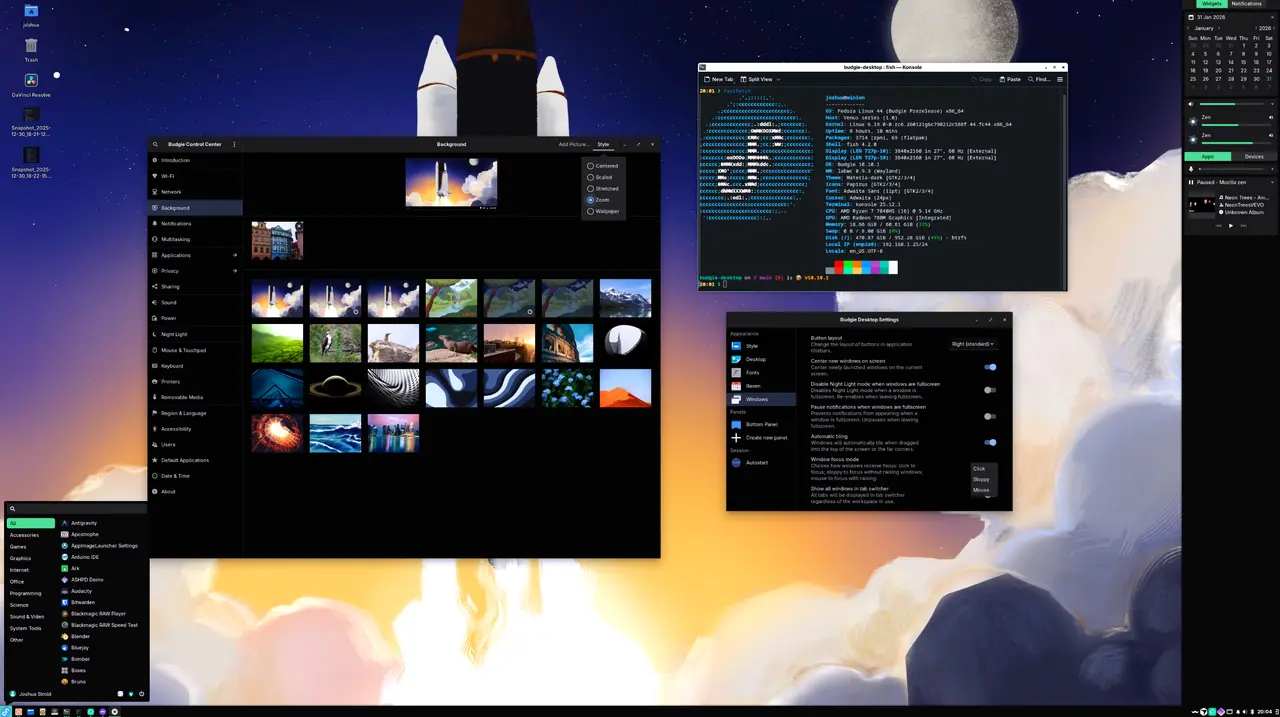
Budgie 10.9 only let you click windows to give them focus. With the switch to the labwc compositor you now have three modes: Click‑to‑focus, Mouse (focus + raise on entry), and Sloppy (focus on entry, no raise). I tried the sloppy mode on a dual‑monitor setup; it felt like using a tiling window manager without the learning curve.
- Open Budgie Desktop Settings → Window Management.
- Find the Focus Behavior dropdown and pick “Sloppy”.
- If you want to keep focus but prevent windows from jumping to the front, stay in Sloppy; otherwise choose Mouse.
A quick test: move your cursor across a window without clicking. In Sloppy mode the title bar highlights (focus) but the window stays behind any already‑raised apps. This is handy for glancing at a terminal while you type elsewhere.
Heads‑up: some transient dialogs—like the power dialog—still disappear too quickly in sloppy mode. The developers promised a fix, so if you notice that behavior, consider switching back to Click‑to‑focus until the next point release.
Panels that hide when they shouldn’t (or never show up)
The new “intelligent hiding” tries to keep panels out of the way when a window is maximized. In practice I saw my bottom panel vanish on a single monitor and refuse to reappear after closing the app. The culprit was the compositor’s handling of layer changes.
To get reliable hide/show behavior:
- Press Super (the Windows key). That forces Budgie to toggle the panel back on, regardless of what the compositor thinks.
- If you prefer panels always visible, open Budjie Control Center → Panel → Behavior and disable “Intelligent hiding”.
On a laptop with an external monitor, make sure the primary display is set correctly in your labwc config; otherwise the dock‑mode panel may align to the wrong screen.
pkexec apps now respect Wayland variables
If you launch graphical tools via pkexec (e.g., pkexec gparted) and they crash with “cannot open display”, it’s because the environment variables WAYLAND_DISPLAY and XDG_RUNTIME_DIR weren’t being passed before 10.10.1. The fix is baked in, but you need a recent libgnome‑volume‑control for audio mixers.
Just run your privileged app as usual; if you still hit an error, reinstall the updated libgnome-volume-control package from your distro’s repository.
Quick checklist after upgrading to Budgie 10.10.1
- Delete or refresh ~/.config/budjie-desktop/labwc/rc.xml for proper brightness keys.
- Pick a focus mode that matches your workflow; Sloppy is now an option.
- Test panel hide/show with Super; disable intelligent hiding if it’s flaky.
- Verify pkexec tools launch without errors; update libgnome‑volume‑control if needed.
That’s the meat of what changed, and how to keep your desktop from acting like a half‑finished experiment.
Download
The source code can be downloaded from GitHub:
Release Budgie 10.10.1
Budgie 10.10.1 is our first minor release of the Budgie 10.10 series. This release improves stability, fixes bugs, expands on our labwc support, and more! Read the announcement: https://buddiesofbu...