PikaOS 26.02.03 has been released with a new kernel and drivers, but users who upgraded from an older ISO need to run a migration script to fix their console keymap and encrypted boot issues. The migration involves deleting old config files, setting a generic keymap, fixing package references, installing the kbd stack, refreshing packages, applying the actual keymap, and recreating initramfs images. Users can choose from various editions of PikaOS, including GNOME, KDE, Hyprland, COSMIC, and Niri, each with two variants: regular and NVIDIA, depending on their GPU requirements.
PikaOS 26.02.03 Keyboard Migration – What You Need to Do After the Update
PikaOS 26.02.03 arrived on Tuesday with a fresh kernel, newer drivers and a mandatory switch from Debian’s console-data to kbd. If you upgraded from an older ISO you’ll need to run a short migration script or your console will start spewing the wrong characters and break encrypted boot. This article tells you which flavor matches your hardware and walks through the exact commands to get legacy installs back in shape.
Which PikaOS edition should you download?
GNOME Edition – Built on GNOME 49, it ships with the GNOME Appearance settings that let you jump between six visual themes (Windows‑like, Apple‑inspired, Unity feel and the standard GNOME looks). If you like a familiar Wayland experience with a polished settings panel, this is the one to grab.
Download GNOME Standard ISO
Download GNOME NVIDIA ISO
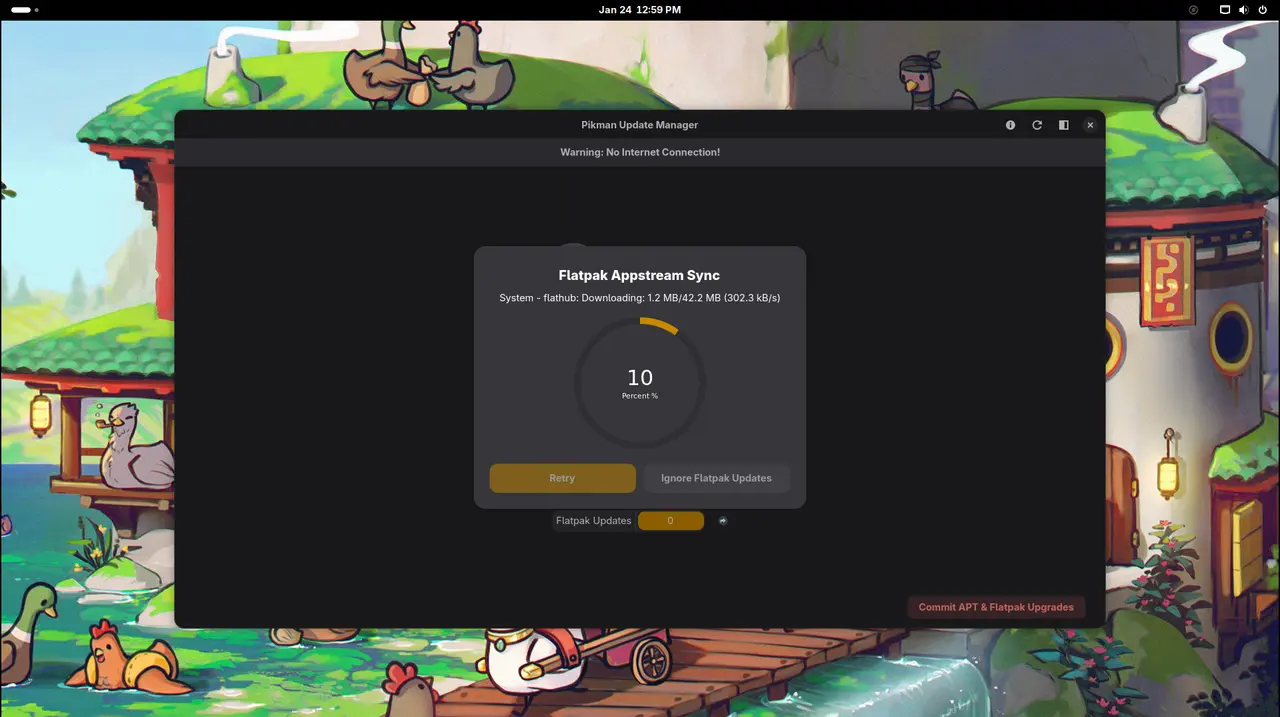
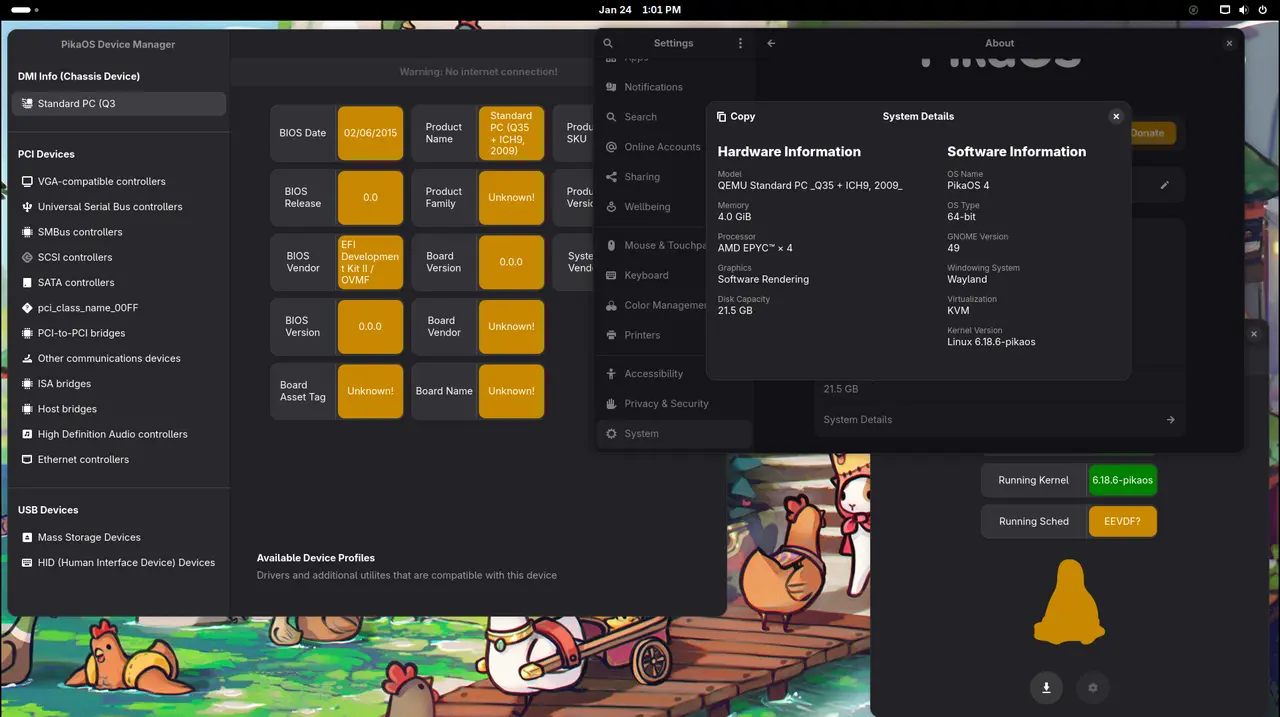
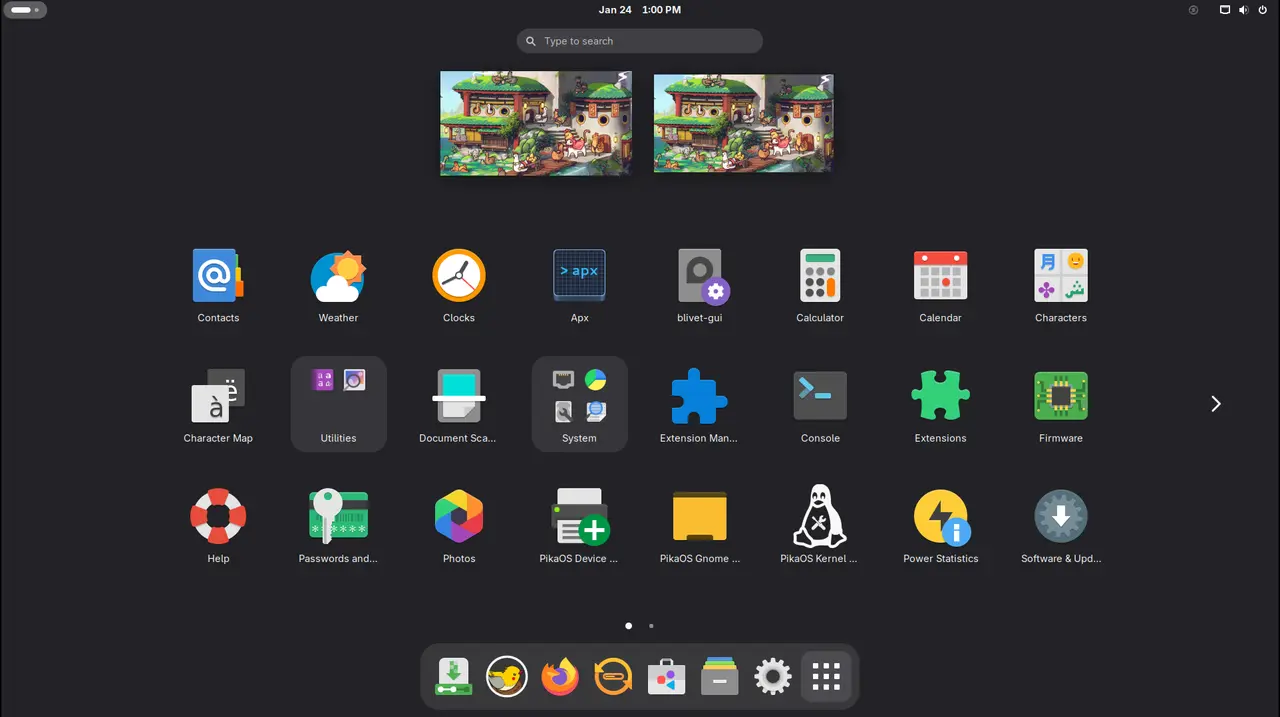
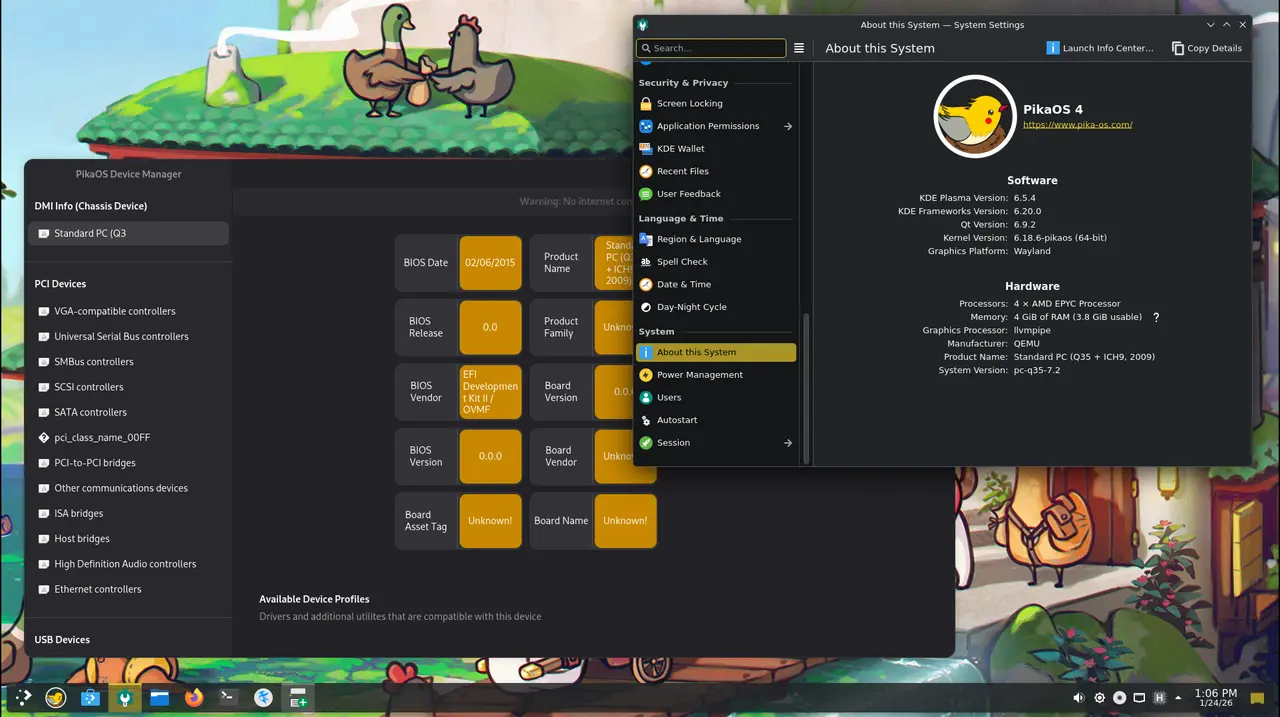
KDE Edition – Runs KDE Plasma 6.5 out of the box. The desktop is heavy on eye‑candy but still respects the distro’s O3/LTO kernel tweaks, so you get smooth animations without sacrificing game performance.
Download KDE Standard ISO
Download KDE NVIDIA ISO
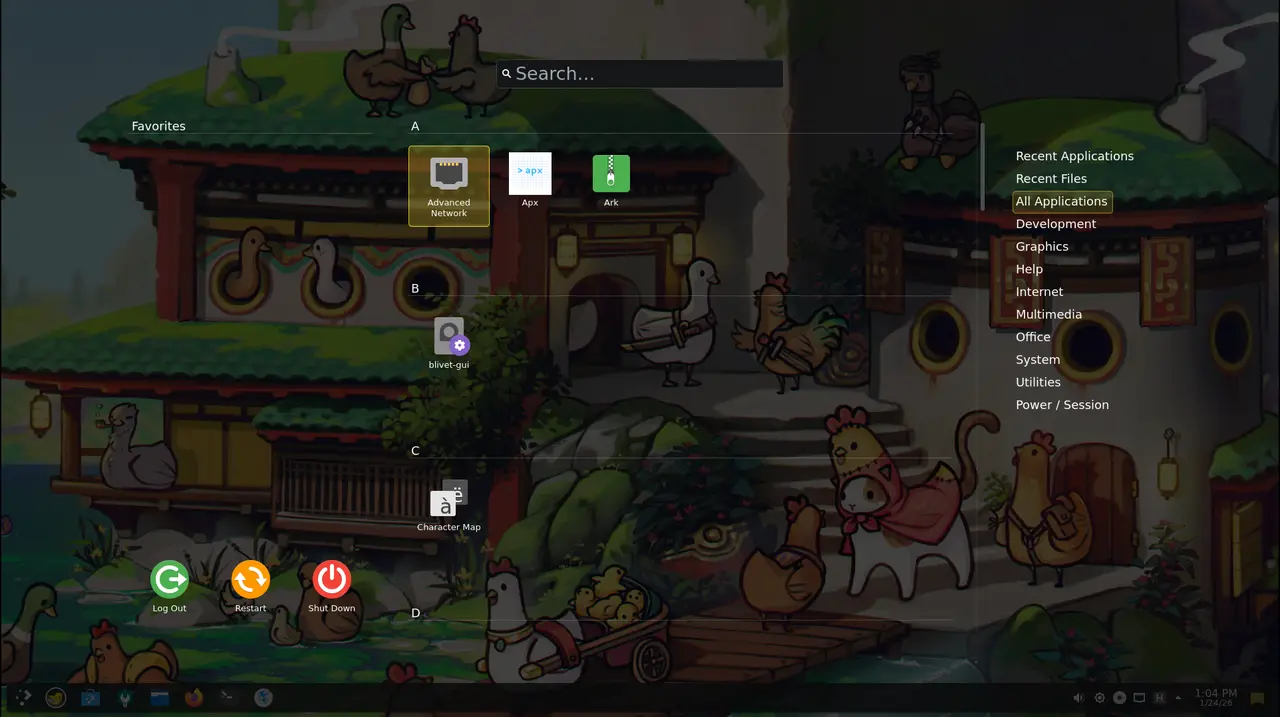
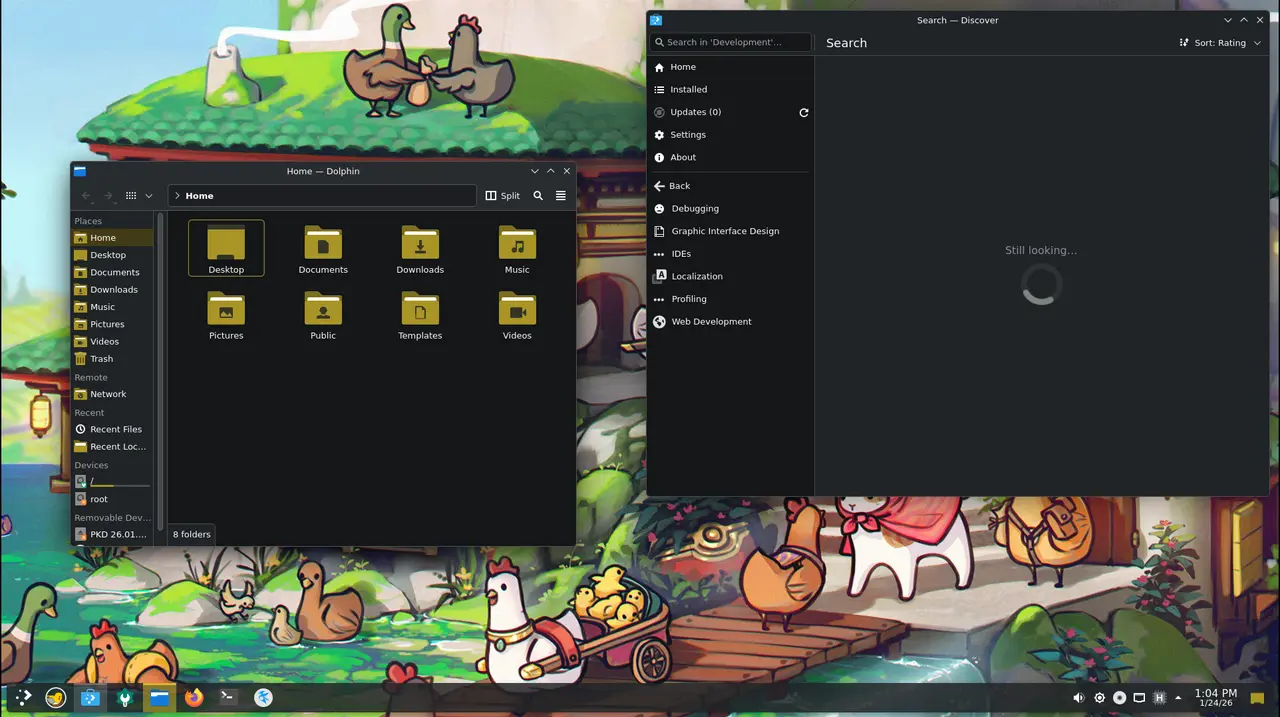
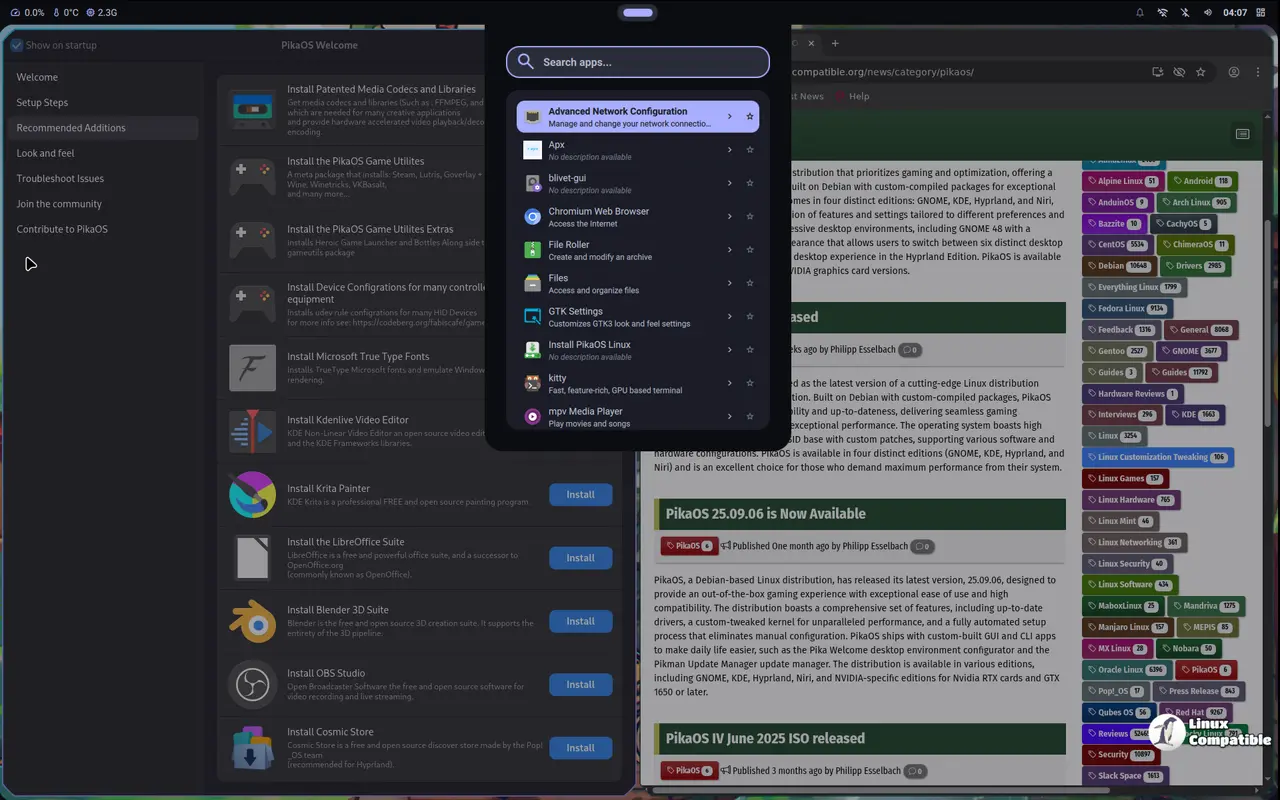
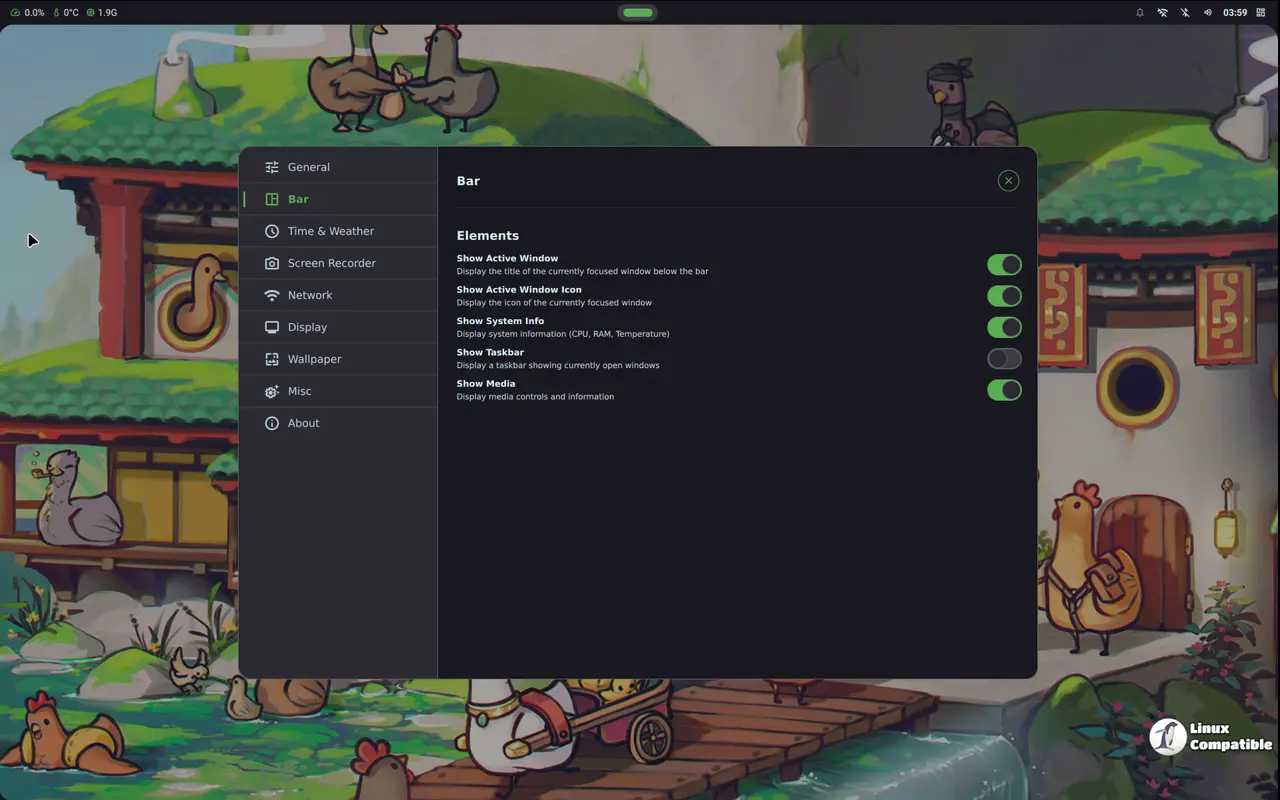
Hyprland Edition – Pairs the Hyprland compositor with the Noctaria shell. It’s a fast Wayland stack that excels at dynamic window tiling; perfect if you enjoy customizing every corner of your workspace.
Download Hyprland Standard ISO
Download Hyprland NVIDIA ISO
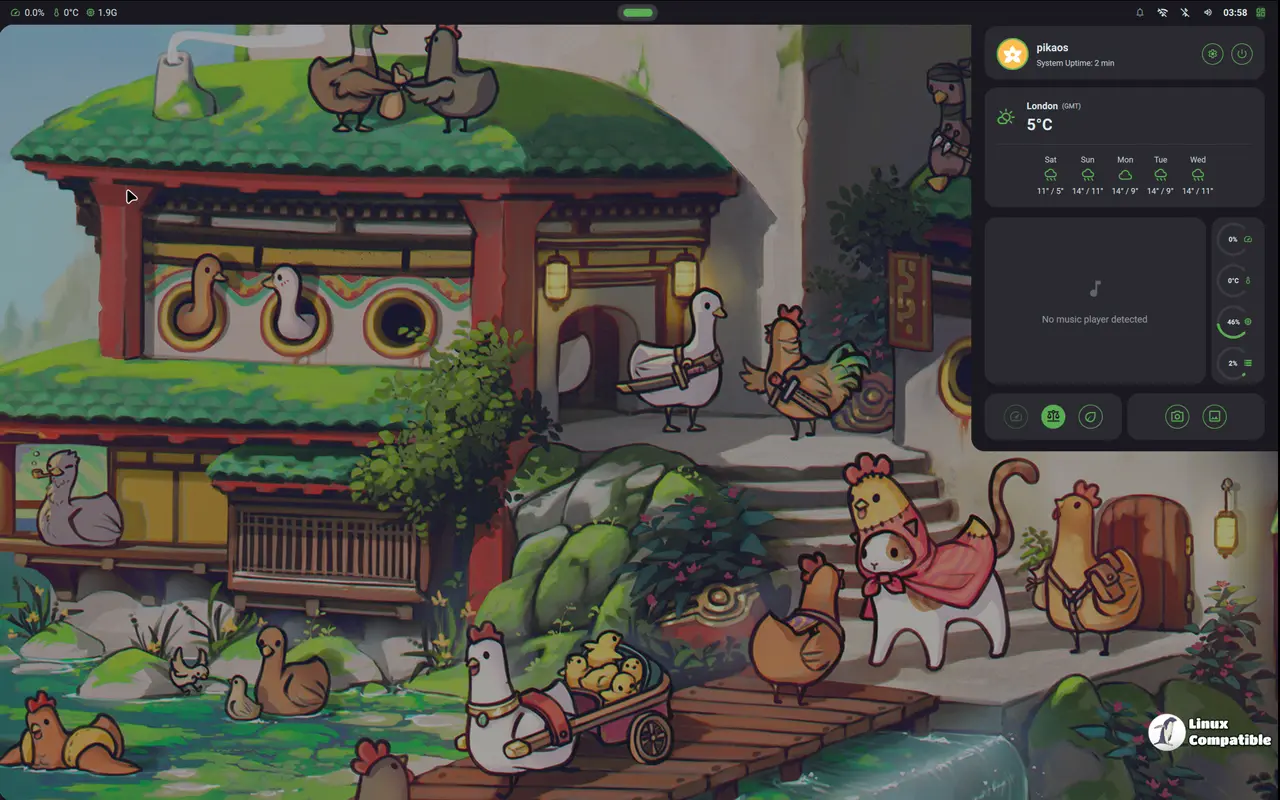
COSMIC Edition – Uses System76’s COSMIC desktop, which is written in Rust. The Rust codebase translates into a responsive UI that doesn’t lag when you fling windows around.
Download COSMIC Standard ISO
Download COSMIC NVIDIA ISO
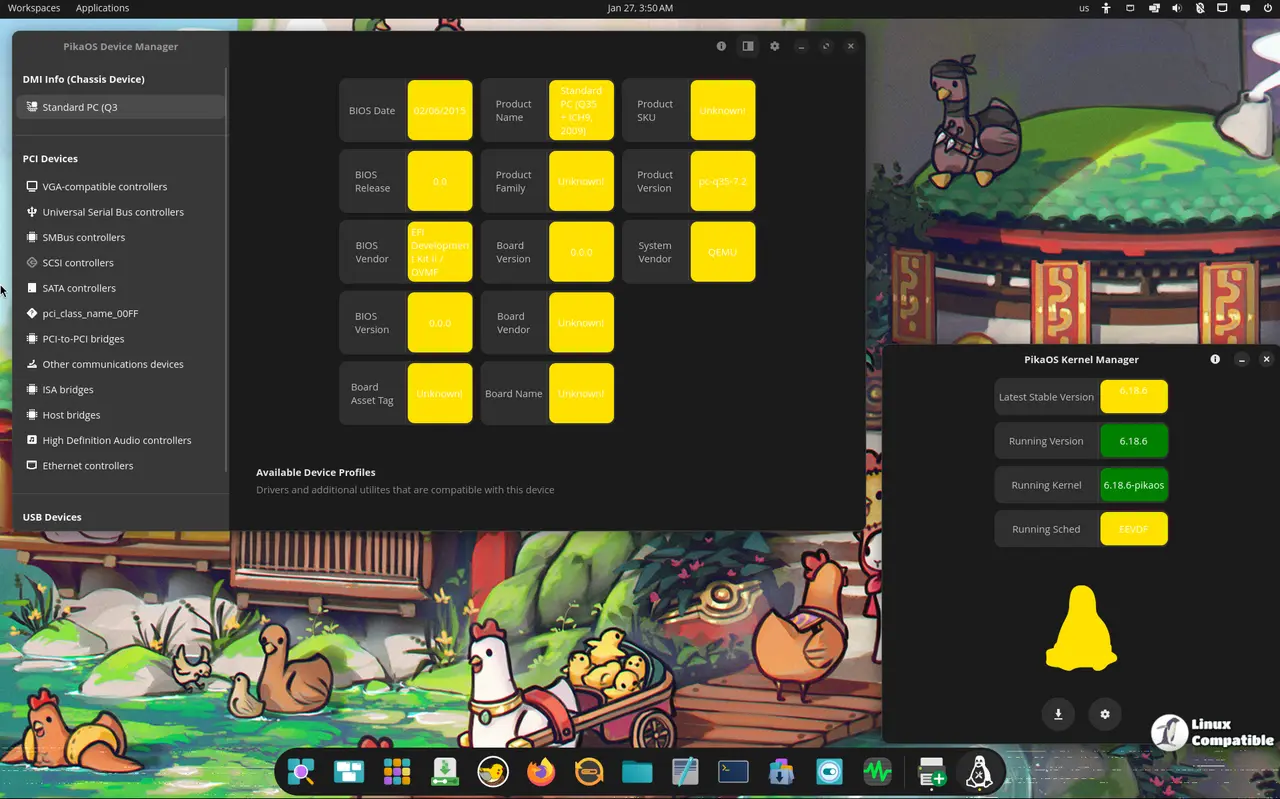
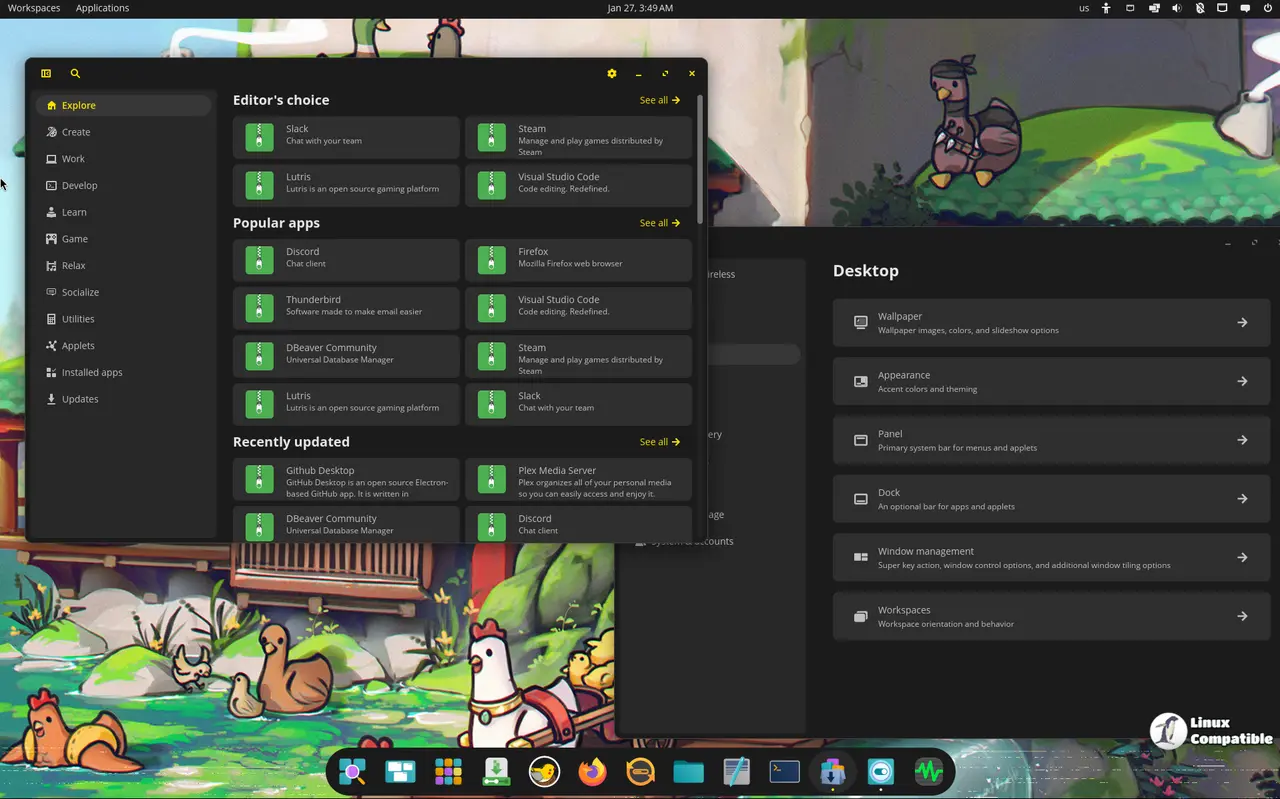
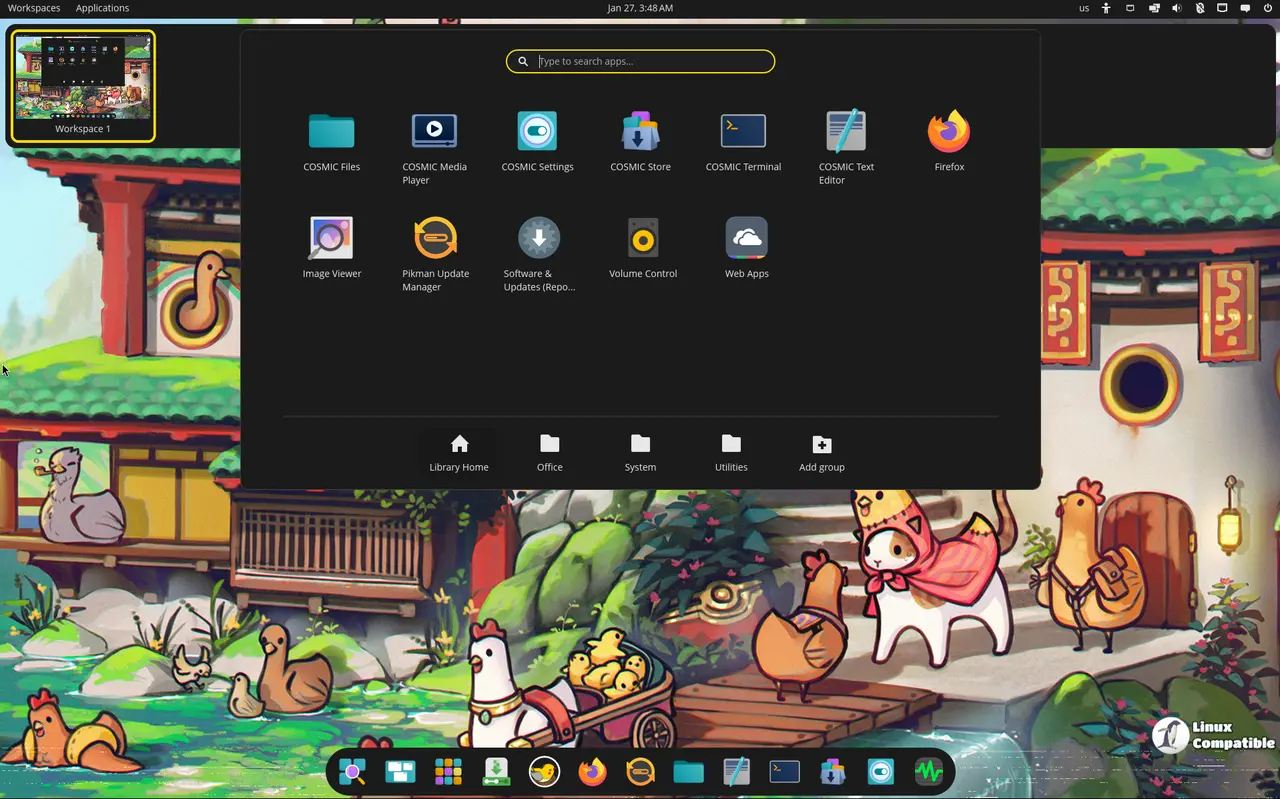
Niri Edition – Niri’s scrollable‑tiling approach gives you infinite columns across the screen. It’s lightweight, works well on low‑power laptops and feels snappier than most compositors because it avoids unnecessary layers.
Download Niri Standard ISO
Download Niri NVIDIA ISO
Handheld ISO (coming soon) – All editions will eventually get a portable build for the Steam Deck and similar devices, but it isn’t ready yet, so stick with the standard or NVIDIA images for now.
All flavors come in two variants: regular and NVIDIA. The NVIDIA ISOs bundle the proprietary driver and are only needed for RTX‑series cards or GTX 1650 and newer. If you have a GTX 1080 Ti or older, the standard ISO with Nouveau will work fine.
Who needs to run the migration?
- Any machine installed before 03 Feb 2026 (the version number is 26.02.03).
- Systems that show “Failed to set keymap” during boot or complain about missing /etc/vconsole.conf.
- Users who notice their live session keyboard layout working but the tty showing garbled characters.
If you installed today, you’re already on kbd and can skip this section.
Migration steps – why each command matters
Find your KBD keymap name – The KBD database uses plain two‑letter codes (us, de, fr).
setxkbmap -query | grep layout
This tells you the string you’ll later hand to localectl.
Delete the old console config files – They were generated by console-data and will confuse kbd.
sudo rm -rf /etc/default/keyboard
sudo rm -rf /etc/vconsole.confTemporarily set a generic keymap – Clears any stale locale1 bindings that might still be cached.
sudo localectl set-keymap us
Fix broken package references – The migration brings new dependencies; this makes the package manager happy before we add anything else.
sudo apt install --fix-broken
sudo apt updateInstall the proper KBD stack – Supplies the keymap database and utilities that all other Linux distros use.
sudo apt install kbd kbd-data
Refresh PikaOS packages (optional) – pikman upgrade pulls in a few micro‑optimisations that match the distro’s O3/LTO kernel flags. If you think it’s unnecessary, you can skip this step; the core migration works without it.
Apply your actual keymap – Replace your_kbd_map_name with what you got from step 1.
sudo localectl set-keymap your_kbd_map_name
Recreate every initramfs image – Guarantees the new keyboard config is baked into the early‑boot ramdisk.
sudo update-initramfs -c -k all
Reboot and verify – After the system comes back up, switch to a tty (Ctrl+Alt+F1) and run:
localectl status
You should see your chosen layout under both “VC Keymap” and “X11 Layout”.
If any of the apt commands spit out dependency errors, run sudo apt --fix-broken install again and repeat the failing step.
Quick sanity test
localectl status
Expected output (example for a US layout):
VC Keymap: us
X11 Layout: us
X11 Model: pc105
X11 Options: terminate:ctrl_alt_bksp
If “VC Keymap” still mentions console-data, you missed the removal in step 2.
Do I need a different ISO for my GPU?
- RTX series and GTX 1650+ – Grab the NVIDIA ISO. It includes the proprietary driver that beats Nouveau on those chips.
- GTX 1080 Ti or older – Stick with the regular ISO; the open‑source driver works fine and avoids unnecessary bloat.
All editions (KDE, Hyprland, Niri, COSMIC) follow the same rule.
Welcome to the future
PikaOS finally stopped dragging console-data into the modern Wayland world. The migration is a handful of commands that replace old config files with the universally‑accepted kbd stack, fixing both console keymaps and initramfs rebuilds. Pick the edition that matches your desktop taste, download the appropriate ISO for your GPU, run the script if you’re on an older install, and you’ll be back to gaming without worrying about a mismatched keyboard layout.


