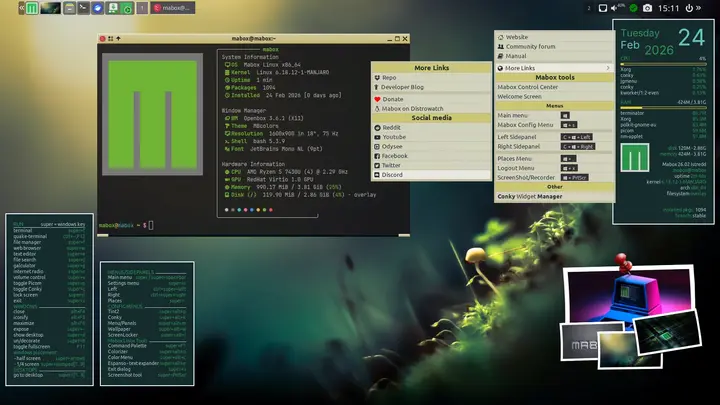
Mabox 26.02 – What the New Release Actually Brings
The latest Mabox build adds a fresh audio menu, a ground‑up rewrite of Cava’s Colorizer, and finally gets screen recording to capture sound correctly. It also disables the Picom compositor out of the box, which matters for older machines that tend to choke on extra effects. Below is a quick rundown of the most useful changes and how to put them to work right after installation.
Audio menu – W‑a shortcut
Pressing W‑a now opens a compact audio popup attached to the volume icon. From there you can launch the classic PulseAudio mixer, start your favorite music player or Mabox’s mini player, fire up PyRadio in a terminal window (or as a toggleable overlay), and even activate Cava’s visualizer. The menu also hands you direct links to the Colorizer modules when either PyRadio or Cava is running, saving a few clicks that used to be scattered across separate config files.
Rewritten Cava Colorizer
The Cava module has been rebuilt from scratch, and the default configuration file now favors more lively color shifts. New options let you tweak both the palette and the way the visualizer reacts to bass or treble peaks without diving into a cryptic text dump. Users who have complained that the old visual looked like a dead‑pixel screen will notice an immediate boost in responsiveness.
Screen recording finally respects audio
The built‑in W‑PrtScr recorder, which is essentially a thin ffmpeg front‑end, now includes a working audio track. In the Settings submenu you can pick PNG, JPG, or WebM for still shots, and choose between MKV, WebM, or MP4 containers for video. Frame rate adjustments remain, but the key improvement is that ticking the “record audio” box actually produces sound instead of silent footage—a fix that many users have been waiting for after a driver update broke the previous pipeline.
Picom turned off by default
Because Mabox often lands on aging hardware, the developers decided to ship without an active compositor. If you want translucency or shadows, enable Picom manually: press W‑p once to test it, then add it to Autostart via Menu Mabox Config Autostart Choose apps/service. The toggle works at any time, so you can quickly revert if the system starts stuttering.
Handy keyboard shortcuts
Beyond the new audio menu, a handful of key combos keep the workflow slick. W‑d toggles ShowDesktop, W‑c hides or reveals Conky widgets, and W‑A‑b blanks the monitor for power saving. All of these can be re‑bound in the same configuration panel where Picom lives, making it easy to tailor the environment without hunting through obscure config files.
That’s the meat of Mabox 26.02. Give the new audio popup a spin, test Picom with W‑p, and enjoy recordings that finally include your voice or game sounds.
Mabox Linux 26.02 available
Mabox 26.02 is ready for download. What’s new in this release? The sound menu W-a, the rewritten Colorizer module for Cava – sound visualization – and some fixes for ScreenRecording tool.