Liquorix Kernel 6.19-1 Released — Get the Smoothest Gaming and AV Experience
A new Liquorix build based on Linux 6.19 has just dropped into the repositories, promising smoother gaming, tighter audio‑visual pipelines and snappier everyday use. If a system’s feel feels sluggish after every update or if frame drops are a recurring annoyance, this kernel might be worth a quick test.
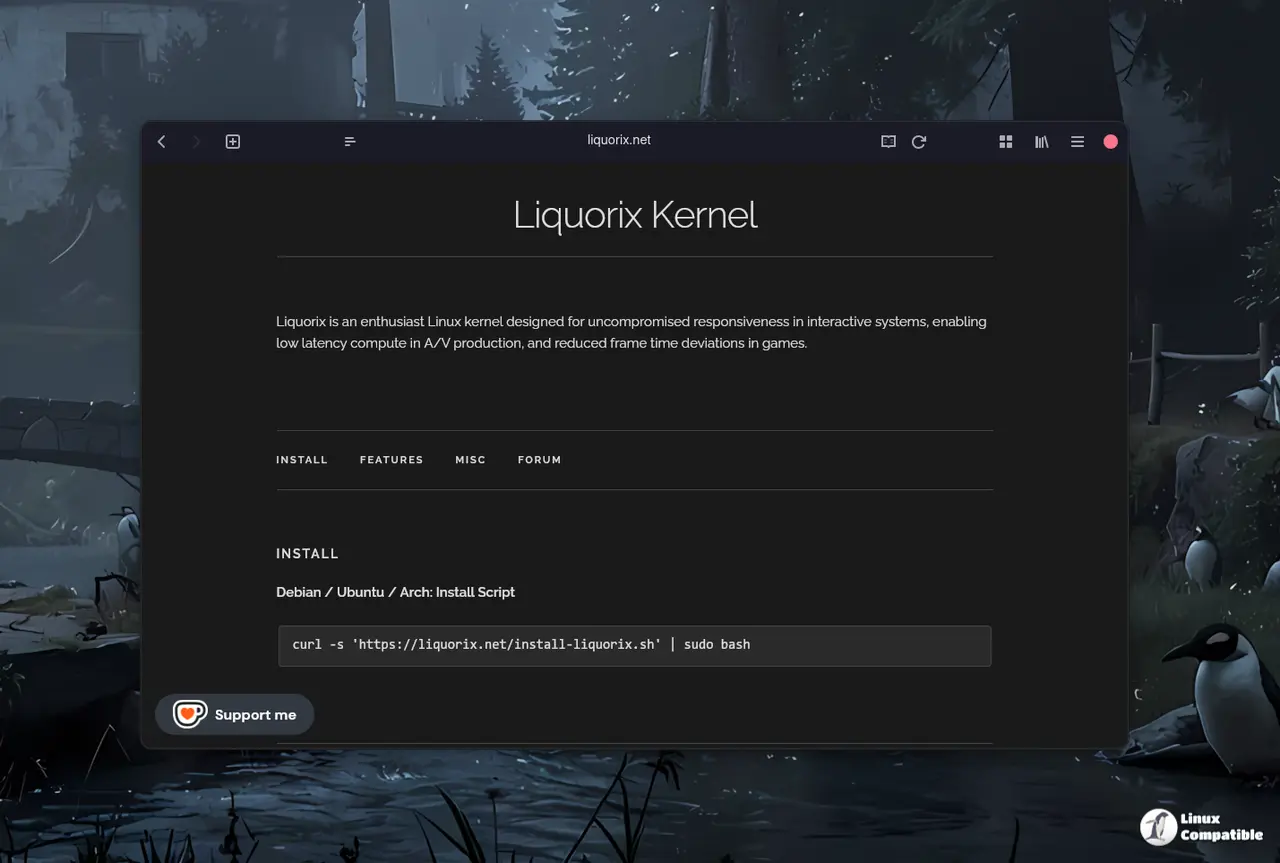
What Makes This Kernel Stand Out
Liquorix is crafted for low‑latency workloads; it tweaks scheduler parameters and disables features that tend to drag performance down when you’re pressing keys or scrolling. In practice, users who ran the 6.18 release reported noticeably less “jitter” in video editing timelines and a smoother frame rate curve while playing competitive titles. The new 6.19 build carries those same changes forward but adds a handful of bug fixes that have plagued earlier iterations.
How to Get It on Debian, Ubuntu or Arch
The maintainers provide a single‑liner installer that pulls the package straight from the Liquorix repository and flips the default kernel flag for you. Running it requires superuser privileges and assumes your system already has curl installed; if not, swap in wget and adjust the command accordingly.
Open a terminal and paste the following:
curl -s 'https://liquorix.net/install-liquorix.sh' | sudo bash
The script will add the Liquorix repository to your package manager’s sources list, download the signed package for 6.19‑1, and install it as a new kernel candidate.
Once installation finishes, reboot into the freshly installed kernel by selecting “Advanced options” in the bootloader menu or simply restarting; the script will set this kernel as default if your system has only one variant.
The installer also takes care of removing older Liquorix kernels that are no longer needed, keeping the /boot directory from filling up with stale images. This is handy because an overloaded /boot can lead to boot failures—a problem users have occasionally run into after mass kernel upgrades.


