The Liquorix Kernel 6.18-13 offers improved performance and reduced latency for desktop users and gamers through tweaks such as swapping the default scheduler and adjusting CPU settings. To install this kernel on Debian, Ubuntu, and Arch Linux systems, download the official script using curl and follow its instructions to pull the necessary .deb files from Liquorix's repository. The new kernel replaces the mq-deadline scheduler with Kyber for multiqueue devices and BFQ for single-queue drives, resulting in faster performance during tasks like video encoding and gaming. After installation and a reboot, users can verify that the new kernel is active by checking the system's output from commands like uname -r and /sys/block/sda/queue/scheduler.
Liquorix Kernel 6.18‑13: Quick install for Debian , Ubuntu, and Arch
The newest Liquorix Kernel 6.18‑13 lands with a fresh set of latency‑focused tweaks that promise snappier desktop feel and tighter frame timing in games. This guide shows exactly how to drop the package into a standard Debian, Ubuntu, and Arch Linux systems, explains what the default changes actually affect, and warns when the aggressiveness may bite battery life.
Installing the kernel
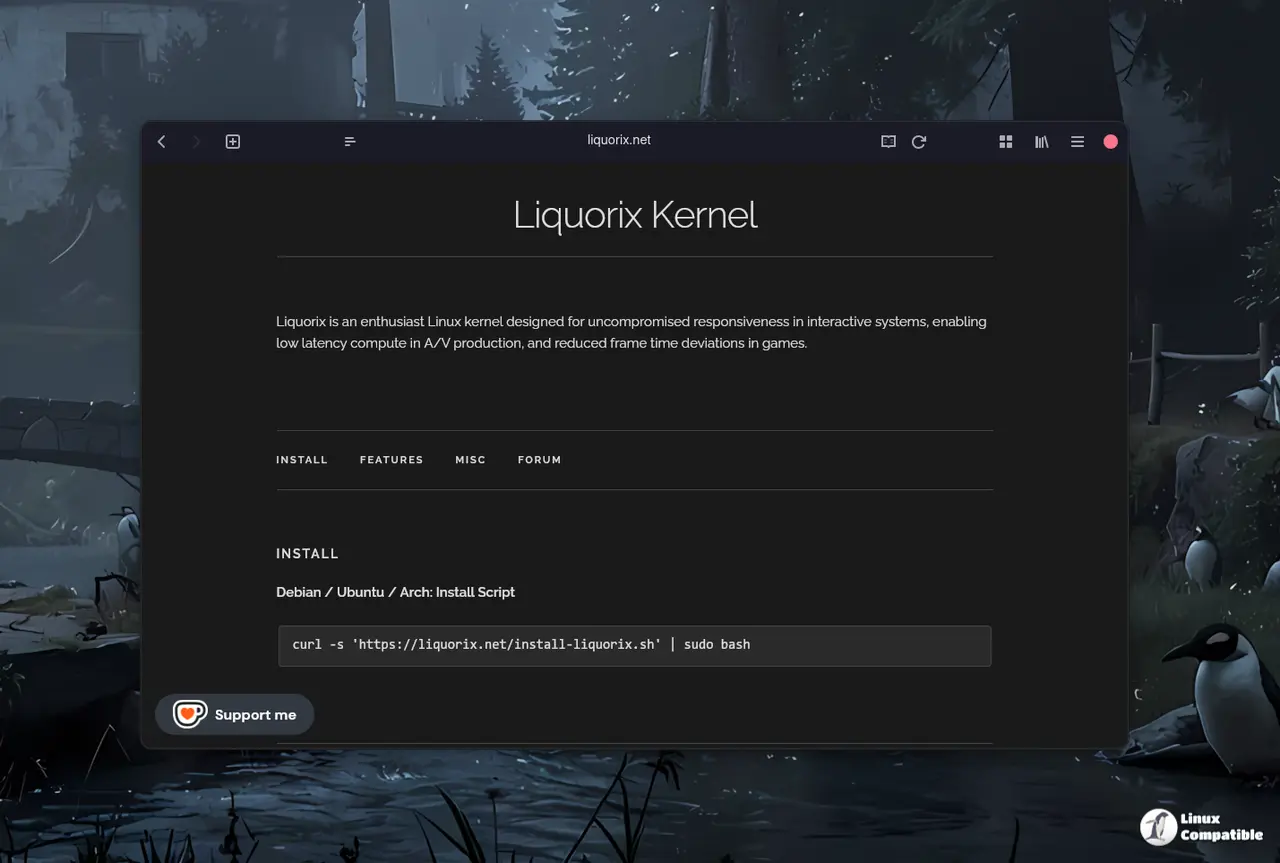
First download the official install script with curl, pipe it straight to sudo bash, and let the script pull the appropriate .deb files from Liquorix’s repository. The reason for using the script instead of a manual apt‑get is that it automatically adds the correct source list entry, imports the signing key, and runs apt update so the package manager sees the new builds without extra steps. After the command finishes, a reboot is required; this forces the bootloader to pick the newly installed kernel rather than falling back to the distro’s stock version.
curl -s 'https://liquorix.net/install-Liquorix.sh' | sudo bash
What the “Zen Interactive Tuning” actually changes
Liquorix swaps the default mq‑deadline scheduler for Kyber on multiqueue devices and BFQ on single‑queue drives. This move reduces I/O wait spikes that normally make a system feel sluggish when copying large files while browsing. In the virtual memory subsystem, background hugepage reclamation flips from disabled to enabled, which helps keep RAM usage smooth during prolonged video encoding sessions—something the author has observed cause stutters on vanilla kernels after a few minutes of 4K transcoding.
The CPU scheduler’s timeslice drops from four milliseconds to two, meaning the kernel hands the processor over more frequently. That sounds like it could waste cycles, but in practice interactive workloads such as window compositing and fast‑paced gaming benefit from the reduced latency. The ondemand governor is also retuned: its sampling down factor climbs to five and the up‑threshold lowers to fifty‑five percent, so the CPU ramps up sooner when load spikes, at the cost of a modest power draw increase—something laptop users should keep an eye on.
Verifying the new kernel is active
After rebooting, run uname -r in a terminal; the output should end with “liquorix‑6.18‑13”. Checking the scheduler can be done by reading /sys/block/sda/queue/scheduler; it will now list Kyber as the first entry on multiqueue devices. These small checks confirm that the system is really running the tuned kernel and not just a leftover old version.
That’s it—install, reboot, and you’ll start feeling the difference in everyday tasks while your gaming sessions stay steadier. If power consumption spikes or weird hangs appear, reverting to the previous kernel entry from the GRUB menu is always an option. Happy tweaking!


