LibreOffice 26.2 – Faster, More Polished Office Suite You Can Trust
LibreOffice 26.2 is the latest free office suite from The Document Foundation. In this article you’ll learn whether the new features are worth your time, how to get it installed without breaking your existing setup, and which of the changes actually improve daily work.
What’s actually new in LibreOffice 26.2?
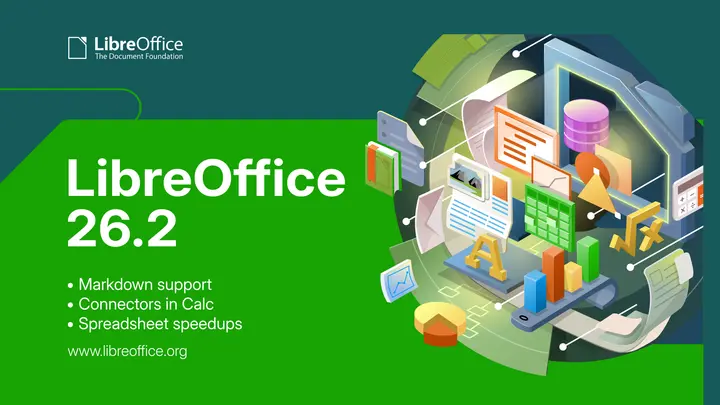
The release focuses on three practical areas: speed, Markdown support, and better compatibility with Microsoft files.
- Performance boost – Large Writer documents open noticeably quicker, and Calc scrolls smoother when you hide dozens of columns.
- Markdown import/export – You can now pull a .md file straight into Writer or export any document as Markdown. It’s handy for bloggers who draft in LibreOffice but need plain text for static site generators. The feature works well, though the export strips out complex tables; you’ll have to clean those up manually.
- Improved Microsoft compatibility – DOCX change‑tracking is preserved more faithfully, and Excel 2010+ becomes the default format when you save as .xlsx. This reduces the “look different in Word” surprise that used to happen after copying a table from Calc.
Other notable tweaks include vertical tabs on dialogs (a subtle UI refresh), mandatory Skia graphics on Windows/macOS for sharper shapes, and multi‑user support in Base.
Should you bother upgrading?
If your workflow is already smooth with LibreOffice 26.1, the upgrade isn’t a must—but it does solve a few annoyances that have haunted power users for years:
- Anchored objects – In Writer 26.1 pasting an image would leave the old anchor selected, causing accidental moves. The new default clears the selection; you can revert to the old behavior via Tools ▸ Options ▸ LibreOffice ▸ Writer ▸ Expert Configuration if you miss it.
- Connector support in Calc – Previously you needed a workaround with drawing objects to link cells visually. Now there’s an Insert Connectors toolbar button, which works the same way as in Draw. It’s not a game‑changing feature, but it saves a few clicks for anyone who uses flowcharts inside spreadsheets.
- Better handling of embedded fonts – If you open a document that ships with restricted fonts, LibreOffice will now ask whether to open read‑only (preserving the look) or edit without those fonts. The old silent substitution could ruin layout without warning.
On the downside, the new vertical tab UI feels cramped on low‑resolution screens, and the mandatory Skia engine adds about 120 MB to the installer size. If you’re tight on bandwidth, that’s a minor annoyance.
Overall, if you’ve been frustrated by sluggish large files or frequent DOCX formatting glitches, upgrade is worth it. Otherwise stick with your current version until the next feature drop.
How to install LibreOffice 26.2 without losing your settings
Linux (DEB & RPM)
- Pick the right package – For Debian/Ubuntu based systems download LibreOffice_26.2.0_Linux_x86-64_deb.tar.gz. For Fedora, openSUSE, or RHEL‑based distros grab the .rpm tarball.
- Extract it – tar -xzf LibreOffice_26.2.0*_Linux_*_deb.tar.gz (or the rpm equivalent). This creates a folder with an install script and all .deb/.rpm files.
- Install the binaries –
- Debian/Ubuntu: sudo dpkg -i *.deb. The package manager will automatically register LibreOffice’s MIME types and desktop entry.
- Fedora/RHEL: sudo rpm -Uvh *.rpm. Using -U upgrades any existing 26.1 files while keeping the user profile intact (~/.config/libreoffice/4).
- Check your profile – Linux stores settings in ~/.config/libreoffice/4. The packages never touch this directory, so all your custom palettes and extensions survive.
- Confirm the version – Launch Writer and open Help ▸ About LibreOffice; you should see “Version 26.2”.
Windows & macOS
- Download the proper installer – Grab the Windows (MSI) or macOS (DMG) package from the official site. The “All languages” bundle includes over 120 language packs, so you don’t need extra downloads later.
- Run the installer – On Windows choose “Custom” during setup and leave the default install folder (C:\Program Files\LibreOffice). This ensures the new version doesn’t overwrite a portable copy you might keep on a USB stick.
- Preserve your user profile – LibreOffice stores settings in %APPDATA%\LibreOffice\4 (Windows) or ~/Library/Application Support/LibreOffice/4 (macOS). The installer leaves this folder untouched, so all your custom toolbars, templates, and dictionaries survive the jump.
- Verify the upgrade – Open Writer, go to Help ▸ About LibreOffice. You should see “Version 26.2”. If it still shows an older number, you probably launched a portable copy that sits earlier in your PATH; delete or rename that folder.
Gotchas and work‑arounds you might run into
- Markdown import quirks – Complex tables lose column spans during import. A quick fix is to export the table as CSV first, then re‑import it into Writer.
- Video playback in Impress – The new Microsoft Media Foundation backend works fine on Windows 10+ but fails on older XP‑style codecs. If a video won’t play, install the appropriate codec pack or fall back to the old VLC plugin (still available under Extensions).
- Base multi‑user mode – It now supports simultaneous editing, but only if you use an external PostgreSQL server. Trying it with the built‑in HSQLDB will still lock the file for each user.
Quick checklist before you click “Update”
- Backup your user profile folder (just copy it to another drive).
- Close all LibreOffice windows – lingering processes can prevent the installer from replacing shared libraries.
- If you run macros, test them in a fresh document after upgrade; some API calls changed with the new Skia engine.
That’s about it. LibreOffice 26.2 delivers on its promises of speed and polish without turning into another subscription‑laden monster. Give it a spin – your documents will thank you.
LibreOffice 26.2 is here: a faster, more polished office suite that you control
We’re pleased to announce the release of LibreOffice 26.2, the newest version of the free and open source office suite trusted by millions of users around the world. This release makes it easier than ever for users to create, edit and share documents on their own terms. Designed for individuals and organizations alike, it continues to be a trusted alternative to proprietary office software.
LibreOffice 26.2 is here: a faster, more polished office suite that you control - TDF Community Blog