KDE Plasma 6.6: What’s New and How to Put It to Work
The latest KDE Plasma 6.6 lands with a handful of tweaks that feel less like marketing fluff and more like genuine quality‑of‑life upgrades. This guide shows which additions are worth enabling, how they actually behave on a day‑to‑day setup, and where the new polish might be a bit overcooked.
On‑Screen Keyboard Gets Real
Plasma’s new virtual keyboard finally stops being a novelty. After a recent driver update broke touch input on several convertible laptops, the built‑in keyboard proved indispensable for getting back to work without reinstalling anything. It auto‑detects when a text field is focused, slides up from the bottom, and respects the system theme, so it looks like it belongs rather than sticking out like an afterthought.
Spectacle Can Read Text From Screenshots
The screenshot tool now runs OCR on the fly. Capture a dialog box or a snippet of code, hit the “extract text” button, and Spectacle spits out editable characters that can be copied straight to the clipboard. It’s handy when pulling a serial number from an image or generating alt‑text for accessibility without opening a separate editor.
Plasma Setup Wizard Separates OS Install From Account Creation
KDE has split user‑account creation into its own first‑run wizard. The idea is that manufacturers can ship a clean system image, let the buyer choose a network and set up a login, while the underlying partitions stay untouched. In practice it means a refurbished PC can be handed to a new owner without worrying about lingering data, and the setup flow feels less like an installer’s after‑thought.
Scan QR Codes to Join Wi‑Fi
If a machine has a webcam, pointing it at a router’s QR code lets Plasma pop up a connection dialog automatically. The feature saved a few minutes during a recent office move when the IT department handed out printed network keys for each floor; no more typing long passwords on a cramped laptop keyboard.
Adjust App Volume Directly From the Task Manager
Hover over any task‑bar icon that’s playing sound, roll the mouse wheel, and the volume slides up or down. The change is reflected instantly in PulseAudio, so a video call can be muted without hunting for the mixer app. After months of juggling separate windows this tiny shortcut finally makes sense.
Emoji Skin Tone Selector Makes Life Easier
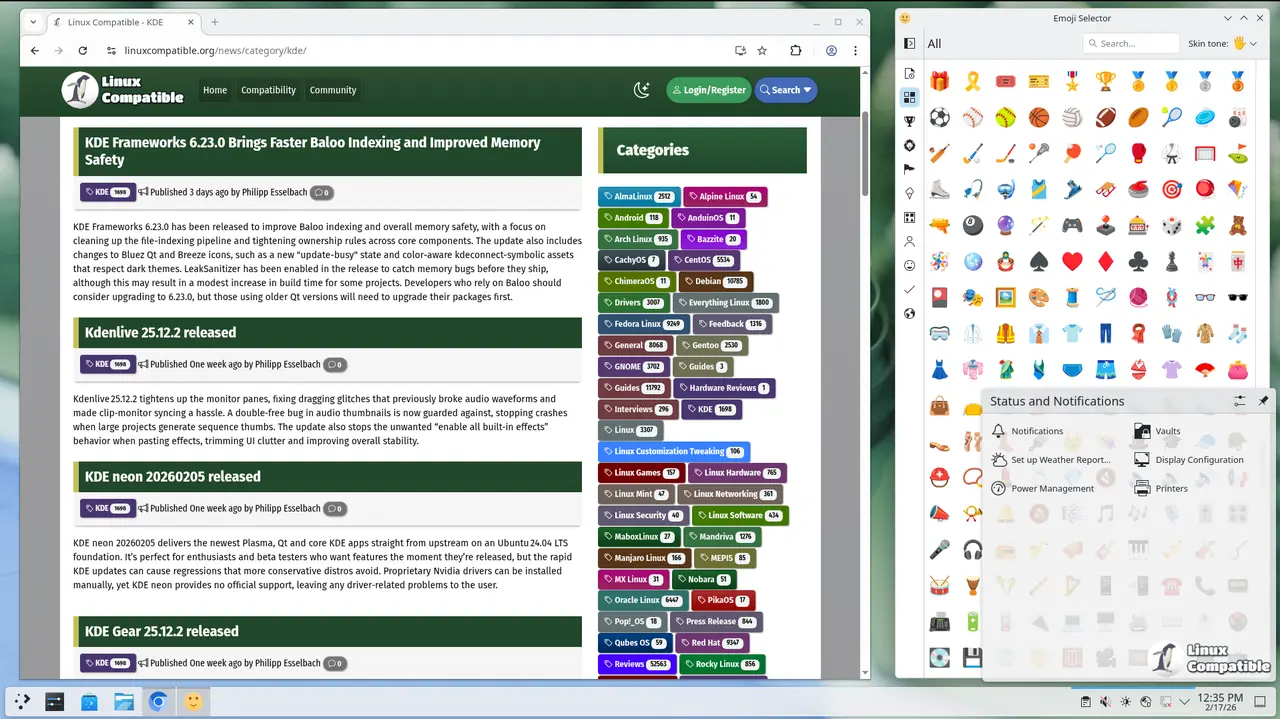
Plasma now lets users pick emoji skin tones with Meta + . and a small selector that appears beneath the emoji picker. The selector groups similar shades together, so choosing a medium‑dark tone no longer requires hunting through a long list of variants.
Color Intensity Tweaks Let Themes Shift Subtly
A new global theme option lets users define day‑and‑night color schemes in one place. Beyond that, the “color intensity” slider adjusts the saturation of every window frame, giving a subtle way to make an otherwise bright theme feel softer on the eyes.
Accessibility Gets a Boost
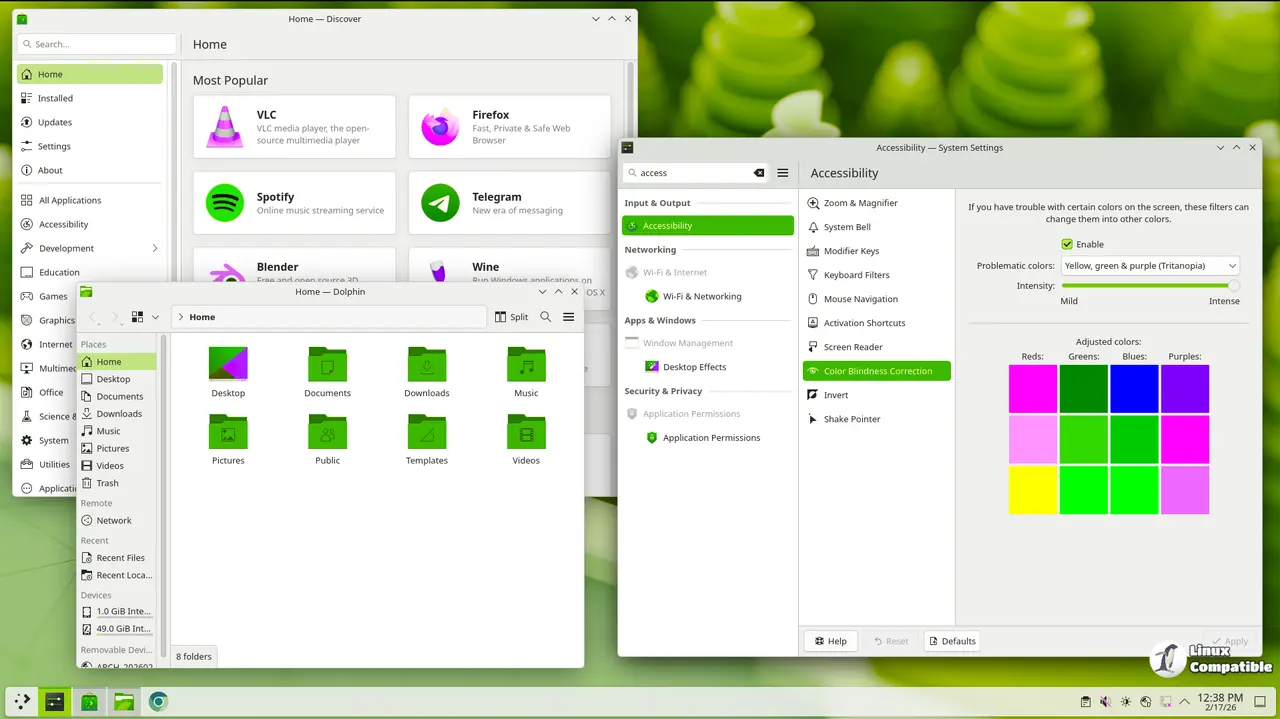
KDE added four color‑blind filters, including a new grayscale mode that helps users with low contrast vision. The magnifier now offers a tracking mode that keeps the cursor centered, which is a relief for anyone who relies on screen‑reading tools. “Slow Keys” support finally landed on Wayland, making it easier for people who need extra time between keystrokes. A standardized “Reduced Motion” toggle also reduces animation jitter for motion‑sensitive users.
Other Tweaks Worth Noticing
Virtual desktops can now be limited to the primary monitor, clearing up clutter on multi‑screen rigs that only use one panel for work and another for media. An optional login manager replaces SDDM with a slick interface, but it feels redundant if a display manager is already in use elsewhere. Ambient light sensors can auto‑adjust screen brightness, though the algorithm sometimes overshoots in bright rooms. Game controllers are recognized as regular input devices, opening up quirky shortcuts for those who like to map macro keys.
Overall KDE Plasma 6.6 manages to add useful polish without sacrificing the desktop’s core flexibility. . Some of the optional components may feel unnecessary for power users, but the accessibility upgrades and practical workflow shortcuts make it a solid step forward.


