How to Install Xanmod Kernel 6.12.71 LTS on Debian‑Based Systems
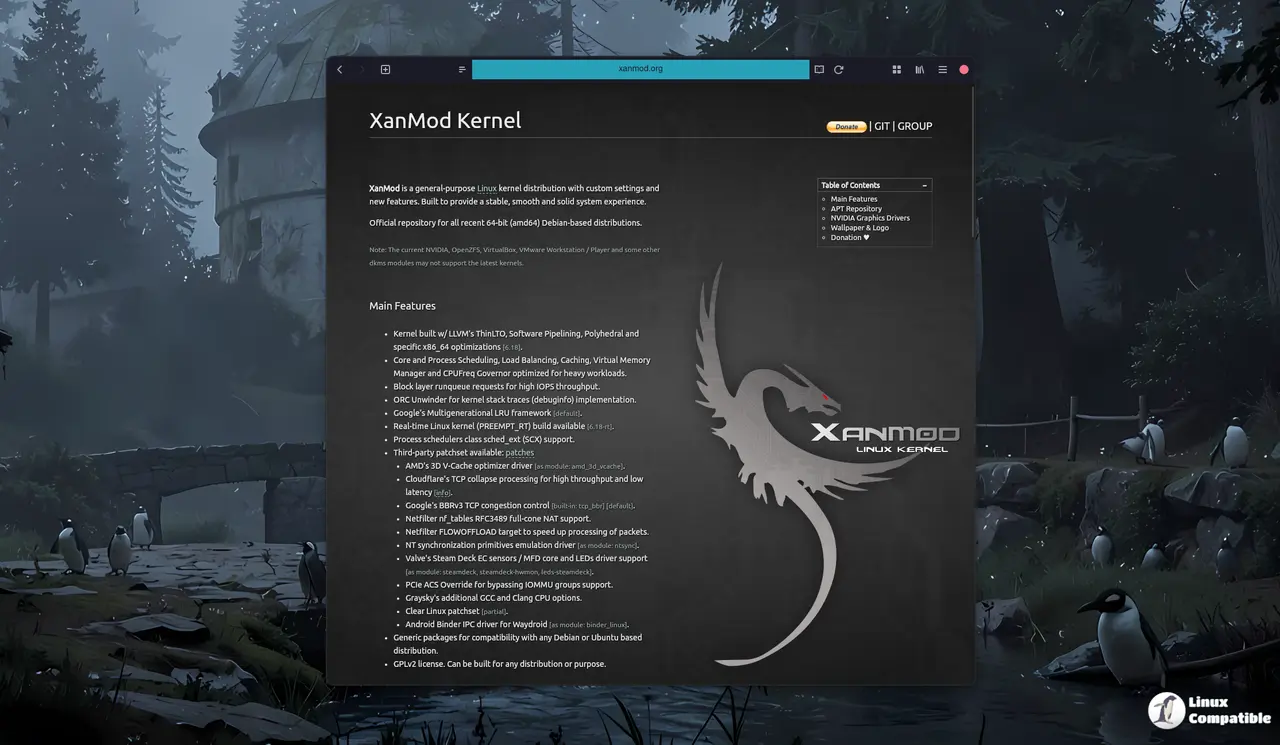
Last week, a new LTS kernel was released, featuring a set of targeted fixes that cover everything from virtual‑socket tests to asynchronous I/O and VLAN packet handling in tunnels. It is now available as Xanmod kernel. The goal here is a straightforward walk‑through for getting the latest Xanmod LTS kernel onto any Debian, Ubuntu, or derivative machine. Expect to see why each command matters and how to avoid the usual post‑install headaches with DKMS modules.
Pull in the repository key – it stops apt from whining about unsigned packages
First thing is to fetch the public GPG key and drop it where apt can verify signatures. The wget pipe into gpg --dearmor creates a binary keyring that apt reads, so later package installs won’t be blocked by “untrusted source” errors.
wget -qO - https://dl.xanmod.org/archive.key | sudo gpg --dearmor -vo /etc/apt/keyrings/xanmod-archive-keyring.gpg
If the key isn’t placed in /etc/apt/keyrings, apt will fall back to the old trusted‑keys file, which is deprecated and may cause warnings on newer releases.
Add the proper source line – this tells apt where to look for Xanmod packages
The echo command writes a one‑liner into /etc/apt/sources.list.d/xanmod-release.list. Using $(lsb_release -sc) ensures the codename matches whatever Debian or Ubuntu release is running, so you won’t accidentally pull in the wrong architecture.
echo "deb [signed-by=/etc/apt/keyrings/xanmod-archive-keyring.gpg] http://deb.xanmod.org $(lsb_release -sc) main" | sudo tee /etc/apt/sources.list.d/xanmod-release.list
Skipping the signed-by part would still work, but you’d lose the extra safety net that guarantees the packages really come from Xanmod.
Refresh the package list and install – this is where the kernel actually lands on disk
Running apt update forces apt to read the newly added repo metadata. The subsequent install linux-xanmod-x64v3 pulls in the kernel image, headers, and a minimal set of supporting tools; it deliberately avoids the meta‑package that drags extra debug symbols you’ll never use.
sudo apt update && sudo apt install linux-xanmod-x64v3
If you’ve ever upgraded to a newer kernel only to find your NVIDIA driver refusing to load, this is the moment where that problem surfaces. The kernel upgrade itself succeeds, but the proprietary modules need rebuilding.
Rebuild any DKMS modules you rely on – otherwise hardware stops working
Most power users keep things like VirtualBox, VMware, and especially the NVIDIA driver under DKMS so they automatically recompile when the kernel changes. Running dkms autoinstall after the reboot forces those modules to rebuild against the fresh Xanmod headers.
sudo dkms autoinstall
Skipping this step is a common mistake; the system boots, but X never starts because the graphics driver can’t find a matching module. That’s why it’s worth the extra minute.
Install minimal build dependencies only if you plan to compile your own modules
The Xanmod docs suggest pulling in clang lld llvm libdw-dev and a full DKMS suite. In practice, most users only need dkms itself; the rest are overkill unless compiling custom kernel modules or chasing performance tweaks. Keeping the install lean avoids cluttering /usr/lib.
sudo apt install --no-install-recommends dkms
Reboot and verify – a quick sanity check before you start tweaking again
A simple uname -r after reboot will show something like 6.12.71-xanmod1. If the version matches, the kernel is live. At this point, checking that previously broken drivers (for example, a Wi‑Fi chipset that stopped after a bad driver update) load correctly saves you from chasing phantom bugs later.
uname -r
If anything looks off, drop back into an older kernel via the GRUB menu; the Xanmod installer keeps the previous Debian kernel intact, so recovery is painless.


