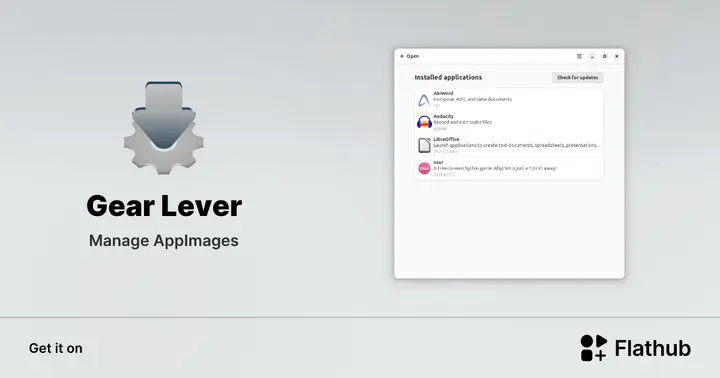
Gear Lever 4.4.6: One‑Click AppImage Integration Gets Arabic Support
Gear Lever 4.4.6 arrives with a handful of polish upgrades that make the already handy AppImage manager feel less like a beta experiment and more like a finished tool. The update adds Arabic localization, tightens offline handling, and trims an unnecessary content‑type check that used to slow down launches. Readers will see how these tweaks translate into smoother daily use, especially when juggling dozens of portable apps.
Why the new version matters
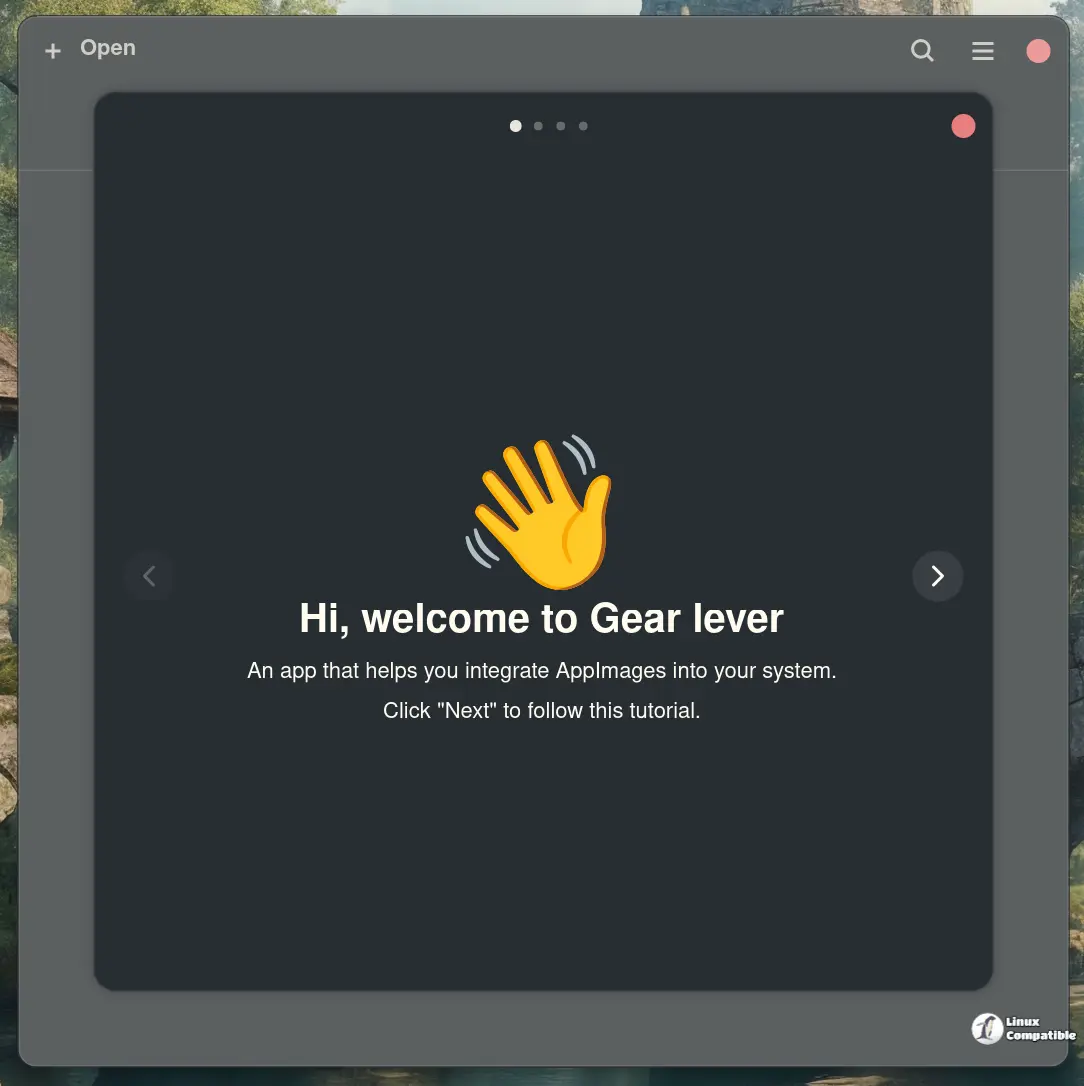
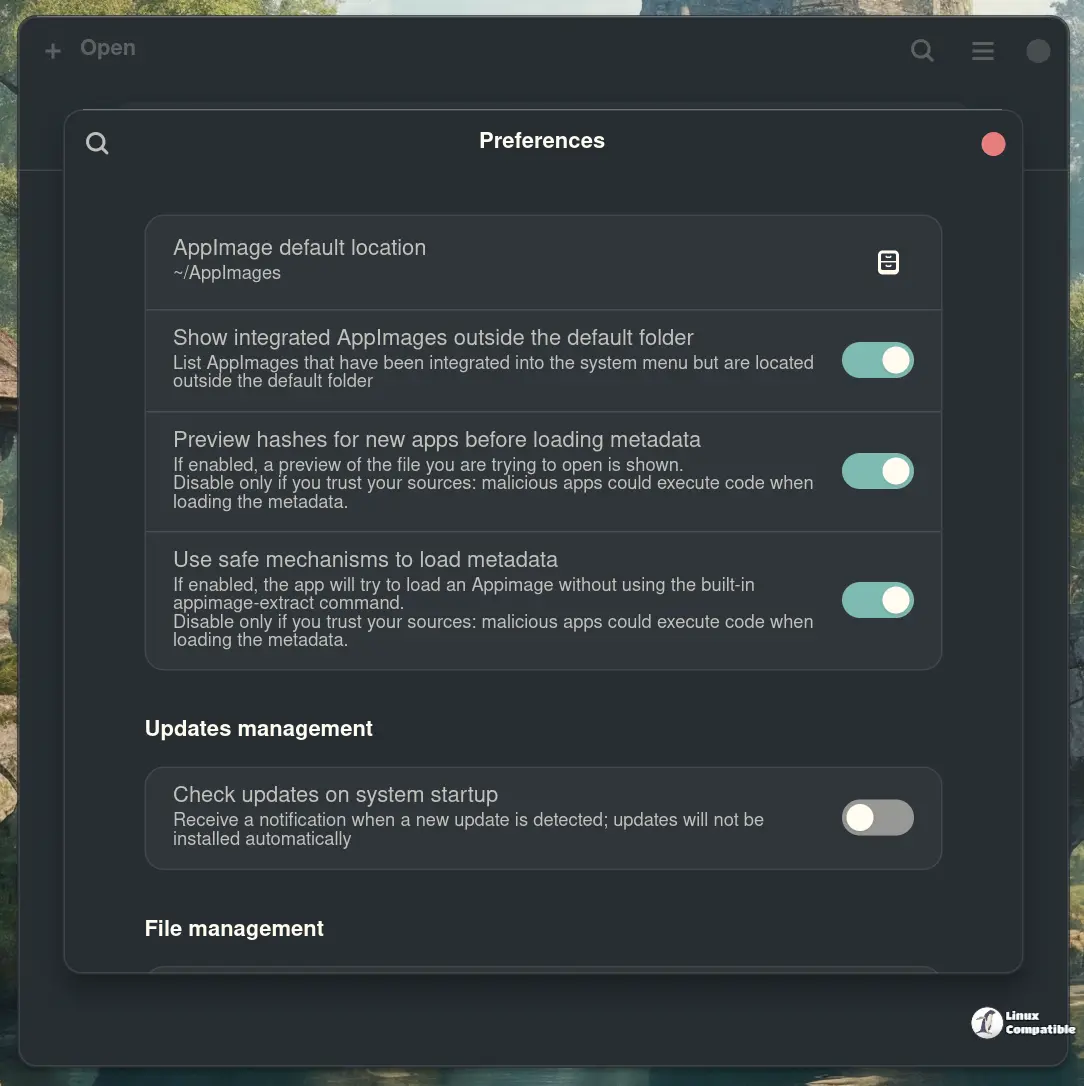
The biggest win is the “single click” menu integration. Previously users had to manually copy a desktop file or edit a .desktop entry; now the program creates a proper launcher the moment an AppImage lands in the designated folder. In practice this means you can drop a fresh build of, say, LibreOffice‑portable into your collection and have it appear alongside the rest without opening a terminal. For anyone who treats their home directory like a sandbox for trial software, that saves a few minutes of repetitive work every week.
What actually changed
The release notes list four concrete items:
- Arabic translation – the UI strings are now fully right‑to‑left compatible, which clears up confusion for non‑Latin users who were forced to run the app in English despite having an Arabic system locale.
- Small refactoring and UI improvements – button spacing feels more consistent, and the “Open with Gear Lever” context menu entry no longer flickers when the file manager refreshes.
- Improved offline support – the program now caches its index of known AppImages locally, so you can still browse, launch, or delete entries even if the internet drops for a few minutes.
- Removal of the content‑type header check – older versions rejected some valid AppImages because their MIME type wasn’t reported correctly by the file manager; dropping that guard eliminates false negatives without compromising security.
Are any features overkill?
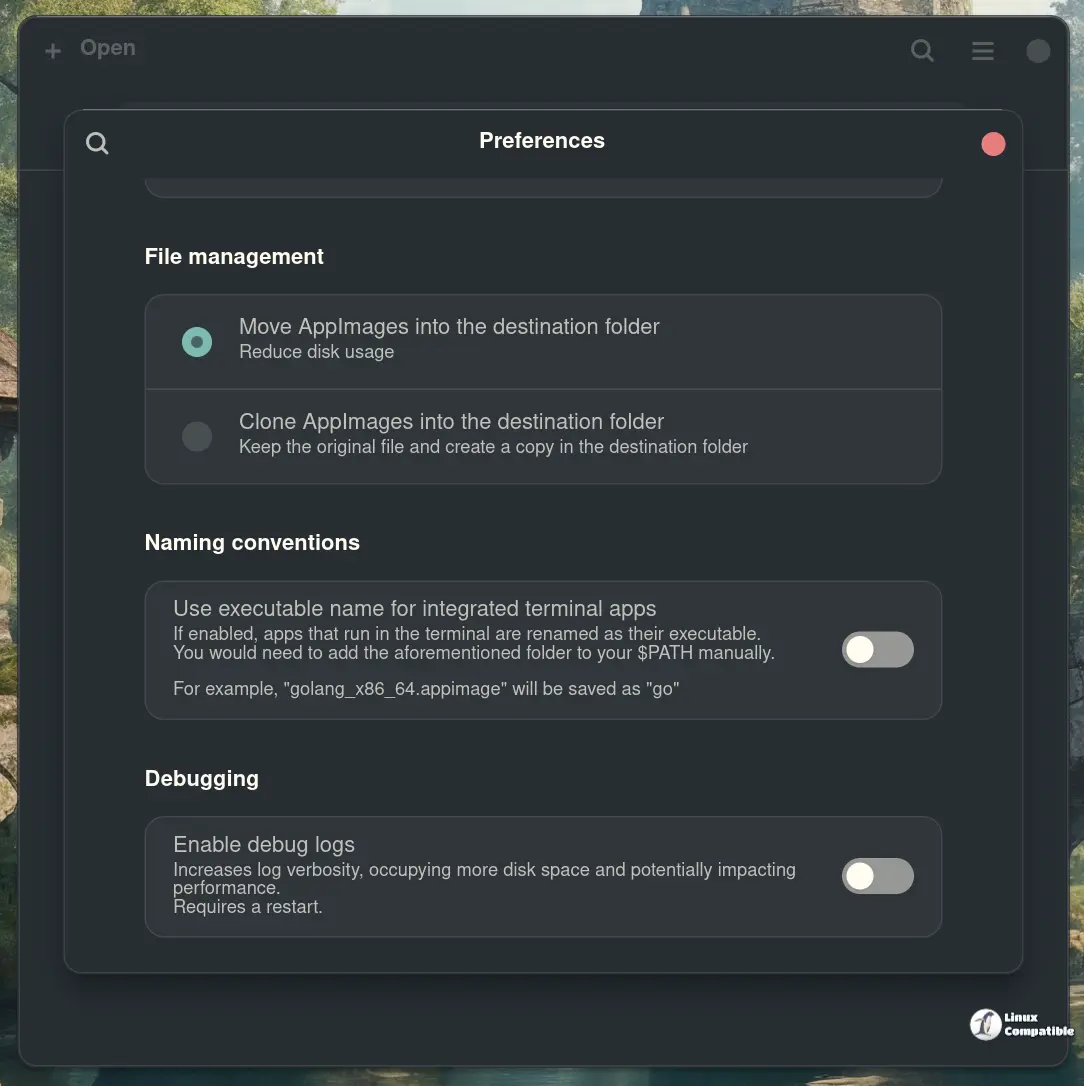
The automatic saving of CLI apps under their executable name is convenient, but it can clutter the menu if you keep dozens of command‑line tools. Turning off that behavior in Settings is painless, and it’s worth doing if you prefer a leaner launcher list. Otherwise the update feels like genuine polishing rather than feature bloat.
How to Install or Upgrade
If you already have Gear Lever:
flatpak update it.mijorus.gearlever
If you’re installing fresh, grab it from Flathub:
- Open your terminal.
- Run flatpak install flathub it.mijorus.gearlever
- Launch it from your application menu.
Install Gear Lever on Linux
Manage AppImages