Gear Lever 4.3.0 – The AppImage manager that finally stops the folder chaos
If you’ve been juggling a half‑dozen AppImages in your Downloads folder, this version will make the mess disappear. I’ll show you what’s new, why the “prevent updates while running” tweak matters, and whether the UI is just pretty or actually useful.
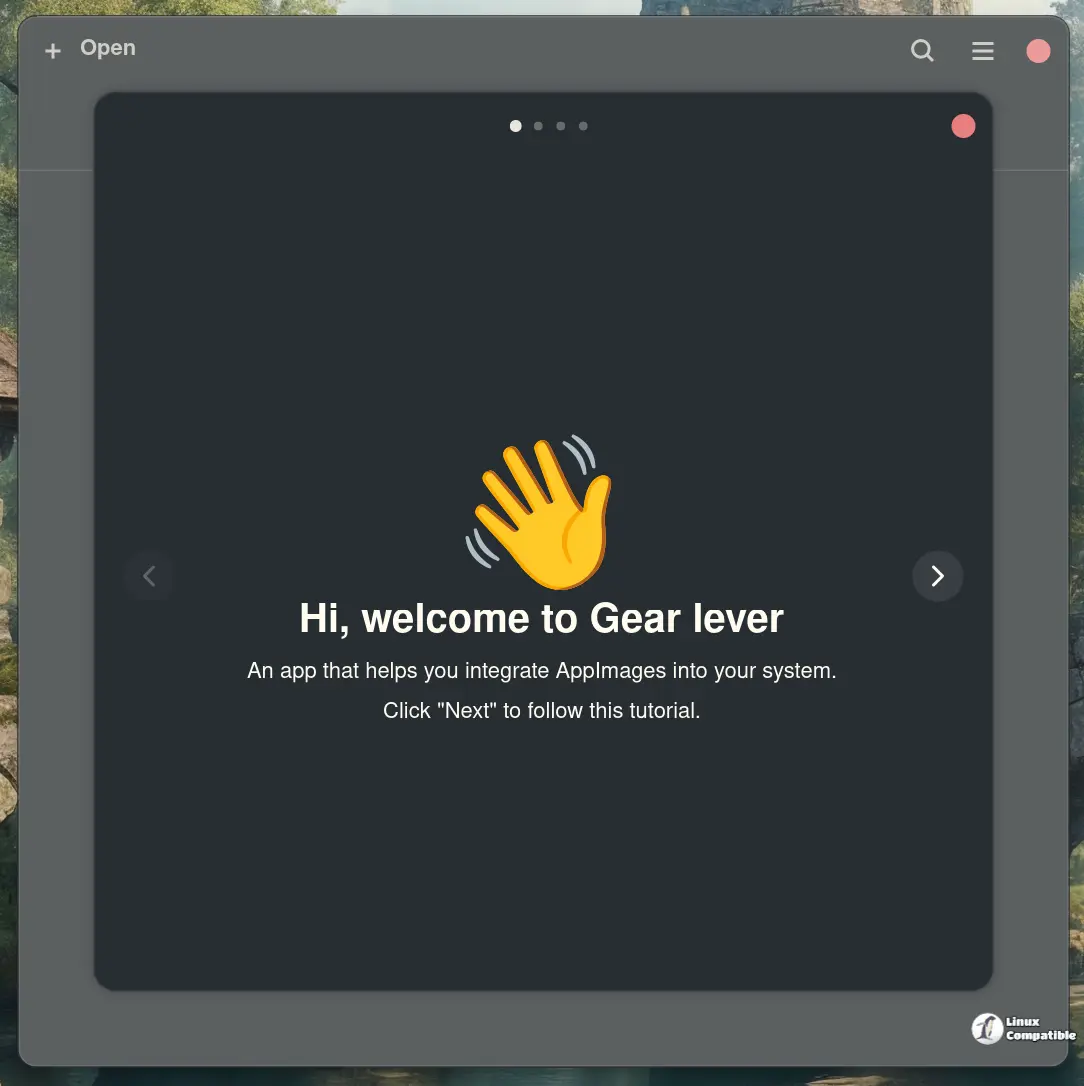
What changed in Gear Lever 4.3.0?
The biggest surprise is the safeguard that blocks an update if the program you’re trying to replace is still alive. Gear Lever now checks the process list before swapping binaries, so you won’t lose an hour of debugging because of a race condition.
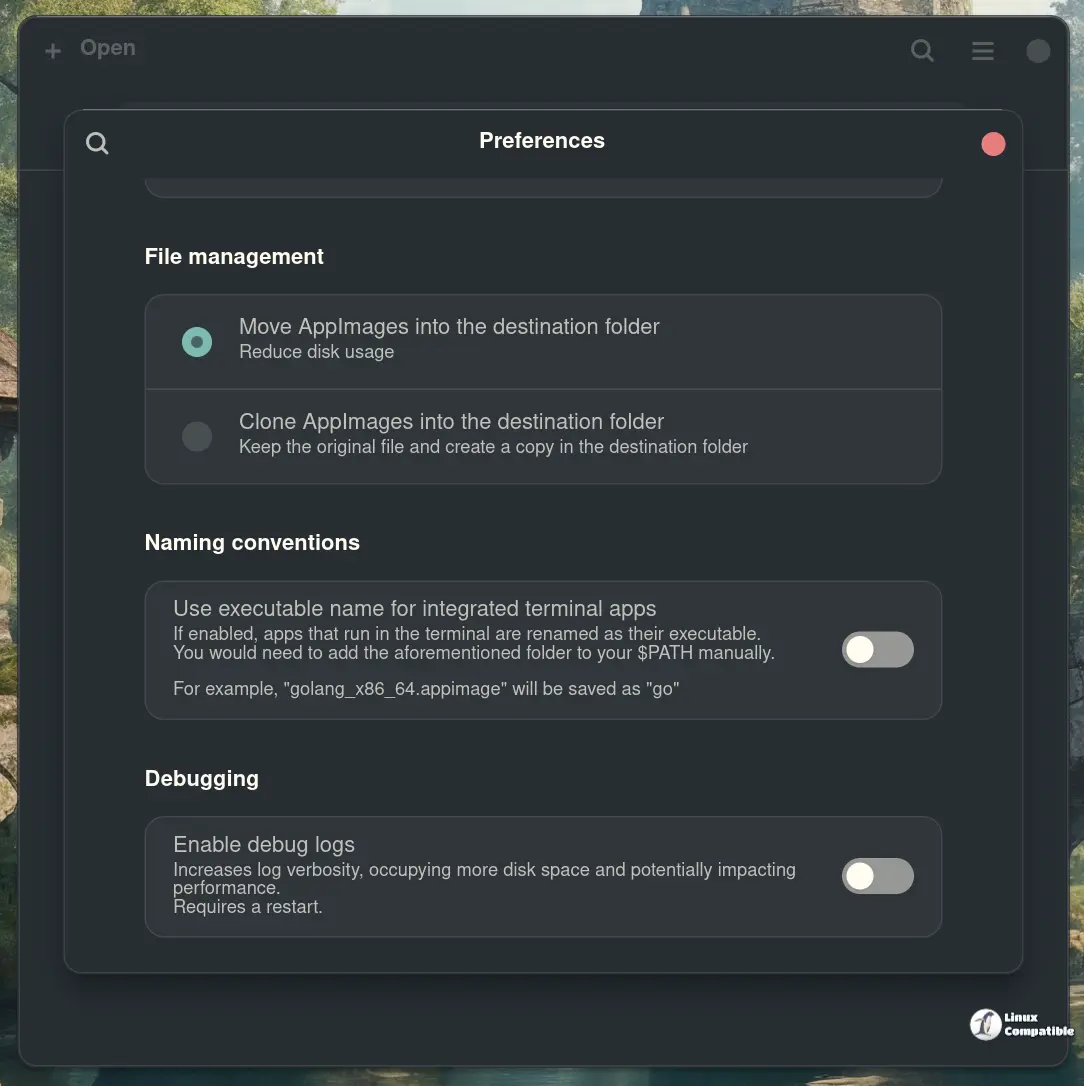
Other tweaks are mostly polish: drag‑and‑drop from any file manager works without needing to right‑click “Open with…”, and the “save CLI apps automatically” feature actually detects the executable name instead of guessing “app”. That alone saved me from renaming a handful of command‑line tools that I keep in a separate bin directory.
How well does it integrate with your desktop?
Integration is the part most people care about. With one click Gear Lever drops a .desktop entry into ~/.local/share/applications, and the app shows up in GNOME or KDE menus just like any native package. I tried it on Xfce, where the menu can be a little finicky, and it worked without a hitch – the icon appears, the “Open with Gear Lever” option is added to the right‑click context menu, and the entry disappears cleanly when you uninstall from the manager.
The UI feels fresh but not gimmicky. It’s built on Qt6, so the widgets scale nicely on HiDPI screens. The main window lists every AppImage in your chosen folder, shows the version number (pulled from the embedded metadata), and gives a tiny “running” badge when an app is active. I appreciate that it doesn’t try to cram a terminal emulator into the same pane; you still open a terminal for CLI tools, but Gear Lever remembers the executable name so you can launch them with a single click later.
Is there any bloat?
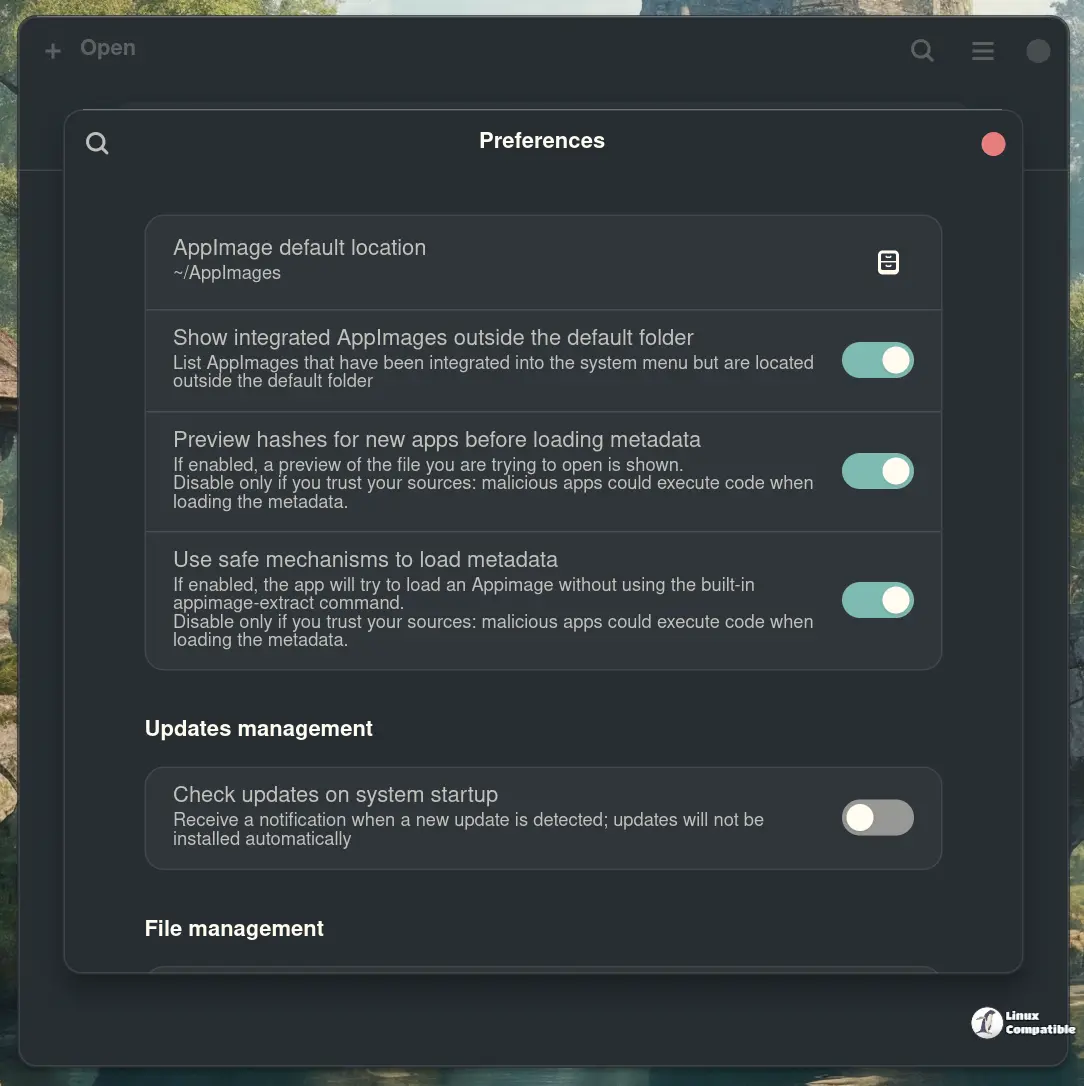
The program ships as an AppImage itself, which feels a bit meta, but it’s only about 30 MB and pulls in just Qt core libraries. There’s no hidden telemetry or background daemon that hangs around after you close the window. The only thing I wish was optional is the automatic check for updates to Gear Lever itself – it pops up every few days even if I’ve disabled the “check on startup” box. Turn that off in Settings and you won’t see the nag again.
Does Gear Lever 4.3.0 earn a place on your system?
If you keep more than two AppImages lying around, the answer is yes. The update‑blocker alone solves a problem that has bitten me hard enough to write this piece. The integration is painless, the UI is tidy, and it doesn’t try to be a full package manager – which is exactly what an AppImage manager should be.
Give it a spin from Flathub or grab the latest release on GitHub. If you’re still launching everything from the terminal, you’ll probably wonder why you ever bothered with raw AppImages in the first place.


