VSCodium 1.110: Fine‑Tuning Fonts Across the Workbench
The latest VSCodium build, 1.110.01571, brings a set of new font options that let users tweak every visible area—from the activity bar to the bottom panel—without touching the same global setting twice.
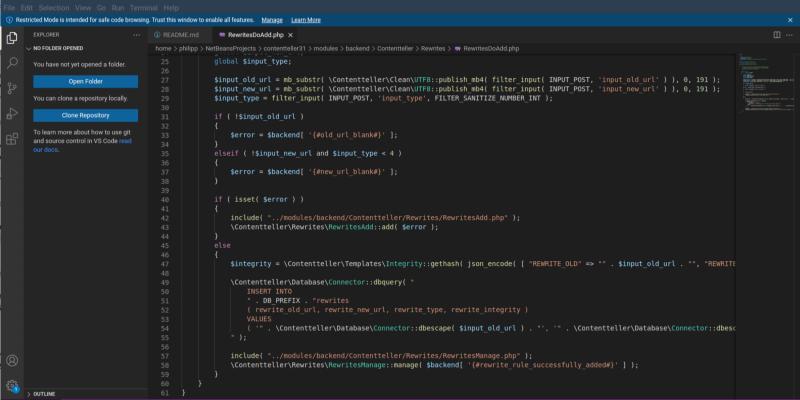
VSCodium 1.110 adds per‑area font settings that make it possible to keep your editor text at 13 px while giving the status bar a smaller, crisper look or enlarging the sidebar headers for better readability on high‑resolution displays.
Why Per‑Area Fonts Matter
When a theme changes background colors or the icon set swaps out its glyph shapes, the default font size that worked everywhere can suddenly feel off. One user reported that after installing a new dark theme and a fresh icon pack, the sidebar text blurred on his 4K monitor, making file navigation a chore. By using the new workbench.sideBar.experimental.fontSize setting, he was able to bump the sidebar font to 15 px while keeping the editor at its usual 13 px, restoring clarity without compromising the overall visual harmony.
Because these options live in the same Settings UI as any other preference, you can adjust them on the fly. No need for a separate config file or an extension; just open Preferences Settings, search for “experimental font” and tweak each value. The changes take effect immediately, so you’ll see the difference right after you hit Enter.
What’s New in 1.110
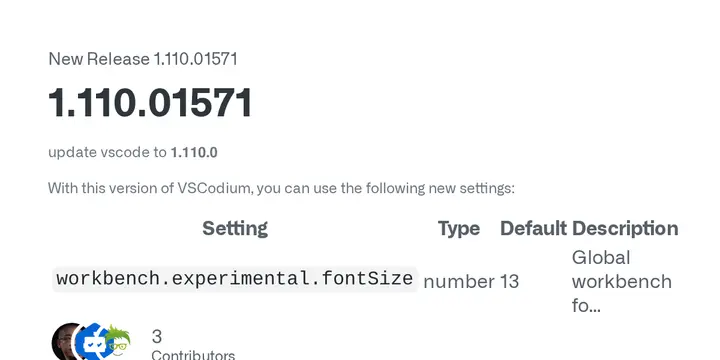
- Global workbench font (workbench.experimental.fontSize) lets you set a baseline size that applies where no specific area override exists.
- Sidebar (workbench.sideBar.experimental.fontFamily, fontSize) and status bar (workbench.statusBar.experimental.fontFamily, fontSize) gain their own families and sizes, so the file explorer can stay legible while the status bar remains unobtrusive.
- Editor tabs, bottom panel, and activity bar each receive dedicated font settings. The activity bar now defaults to a larger 16 px size, which helps users distinguish between icons in crowded toolbars.
- All new settings default to empty strings for families (inherit) and sensible pixel values for sizes (mostly 13 or 12), meaning a fresh install will look unchanged unless you decide otherwise.
The patch that introduced these options also squashed a long‑standing Visual Studio Code bug that caused font rendering glitches on Linux when switching themes. While the issue was more of an annoyance than a fatal crash, having reliable per‑area control removes the guesswork entirely.
Is This Feature Worth It?
For most casual users, tweaking one global setting is enough. But for power users who run VSCodium alongside other IDEs on multi‑monitor setups, or those who rely heavily on custom themes that alter visual weight, the granular approach can save a lot of time. A handful of extra characters in the status bar can make a huge difference when you’re constantly scrolling through logs or debugging.
If someone prefers a minimalist setup and never changes fonts, the new options feel like extra fluff. But the implementation is lightweight—just a few lines of JSON in the settings file—so it’s unlikely to bloat the editor.
Quick How‑to
- Open Preferences Settings (or press Ctrl+,).
- In the search box type “experimental font” to pull up all new entries.
- Adjust workbench.sideBar.experimental.fontSize to a value that matches your monitor’s DPI; 14 or 15 usually works well on 4K displays.
- If you want a different typeface for the status bar, set workbench.statusBar.experimental.fontFamily to "Consolas" or whatever matches your theme.
Because each area has an independent setting, you can experiment with one tweak at a time—no need to reset everything if something looks off.
Release 1.110.01571 · VSCodium/vscodium
update vscode to 1.110.0 With this version of VSCodium, you can use the following new settings.