Bottles 61.0 makes Windows gaming on Linux feel less like a circus
If you’re tired of juggling Wine configs, manual DXVK installs and endless “it works on my machine” excuses, this article shows how the new Bottles 61.0 release can get most games running with a few clicks. I’ll walk through setting up the Gaming Environment, point out where the new Eagle scanner actually helps, and flag the bits that still feel like bloat.
Gaming Environment – plug‑and‑play or just hype?
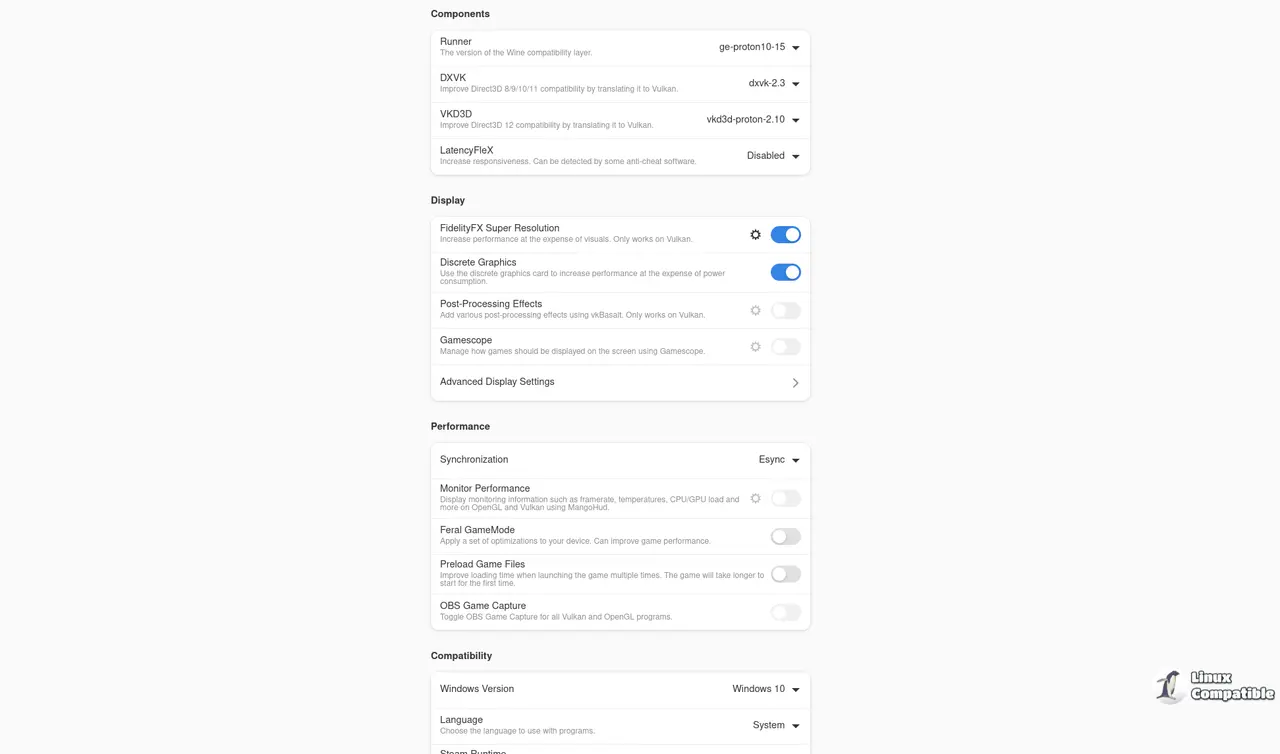
The moment you create a bottle and pick “Gaming” as the environment, Bottles drops in a preset collection of libraries: DXVK, VKD3D, gamemode, esync and a few extra bits that most games need. In theory that’s great; in practice it saves you from hunting down each component on the command line.
Why this matters: DXVK translates DirectX 9‑11 calls to Vulkan, which is the difference between a game launching at 30 fps or not starting at all. VKD3D does the same for DirectX 12 titles. If you skip these, titles like “The Witcher 3” will simply refuse to start with a “cannot find d3d11.dll” error.
Using Installers – one‑click store access
Open the bottle manager and click Add Installer.
The installer list is community‑maintained; you’ll see entries for Epic Games Store, EA Launcher, Battle.net, etc. Selecting one pulls a script that downloads the client, sets up required dependencies and creates desktop shortcuts.Choose the store you want (e.g., Epic) and hit Install.
Bottles runs the script inside the bottle, so the installer thinks it’s on Windows. The dependency manager automatically grabs the right version of DirectX, Visual C++ redistributables and any extra fonts.After the client finishes, launch your game from the newly created shortcut.
If the game stalls at a black screen, open the bottle’s Settings → Tweaks and enable “Force DXVK” or “Enable gamemode”. These switches re‑inject the Vulkan layers without you having to edit environment variables yourself.
The installer system is useful, but it isn’t flawless. Some newer anti‑cheat modules still refuse to run under Wine, and Bottles currently just reports a generic “failed to launch” error instead of telling you which component is missing. That’s a spot where the UI could be smarter.
Eagle  – the new binary analyzer
Eagle is the first real attempt at auto‑detecting what a Windows executable actually needs. When you add an unknown .exe, Eagle scans for known frameworks (Electron, .NET, DirectX) and flags anti‑cheat libraries that are known to break under Wine.
Why it’s handy: I once tried installing Valorant through the Epic installer. The script stopped at “installing anti‑cheat” and left me scratching my head. Eagle immediately highlighted the presence of Riot’s Vanguard driver, warned that it won’t work, and suggested switching the bottle to a “Software” environment instead of “Gaming”. That saved me an hour of trial‑and‑error.
On the downside, the analysis adds a few seconds to every new install, and for simple games like Stardew Valley the extra step feels unnecessary. If you’re comfortable tweaking Wine yourself, you might skip Eagle and just pick your environment manually.
Snapshots – restore points without the drama
Every time you add a dependency, Bottles 61.0 can create a snapshot automatically. To roll back:
Open the bottle, go to Snapshots, select the most recent entry before the change, and click Restore.
The entire prefix directory is rolled back, so any broken DLLs or mis‑configured settings disappear instantly.Confirm and let Bottles reload the bottle.
This works like Windows System Restore but stays inside your user folder, which is great for keeping a clean system. However, snapshots are stored in plain files under ~/.local/share/bottles, so they can eat up disk space quickly if you enable auto‑snapshot for every tiny update. A pruning option would be a welcome addition.
Flatpak sandbox – safe but sometimes too safe
The official Flatpak package runs Bottles in a full sandbox, meaning the wine prefix can’t wander outside its container unless you explicitly give it access. This protects your home folder from rogue installers, but it also blocks some games that need to read custom shaders stored in ~/.local/share/Steam. The workaround is to add a “Files” permission in the Flatpak override dialog – an extra step that could be automated for the Gaming Environment.
Overall, Bottles 61.0 brings enough polish to make most casual Windows gamers on Linux feel comfortable, and the Eagle scanner finally adds some sanity to the chaos of anti‑cheat detection. There are still rough edges (snapshot bloat, occasional installer blind spots), but they’re minor compared with the time saved.
For more information, check out the announcement linked below. Happy bottling, and may your frames stay high!
Release Bottles 61.0
What's Changed feat: platime aggregation modal by @evertonstz in #4220 fix: incorrect gamescope installation command by @tarithj in #4272 fix: change version ordering logic by @HamedR123 in #4270 ...