Bazzite Linux 43.20260212 is now available, bringing new features like a newer kernel, Mesa 26, and updated Nvidia drivers that promise smoother frame rates on various devices. To upgrade an existing Bazzite install without losing settings, users can follow a guide that shows how to rebase their system without interrupting game library access. The new release offers better power management, improved Vulkan support for newer titles, and restored compatibility with the latest RTX-optimised shaders. If something goes wrong during the upgrade process, users can use the rollback helper to revert back to the previous image.
Upgrade to Bazzite Linux 43.20260212 and keep your game library humming
Bazzite Linux 43.20260212 is out, and it brings a newer kernel, Mesa 26, and fresh Nvidia drivers that promise smoother frame‑rates on both desktop rigs and handhelds. This guide shows how to rebase an existing Bazzite install without losing the settings that let Steam Deck‑style devices launch games straight away.
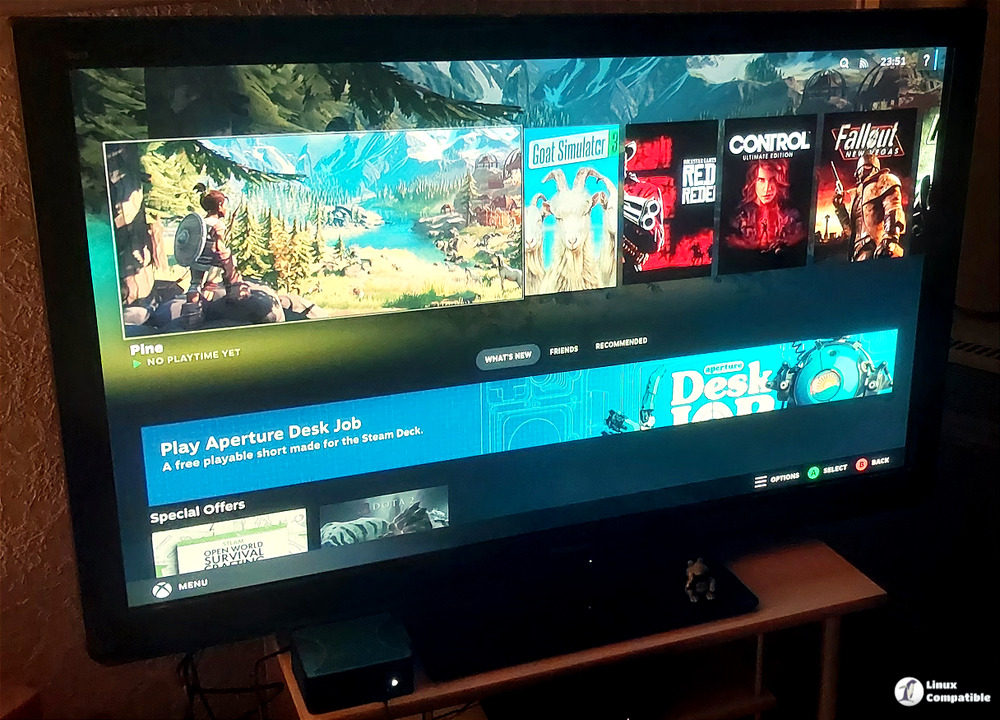
Why the new release matters
The jump from kernel 6.17.7‑ba25 to the same version with a fresh firmware snapshot means better power management on laptops and fewer suspend hiccups on HTPCs. More importantly, Mesa’s move to 26.0.0‑1 adds Vulkan 1.3 support that newer titles rely on, while Nvidia’s 590.48.01 driver restores compatibility with the latest RTX‑optimised shaders. In practice you’ll see a noticeable lift in “stutter‑free” gameplay on games that were previously limited by older Mesa pipelines.
Preparing your system
Before touching the rebase command, back up the current /etc tree and any custom dconf tweaks; those files get overwritten when the live ISO rebuild runs. A quick sudo cp -a /etc /etc.bak && sudo dconf dump / > dconf-backup.txt does the trick and gives a safety net if something goes sideways. It’s also wise to close all running games and stop Steam‑related services, because lingering Vulkan caches have been known to cause crashes after a driver update. One user reported that a game would freeze on launch until they cleared ~/.local/share/vulkan after the previous Bazzite bump.
Running the rebase command
Open a terminal with root privileges and type the helper script exactly as shown in the release notes: first, confirm you’re on the stable branch by running bazzite-rollback-helper status, then execute bazzite-rollback-helper rebase 43.20260212. The script will pull the new container image, apply the updated boot parameters, and rebuild the initramfs automatically. It pauses briefly to let you review any configuration changes; if the prompt asks whether to keep an existing custom kernel module, answer “yes” so your proprietary Nvidia module stays intact.
# For this branch (if latest):
bazzite-rollback-helper rebase stable

# For this specific image:
bazzite-rollback-helper rebase 43.20260212
You can also download the Bazzite 43.20260212 installation images from here.
Verifying graphics and games work
After the system reboots, run glxinfo | grep OpenGL to confirm Mesa reports version 26.0.0‑1 and that the renderer string shows the expected GPU driver. Next, launch a Vulkan‑heavy title such as Cyberpunk 2077 in windowed mode; if it starts without the “Failed to create device” error, you’re good to go. Should any game still refuse to start, double‑check that the Nvidia module loaded (lsmod | grep nvidia) and look for stray vulkan_icd.d entries pointing at old libraries.
Rolling back if something goes wrong
If the new kernel triggers a boot loop or you encounter persistent driver panics, the rollback helper can revert you to the previous image with bazzite-rollback-helper rebase stable. Because the backup of /etc was made earlier, simply restore it (sudo cp -a /etc.bak/* /etc/) and reload your dconf settings (dconf load / < dconf-backup.txt). After that, a quick reboot should land you back on the known‑good configuration.
Give the fresh Bazzite release a spin, and enjoy those extra frames without having to tinker with obscure config files.


