Bazaar 0.7.8 now lets you clean up user‑installed Flatpaks
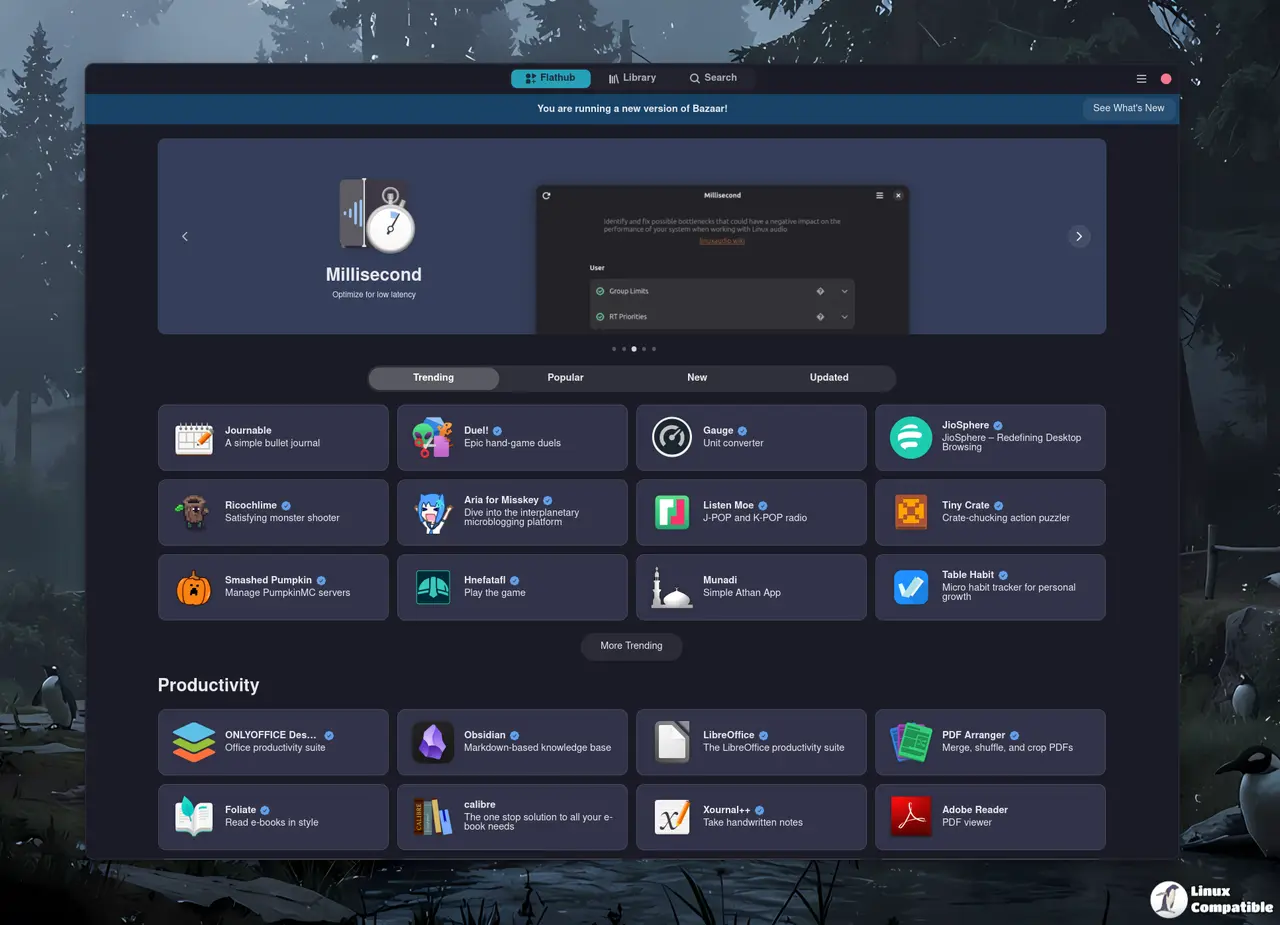
The newest Bazaar 0.7.8 release finally gives GNOME users a way to see and yank those stubborn user‑scoped apps that have been clogging the library page. This article explains what the update actually changes, how to get rid of unwanted entries, and which gaps are still waiting for a fix.
What’s new for the everyday user
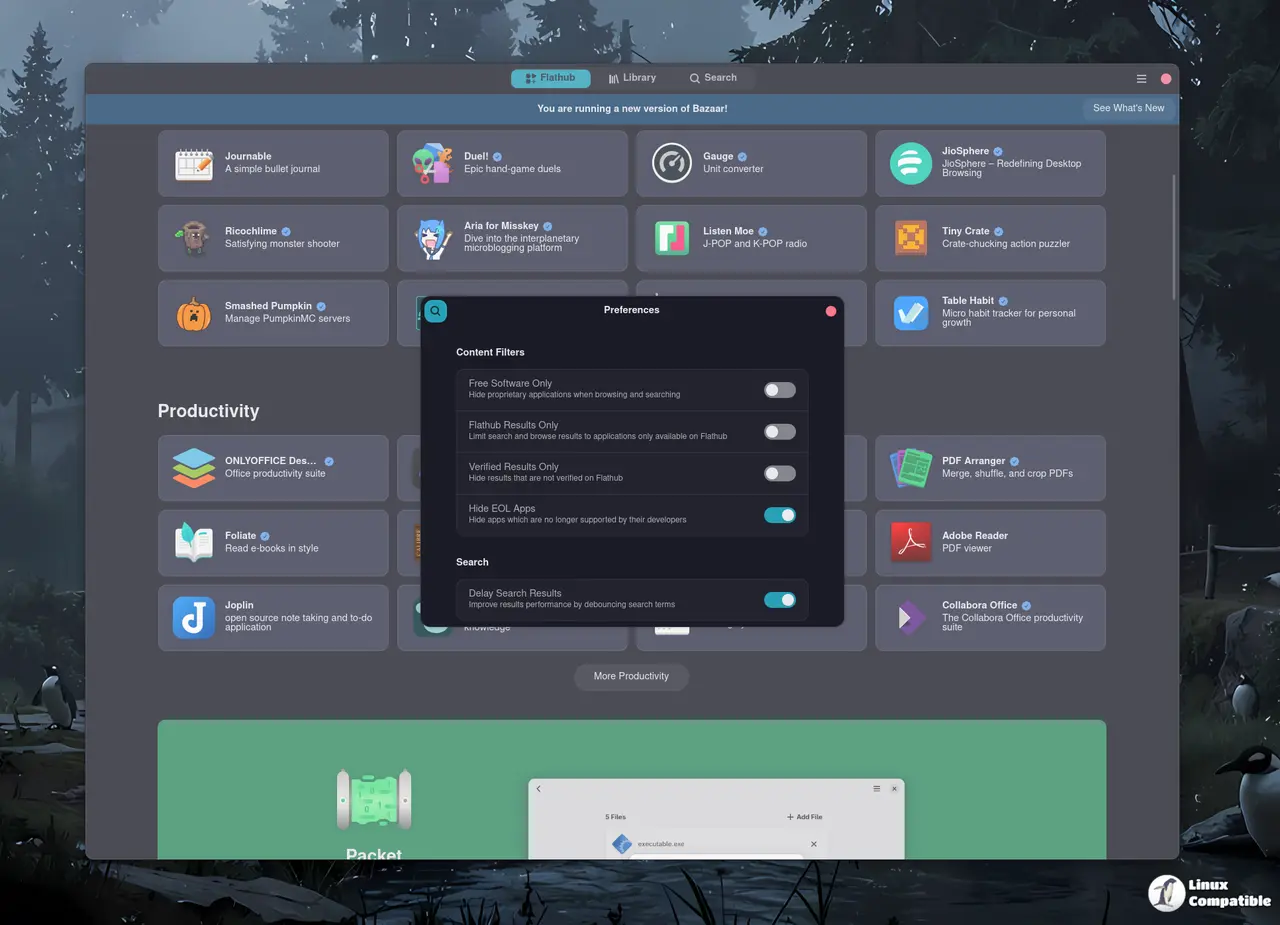
Bazaar 0.7.8 adds a “remove” button next to each app listed under the user‑scoped section of the library view. Clicking it triggers the same backend call that Flatpak uses when you run flatpak uninstall --user, but now it happens inside Bazaar’s UI so there’s no need to open a terminal. The change also tightens up the path handling for those flatpaks, which stopped a handful of crashes that were popping up whenever the app tried to read an invalid directory entry.
How to yank a stray Flatpak from your library
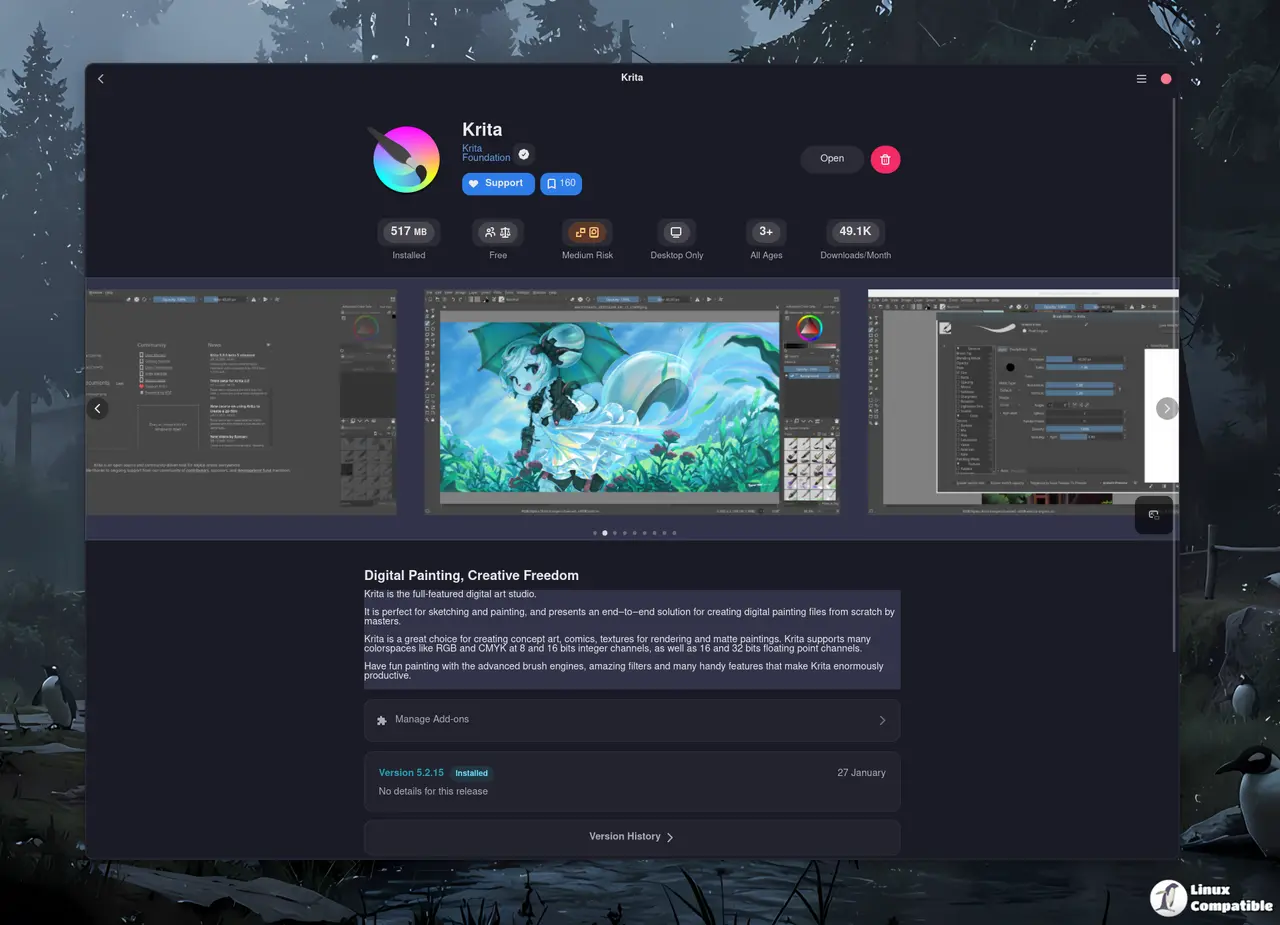
First, launch Bazaar and head to the Library tab; the user‑scoped apps sit in their own subsection, clearly labelled. Locate the unwanted program—perhaps a beta build of Krita that you never finished testing—and hover over its tile. A small trash‑can icon appears; clicking it pops up a confirmation dialog that explains the app will be removed from both Bazaar’s view and your user Flatpak installation. Confirming sends the uninstall command, and after a moment the entry disappears, leaving the rest of your library untouched. The extra step of confirming is there to keep you from accidentally trashing something you actually need.
Getting Bazaar on your system
If you prefer the hassle‑free route, just head over to Flathub and hit the Install button – the Flatpak runtime will pull in all required libraries (gtk4, libadwaita, libdex, etc.) automatically. For those who like to compile from source, clone the repo, run meson setup build --prefix=/usr/local, then ninja -C build && sudo ninja -C build install. After that a simple bazaar launch brings up the app store, and because Bazaar runs as a background service your state is preserved even after you close every window.
Things that still need work
While removing apps works smoothly, installing from user‑scoped remotes remains a “not yet supported” footnote in the release notes. Users who maintain their own private Flatpak repo will have to fall back on the command line for now. The developers also tossed in some translation updates—Russian and Japanese got fresh strings—and fixed a handful of UI quirks like the hidden title that only shows up once you scroll past the header.


