Bazaar 0.7.7: What’s New and How to Get It
Bazaar 0.7.7 lands with a long‑overdue fix for end‑of‑life (EOL) warnings, a brand‑new Library page that finally puts installed apps in one spot, and a “install all” toggle for curated sections. Bazaar is an app store that pulls applications and add‑ons from Flatpak remotes, most notably Flathub, and tries to keep developer credits front and center. This article walks through the most noticeable changes, explains why they matter, and shows how to pull the latest version from Flathub or build it yourself.
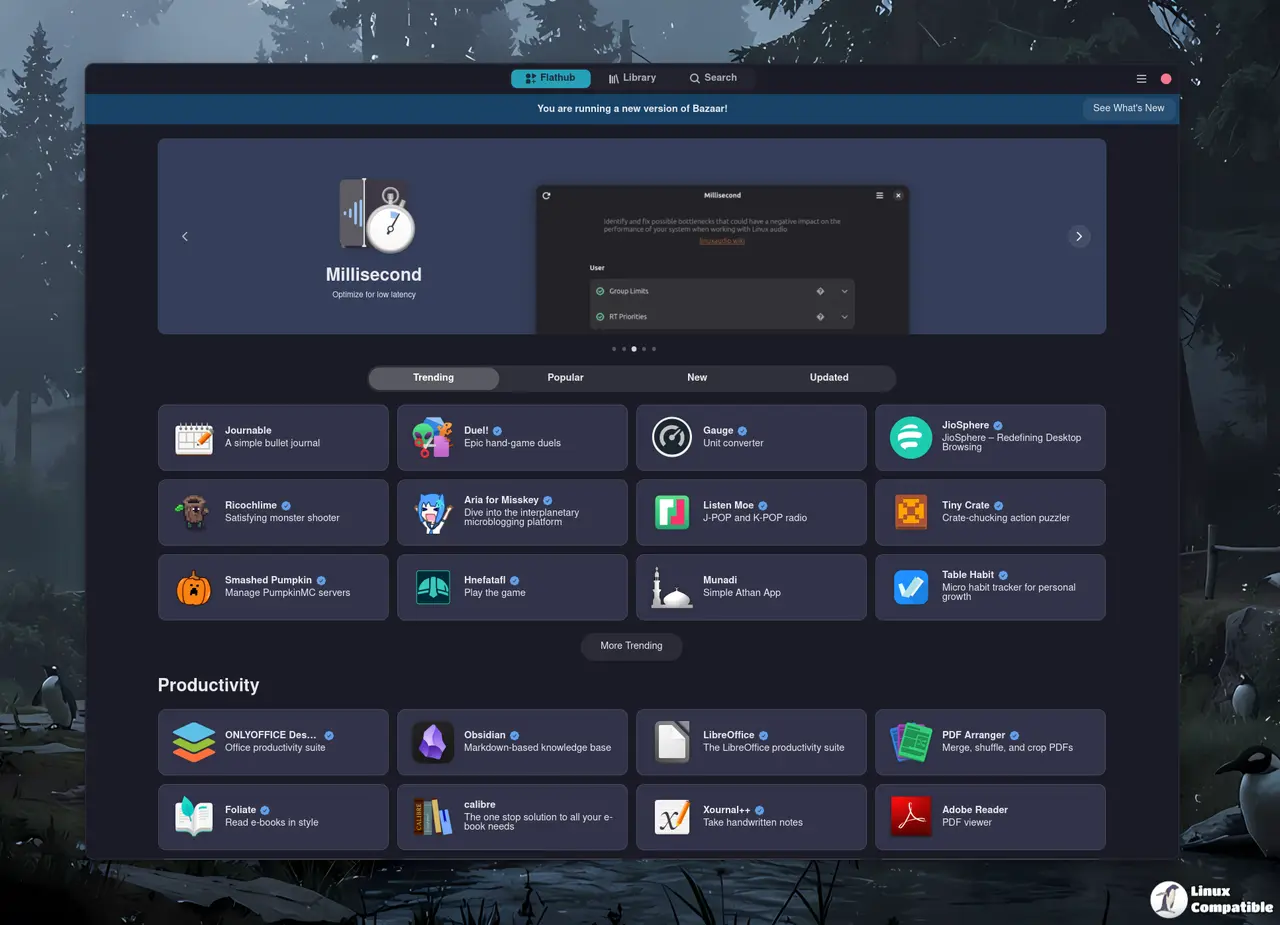
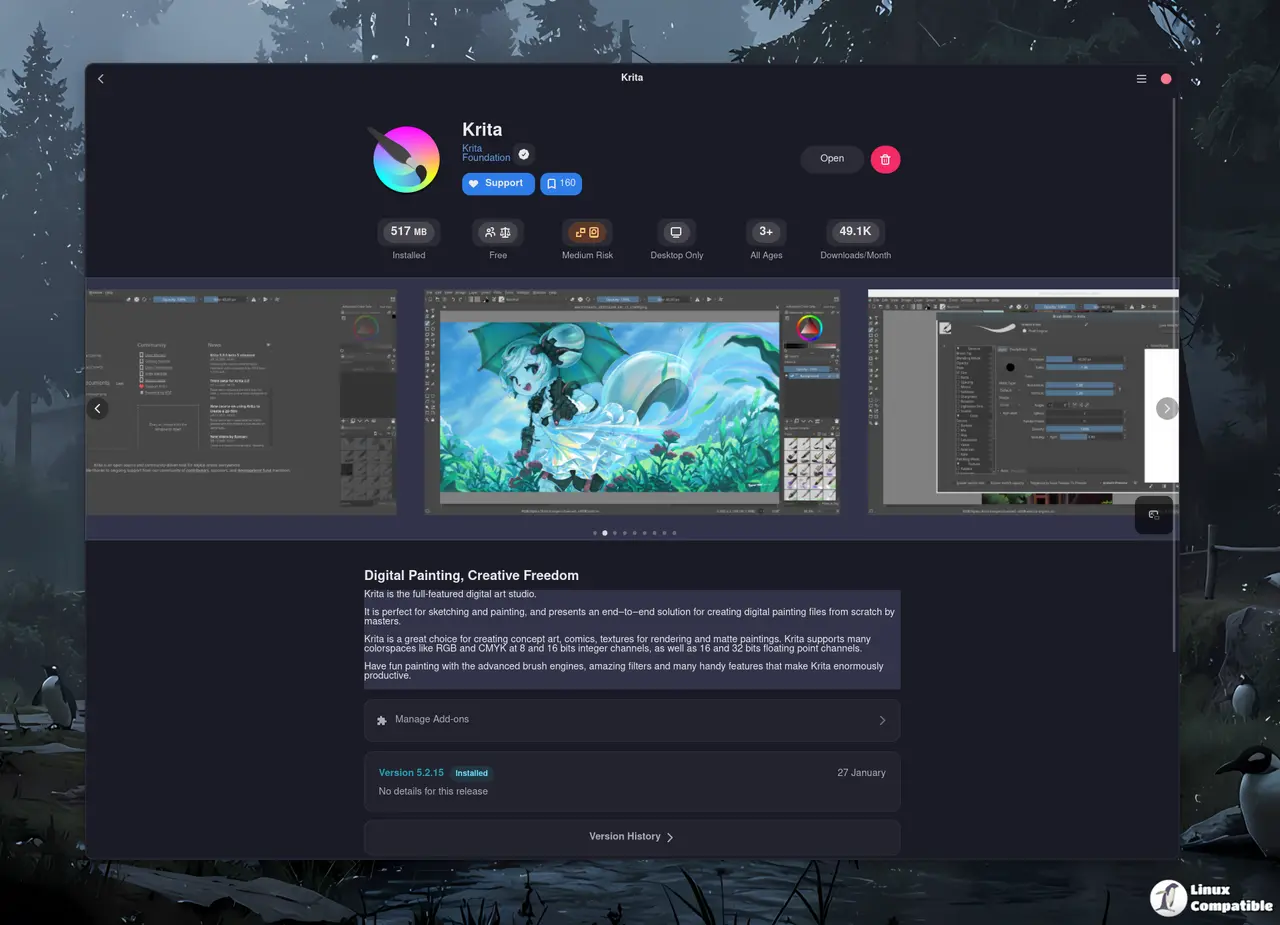
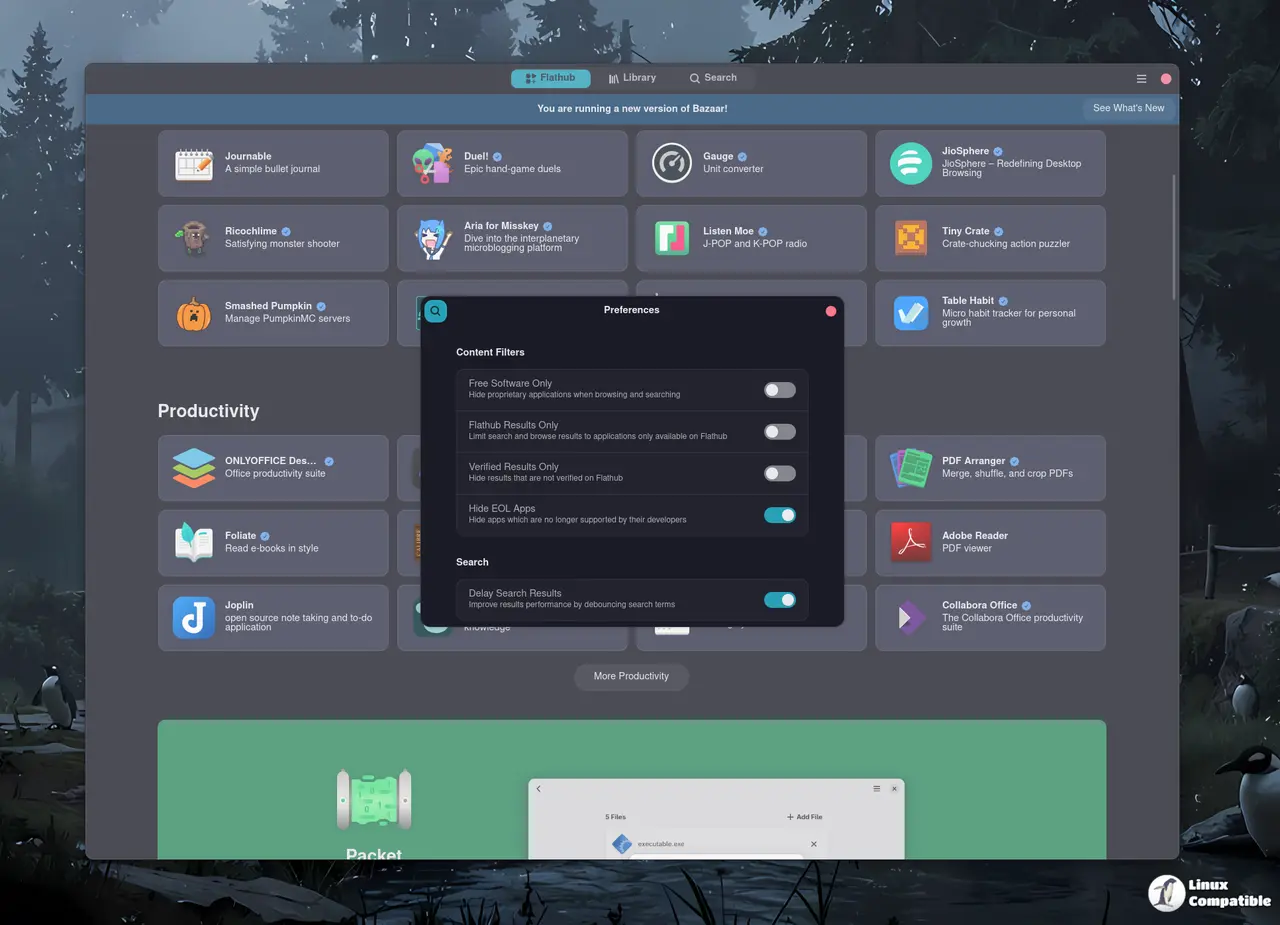
Why the EOL detection finally works
Up until now the runtime‑check that flags obsolete Flatpak runtimes was basically broken; users would see a harmless “EOL” badge on perfectly fine software like Lutris or OBS. The developers rewrote the detection logic, so Bazaar 0.7.7 now only flashes the warning when the underlying runtime truly has reached its end of support. Distributors who need to suppress false alarms can still add overrides in the config file, but for most desktop users the change means fewer unnecessary panic dialogs.
The new Library page replaces the old transaction sidebar
Earlier releases shoved every download and install request into a narrow “transactions” pane that disappeared as soon as you closed the window. Version 0.7.7 swaps that for a full‑width Library page where each installed application lives as its own tile, complete with version tags and a quick‑launch button. The redesign also removes the separate sidebar, so there’s one less place to click when you’re trying to figure out whether an app is already on your system.
Bulk‑install option for curated categories
One of the more subtle upgrades is the “enable‑bulk‑install” flag that distributors can sprinkle into their curated lists. When set to true a new “Install all” button appears at the top of that section, letting power users pull an entire suite of related tools in a single click. It’s handy for distro spin‑offs that want to ship a pre‑selected toolbox without forcing you through each individual install dialog.
Getting Bazaar on your system
If you prefer the hassle‑free route, just head over to Flathub and hit the Install button – the Flatpak runtime will pull in all required libraries (gtk4, libadwaita, libdex, etc.) automatically. For those who like to compile from source, clone the repo, run meson setup build --prefix=/usr/local, then ninja -C build && sudo ninja -C build install. After that a simple bazaar launch brings up the app store, and because Bazaar runs as a background service your state is preserved even after you close every window.
Should you bother with Bazaar right now?
If you already juggle multiple Flatpak front‑ends (GNOME Software, Discover, or the command line) you might wonder whether Bazaar adds enough value. The answer hinges on two things: the refreshed EOL detection that finally stops flagging perfectly healthy apps as deprecated, and the Library page that gives you a quick visual inventory of what’s installed. For users who like to browse Flathub’s newest releases while queuing downloads in parallel, the multithreaded UI feels noticeably snappier than older stores. On the flip side, if you’re happy with your current workflow and don’t need bulk‑install shortcuts, the extra binary may feel superfluous.
Give Bazaar 0.7.7 a spin – it’s free, it’s open source, and it might just make your Flatpak experience a little less chaotic.


