The latest Arch Linux image arrives with kernel 6.19.10 to better support NVMe drives and modern GPUs while keeping the base system lean. Existing users can update their current installations safely using the standard pacman -Syu command without needing a full reinstall. Those preferring a fresh start should use the new archinstall wizard which now features an updated Textual UI interface. Flashing the ISO to USB via dd remains the preferred method for ensuring every byte lands correctly on your boot media.
Arch Linux 2026.04.01 Released With New Kernel And Installer Features
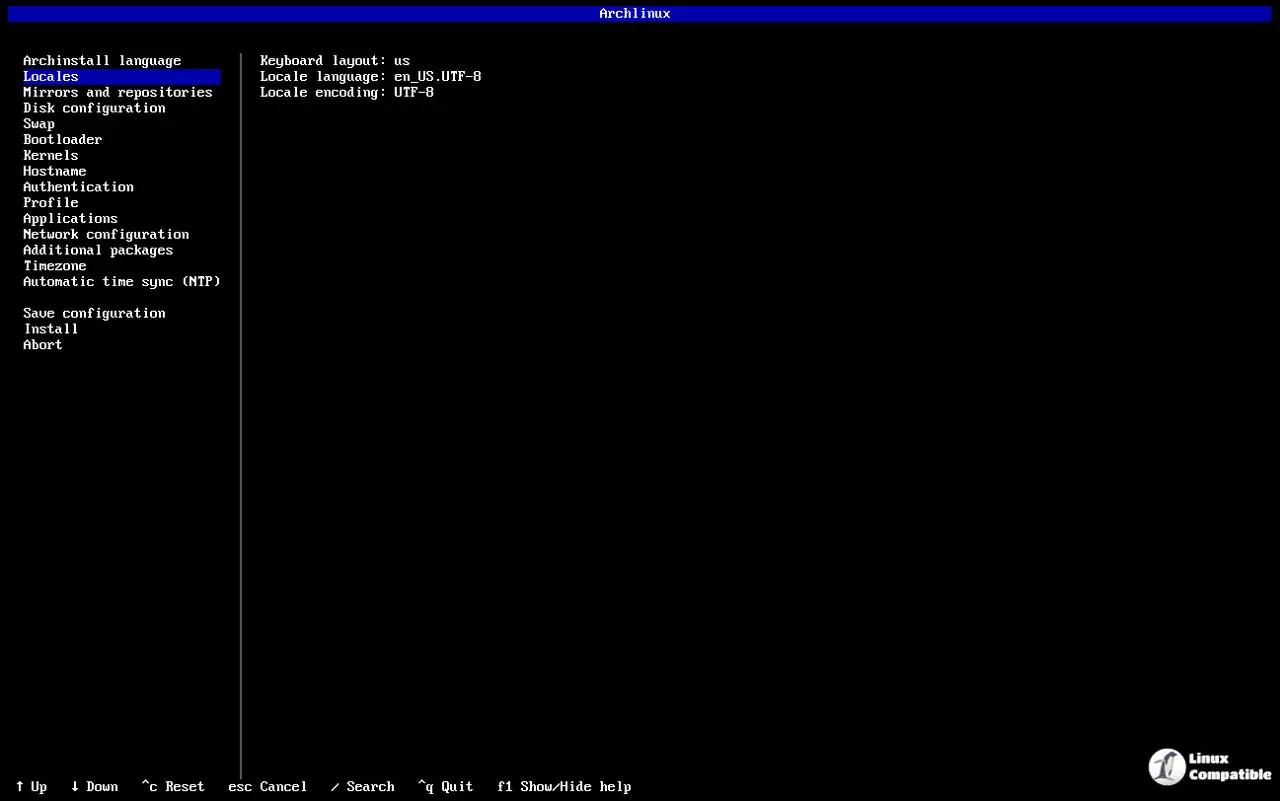
The latest rolling release image for Arch Linux 2026.04.01 is ready for download. This update ships with kernel 6.19.10 and the updated ArchInstall tool featuring a new Textual UI. Existing systems stay current by running pacman -Syu without needing a full reinstall.
Why the Arch Linux 2026.04.01 kernel matters for your hardware
Kernel 6.19.10 replaces the older 6.18 series to bring better hardware support for NVMe drives and newer GPUs. The base system remains lean but a few of the most requested packages from the extra repository have been backported. Users who upgrade with pacman -Syu will see these changes without needing to reinstall their setup. Power users know how stability drops after a bad driver update so keeping current is essential for reliability on bleeding-edge hardware.
Getting started with the updated archinstall tool and its text interface
Booting into the live environment allows access to the new wizard by running archinstall without touching the hard drive yet. Navigating through all the steps systematically replaces manual configuration for those who want speed over customization control. That is all that is required for a fresh Arch installation so there is no need to panic if the menu looks different than before. The textual UI simplifies things compared to older menu systems but still requires attention to detail during partitioning.
Flashing the Arch Linux 2026.04.01 ISO to a bootable drive
Writing the image directly using sudo dd ensures every byte lands exactly where it should on the stick for maximum reliability. Users must replace /dev/sdX with their actual device name to avoid writing over the wrong drive and causing data loss. The status=progress flag helps monitor the copy since waiting for a silent finish often leads to confusion about completion times. Skipping sync or stopping early creates boot failures that plague people after an incomplete copy so patience is key here.
sudo dd if=archlinux-2026.04.01-x86_64.iso of=/dev/sdX bs=4M status=progress && sync
Stay curious and watch your terminal prompts closely.


